
There is a new sample file on the Contextures website, with a macro to change all pivot tables with one selection, when you change a report filter in one pivot table.
Change All Pivot Tables
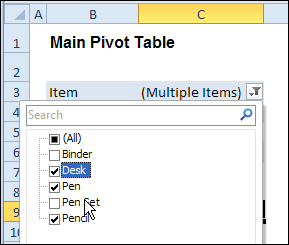
In the sample workbook, if you change the “Item” Report Filter in one pivot table, all the other pivot tables with an “Item” filter will change.
They get the same report filter settings that were in the pivot table that you changed.
Select Multiple Items
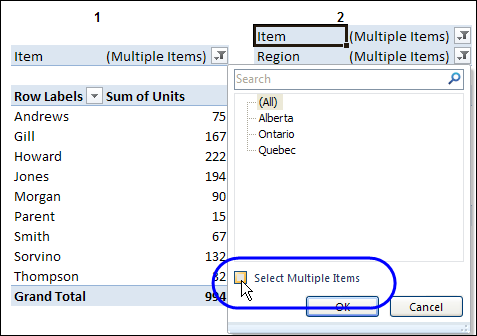
In this version of the sample file, the “Select Multiple Items” setting is also changed, to match the setting that is in the pivot table that you changed.
In the screen shot below, the Item field has the “Select Multiple Items” setting turned off. If any other pivot tables in the workbook have an “Items” filter, the “Select Multiple Items” setting for those fields will also change.
How It Works
The multiple pivot table filtering works with event programming. There is Worksheet_PivotTableUpdate code on each worksheet, and it runs when any pivot table on that worksheet is changed or refreshed.
For each report filter field, the code checks for the Select Multiple Items setting, to change all Pivot Tables with the same report filter field.
The code loops through all the worksheets in the workbook, and loops through each pivot table on each sheet.
Private Sub Worksheet_PivotTableUpdate _
  (ByVal Target As PivotTable)
Dim wsMain As Worksheet
Dim ws As Worksheet
Dim ptMain As PivotTable
Dim pt As PivotTable
Dim pfMain As PivotField
Dim pf As PivotField
Dim pi As PivotItem
Dim bMI As Boolean
On Error Resume Next
Set wsMain = ActiveSheet
Set ptMain = Target
Application.EnableEvents = False
Application.ScreenUpdating = False
For Each pfMain In ptMain.PageFields
  bMI = pfMain.EnableMultiplePageItems
  For Each ws In ThisWorkbook.Worksheets
    For Each pt In ws.PivotTables
      If ws.Name & "_" & pt <> _
          wsMain.Name & "_" & ptMain Then
        pt.ManualUpdate = True
        Set pf = pt.PivotFields(pfMain.Name)
          bMI = pfMain.EnableMultiplePageItems
          With pf
            .ClearAllFilters
            Select Case bMI
              Case False
                .CurrentPage _
                  = pfMain.CurrentPage.Value
              Case True
                .CurrentPage = "(All)"
                For Each pi In pfMain.PivotItems
                  .PivotItems(pi.Name).Visible _
                    = pi.Visible
                Next pi
                .EnableMultiplePageItems = bMI
            End Select
          End With
          bMI = False
        Set pf = Nothing
        pt.ManualUpdate = False
      End If
    Next pt
  Next ws
Next pfMain
Application.EnableEvents = True
Application.ScreenUpdating = True
End Sub
Download the Sample File
To test the Change All Pivot Tables code, you can download the sample file from the Contextures website.
On the Sample Excel Files page, in the Pivot Tables section, look for PT0025 – Change All Page Fields with Multiple Selection Settings.
The file will work in Excel 2007 or later, if you enable macros.
Watch the Video
To see the steps for copying the code into your worksheet, and an explanation of how the code works, watch this short video.
______________________
Hi Debra
This is brilliant!
I want to alter it slightly to a) just work on 1 worksheet and b) to just change one pivot field (I have 2).
I thought I’d be able to just remove the “For Each ws In…/Next ws” lines but when I do this it doesn’t work at all. Is there something else I need to change?
To get around the issue of one field remaining constant, do I need to specify the field that can be changed?
Many thanks
Jenny
Hi Jenny,
To use the code on one sheet for a specified field, change the start of the code to the following, and remove the end lines for Next ws and next pf
Application.EnableEvents = False Application.ScreenUpdating = False Set pfMain = ptMain.PivotFields("Region") bMI = pfMain.EnableMultiplePageItems For Each pt In wsMain.PivotTables If pt <> ptMain Then pt.ManualUpdate = True Set pf = pt.PivotFields("Region") bMI = pfMain.EnableMultiplePageItemsfor some reason my code is not working. I am just trying to change one specific field on a worksheet for all pivot tables.
Private Sub Worksheet_PivotTableUpdate(ByVal Target As PivotTable)
Dim wsMain As Worksheet
Dim ws As Worksheet
Dim ptMain As PivotTable
Dim pt As PivotTable
Dim pfMain As PivotField
Dim pf As PivotField
Dim pi As PivotItem
Dim bMI As Boolean
On Error Resume Next
Set wsMain = ActiveSheet
Set ptMain = Target
Application.EnableEvents = False
Application.ScreenUpdating = False
Set pfMain = ptMain.PivotFields(“open date”)
bMI = pfMain.EnableMultiplePageItems
For Each pt In wsMain.PivotTables
If pt ptMain Then
pt.ManualUpdate = True
Set pf = pt.PivotFields(“open”)
bMI = pfMain.EnableMultiplePageItems
With pf
.ClearAllFilters
Select Case bMI
Case False
.CurrentPage = pfMain.CurrentPage.Value
Case True
.CurrentPage = “(All)”
For Each pi In pfMain.PivotItems
.PivotItems(pi.Name).Visible = pi.Visible
Next pi
.EnableMultiplePageItems = bMI
End Select
End With
bMI = False
Set pf = Nothing
pt.ManualUpdate = False
End If
Next pt
Next ws
Next pfMain
Application.EnableEvents = True
Application.ScreenUpdating = True
End Sub
i removed the Next ws and next pfMain, but didnt work either
nvm i found the answer! ty
Hi Debra (and all others who had the same question as I do :)),
How can I change the code to have it work on a single worksheet with two pivot tables?
Thanks in advance,
Becca
Hi Becca, you can get rid of the “For Each ws..” and “Next ws” lines, then change the first few lines to the following:
For Each pfMain In ptMain.PageFields bMI = pfMain.EnableMultiplePageItems For Each pt In wsMain.PivotTables If pt <> ptMain Then pt.ManualUpdate = TrueDebra! I wanted to write a quick note to thank you very much for writing and providing these codes! Here I am, years after you posted this code, absolutely grateful you made this available! As someone who is only looking at VBA code for the first time today, your video was extremely helpful, too, especially how you explained what each line of code is performing! You do wonderful work!
Thanks Liz! I’m glad you found this article, and have fun experimenting with VBA.
Yeeaay!! 🙂 It works,thank you so much!!
I spent so much time looking for the right code to do this.
I appreciate it very much,
Becca
Perfect!
It seems so easy once the solution’s right in front of me but just couldn’t get there on my own!
Thank you so much
Jenny
Hi Debra,
I’ve found this code extremely useful, many thanks for posting it.
I’ve run into some issues recently though when using in conjunction with pivot charts
When I run the code, I lose the formatting on the charts that are being updated from pfMain, i.e. they revert back to the default format.
If I step into the code, it works fine and all formatting is preserved. Any ideas why it might only be occurring when left to its own devices?
Thanks
Tim
Hi Debra, just letting you know that I’ve also posted the question on Mr Excel. Suspect it is not code related per se – perhaps a more general Excel issue that someone may be able to shed some light on.
Cheers
Tim
Hi Tim, pivot chart formatting doesn’t stick well in some versions of Excel. If you’re asking for help in a forum, be sure to mention which version you’re using.
The formatting issue is mentioned in a couple of MSKB articles, and you can find one in my Pivot Table FAQs: http://www.contextures.com/xlfaqPivot.html#ChartFormat
Thanks Debra,
I’ll check out those resources.
Cheers
Tim
Resurrecting an old thread here, but I had the same issue and found a solution that works for me (Excel 2007).
Like you I lost chart formatting when running the macro, but it worked fine if I stepped through it!
Removing the
pt.ManualUpdate = True/Falselines solved the problem for me, and didn’t appear to cause any issues. Hope this is helpful to someone.Hi, this would work great for me if you could help me change one thing. I have 4 pivot tables all with 2 report filters, on separate worksheets. I just want this code to work on one of the report filters titled “Open Date”
If you could help me out, it would be wonderful. I tried changing the original with some of the code you gave to becca but I could not get it to work!