
There is a new sample file on the Contextures website, with a macro to change all pivot tables with one selection, when you change a report filter in one pivot table.
Change All Pivot Tables
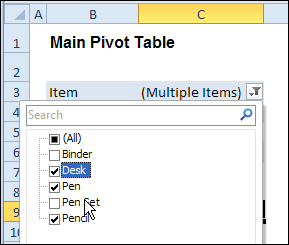
In the sample workbook, if you change the “Item” Report Filter in one pivot table, all the other pivot tables with an “Item” filter will change.
They get the same report filter settings that were in the pivot table that you changed.
Select Multiple Items
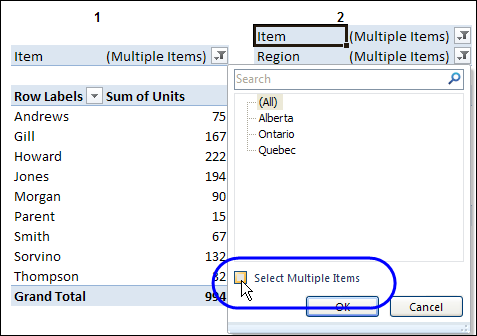
In this version of the sample file, the “Select Multiple Items” setting is also changed, to match the setting that is in the pivot table that you changed.
In the screen shot below, the Item field has the “Select Multiple Items” setting turned off. If any other pivot tables in the workbook have an “Items” filter, the “Select Multiple Items” setting for those fields will also change.
How It Works
The multiple pivot table filtering works with event programming. There is Worksheet_PivotTableUpdate code on each worksheet, and it runs when any pivot table on that worksheet is changed or refreshed.
For each report filter field, the code checks for the Select Multiple Items setting, to change all Pivot Tables with the same report filter field.
The code loops through all the worksheets in the workbook, and loops through each pivot table on each sheet.
Private Sub Worksheet_PivotTableUpdate _
  (ByVal Target As PivotTable)
Dim wsMain As Worksheet
Dim ws As Worksheet
Dim ptMain As PivotTable
Dim pt As PivotTable
Dim pfMain As PivotField
Dim pf As PivotField
Dim pi As PivotItem
Dim bMI As Boolean
On Error Resume Next
Set wsMain = ActiveSheet
Set ptMain = Target
Application.EnableEvents = False
Application.ScreenUpdating = False
For Each pfMain In ptMain.PageFields
  bMI = pfMain.EnableMultiplePageItems
  For Each ws In ThisWorkbook.Worksheets
    For Each pt In ws.PivotTables
      If ws.Name & "_" & pt <> _
          wsMain.Name & "_" & ptMain Then
        pt.ManualUpdate = True
        Set pf = pt.PivotFields(pfMain.Name)
          bMI = pfMain.EnableMultiplePageItems
          With pf
            .ClearAllFilters
            Select Case bMI
              Case False
                .CurrentPage _
                  = pfMain.CurrentPage.Value
              Case True
                .CurrentPage = "(All)"
                For Each pi In pfMain.PivotItems
                  .PivotItems(pi.Name).Visible _
                    = pi.Visible
                Next pi
                .EnableMultiplePageItems = bMI
            End Select
          End With
          bMI = False
        Set pf = Nothing
        pt.ManualUpdate = False
      End If
    Next pt
  Next ws
Next pfMain
Application.EnableEvents = True
Application.ScreenUpdating = True
End Sub
Download the Sample File
To test the Change All Pivot Tables code, you can download the sample file from the Contextures website.
On the Sample Excel Files page, in the Pivot Tables section, look for PT0025 – Change All Page Fields with Multiple Selection Settings.
The file will work in Excel 2007 or later, if you enable macros.
Watch the Video
To see the steps for copying the code into your worksheet, and an explanation of how the code works, watch this short video.
______________________
Hi Jeff,
I have all pivot tables not to refresh automatically and have a refresh called when opening the spreadsheet. over 100 pivot tables on 30 sheets needed to be refresh when opening. Yes a large Dashboard
Also I have 9 pivotables on different connections and showing different data except they have the pivot fields the same. hence this program is ideal as a solution to syncing them.
1. I need to be able to open the spresheet refresh the data and then the program starts to work. It is running on refresh and setting the dates to all. Date always needs to be set to a month. e.g. this month and can be changed. 1 pivot tables being the control for the other 8 pivot tables.
If I have SyncPivotFields2 target (lined out) and then switch on after the refresh. then the pivot tables sync and it works fine. as a user pinot of view I would like the pivot tables not to change on opening and refresh then after all the data is loaded then the sync program working. This is the final part to my dashboard that I have been working on over the past 2 years so this is the final part to go in place. Your advise experience is appreciated.
Yes only when manually changed by a user not when a module is refreshing. Any ideas or even a solution would be welcome.
Start Program
Sub ActivatePivotTablesData()
Application.AlertBeforeOverwriting = False
Application.DisplayAlerts = False
ActiveWorkbook.RefreshAll
End Sub
Trigger Program
Private Sub Worksheet_PivotTableUpdate(ByVal target As PivotTable)
SyncPivotFields2 target
End Sub
The Long Sync Program (have also tested with the smaller version listed above – same results)
Private Sub Worksheet_PivotTableUpdate(ByVal Target As PivotTable)
Dim TimeTaken As Date
TimeTaken = Now()
Dim pf_Master As PivotField
Dim pt_Master As PivotTable
Dim pi_Master As PivotItem
Dim bPageField As Boolean
Dim bFiltered As Boolean
Dim bUseDictionary As Boolean,
For Each pf_Master In pt_Master.VisibleFields
If pf_Master.Orientation = xlPageField Then
Select Case pf_Master.Name
etc………..
Okay, a couple of thoughts.
First, turn “Refresh data when opening the file” OFF for ALL pivots.
Then, add this to the ThisWorkbook code module:
Private Sub Workbook_Open()

Dim wkb As Workbook

Dim pc As PivotCache

Application.EnableEvents = False

Set wkb = ActiveWorkbook

For Each pc In wkb.PivotCaches

    pc.Refresh

Next pc

Application.EnableEvents = True

End Sub
That should refresh all pivots when the file opens, but also NOT trigger my code.
Also, what version of Excel do you have? The reason I asked this is that I’ve just sent Debra some code that users slicers for pivots that share the same cache, and uses my dictionary-based routine that I posted at http://blog.contextures.com/archives/2012/08/28/update-specific-pivot-tables-automatically/ for any pivots that don’t share the same cache. Sounds like this will be perfect for your situation, but slicers require Excel 2010 or later. She’s going to post it soon.
Lastly, if for any reason my approach doesn’t work, another option is to have a ‘sync pivots’ button on the spreadsheet, so that my code only gets run when users push the button.
Let me know if this fixes your problem.
Hi again Ian. I’m curious what this dashboard is actually for? Sounds interesting!
Regards
Jeff
Hi Jeff thank you for your reply. I will test upir solution today.
I am using Excel 2010.
Splicer are great if the connections are the same. I have two different DB’s therefore the connections are different. These programs are the best I can find on the internet as the solution I require.
In relattion to your interest on the Dashboard.
I compile Statisitcal Data in Excel 2010.
1. Collect Data from the source in CSV format.
2. Add data into Access DB’s
3. Connect to other Access DB’s (Linked Tables)
4. Dashboard running on schedules to load and count email boxes receiving data.
Compile all this in Excel Data files, Pivot tables and Excel Tables (the latter for flexability in making Excel Charts)
Finally having automated programs to assist in the front end desgin of excel via VBA also mini programs such as list folder and files for daily IT duties.
You are welcome to any of the programs I have from my Excel Dashboard.
Sub Statistics()
Application.AlertBeforeOverwriting = False
Application.DisplayAlerts = False
Dim objOutlook As Object, objnSpace As Object, objFolder As Object
Dim EmailCount As Integer
Set objOutlook = CreateObject(“Outlook.Application”)
Set objnSpace = objOutlook.GetNamespace(“MAPI”)
On Error Resume Next
Set objFolder = objnSpace.Folders(“MailboxName”).Folders(“Inbox”)
If Err.Number 0 Then
Err.Clear
MsgBox “No such folder.”
Exit Sub
End If
Dim iCount As Integer, DateCount As Integer
Dim myDate As Date
EmailCount = objFolder.Items.Count
DateCount = 0
myDate = Sheets(“Statistics”).Range(“A2”).Value
For iCount = 1 To EmailCount
With objFolder.Items(iCount)
If DateSerial(Year(.ReceivedTime), Month(.ReceivedTime), Day(.ReceivedTime)) = myDate Then DateCount = DateCount + 1
End With
Next iCount
Set objFolder = Nothing
Set objnSpace = Nothing
Set objOutlook = Nothing
Sheets(“Statistics”).Select
Range(“A1”).Value = DateCount
‘End of Email count code
Jeff.
Replacing ActiveWorkbook.RefreshAll
With :
Dim wkb As Workbook
Dim pc As PivotCache
Application.EnableEvents = False
Set wkb = ActiveWorkbook
For Each pc In wkb.PivotCaches
pc.Refresh
Next pc
Application.EnableEvents = True
IT HAS WORKED. I have done this in all VBA programs in the Dashboard and initial testing confims I now have a fully automated and now syncronised DASHOBOARD.
Many Many Thanks. Ian.
Let me know if you need any VBA programs, etc. Also willing to help upon request.
Hi Ian,
I am running into the same problem you have had. I am trying to sync pivot table filters across 80+ pivot tables on one worksheet. However, the pivot tables are pulling data from an external cube and not all of the tables are pulling from the same source. Jeff has tried to help me resolve this issue but I am still having a lot of trouble. If you could provide any insight on this it would be greatly appreciated.
Thanks,
Steve
Steve – I believe the difference is because your pivots are for OLAP data, while Ian’s were not for OLAP. My code doesn’t (yet) handle OLAP, primarily because I don’t have any OLAP datasources to play with. If you can record some code where you set up a slicer on an OLAP datasoure and then send to me, that would be great.
Great! How long does it take to sync all the pivots?