
There is a new sample file on the Contextures website, with a macro to change all pivot tables with one selection, when you change a report filter in one pivot table.
Change All Pivot Tables
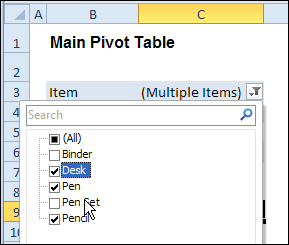
In the sample workbook, if you change the “Item” Report Filter in one pivot table, all the other pivot tables with an “Item” filter will change.
They get the same report filter settings that were in the pivot table that you changed.
Select Multiple Items
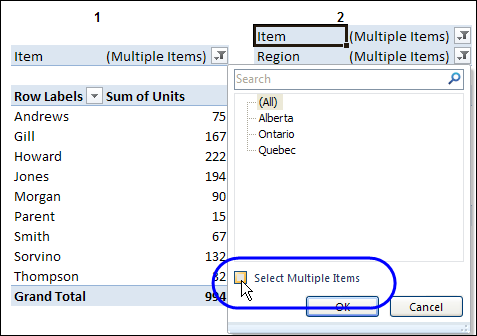
In this version of the sample file, the “Select Multiple Items” setting is also changed, to match the setting that is in the pivot table that you changed.
In the screen shot below, the Item field has the “Select Multiple Items” setting turned off. If any other pivot tables in the workbook have an “Items” filter, the “Select Multiple Items” setting for those fields will also change.
How It Works
The multiple pivot table filtering works with event programming. There is Worksheet_PivotTableUpdate code on each worksheet, and it runs when any pivot table on that worksheet is changed or refreshed.
For each report filter field, the code checks for the Select Multiple Items setting, to change all Pivot Tables with the same report filter field.
The code loops through all the worksheets in the workbook, and loops through each pivot table on each sheet.
Private Sub Worksheet_PivotTableUpdate _
  (ByVal Target As PivotTable)
Dim wsMain As Worksheet
Dim ws As Worksheet
Dim ptMain As PivotTable
Dim pt As PivotTable
Dim pfMain As PivotField
Dim pf As PivotField
Dim pi As PivotItem
Dim bMI As Boolean
On Error Resume Next
Set wsMain = ActiveSheet
Set ptMain = Target
Application.EnableEvents = False
Application.ScreenUpdating = False
For Each pfMain In ptMain.PageFields
  bMI = pfMain.EnableMultiplePageItems
  For Each ws In ThisWorkbook.Worksheets
    For Each pt In ws.PivotTables
      If ws.Name & "_" & pt <> _
          wsMain.Name & "_" & ptMain Then
        pt.ManualUpdate = True
        Set pf = pt.PivotFields(pfMain.Name)
          bMI = pfMain.EnableMultiplePageItems
          With pf
            .ClearAllFilters
            Select Case bMI
              Case False
                .CurrentPage _
                  = pfMain.CurrentPage.Value
              Case True
                .CurrentPage = "(All)"
                For Each pi In pfMain.PivotItems
                  .PivotItems(pi.Name).Visible _
                    = pi.Visible
                Next pi
                .EnableMultiplePageItems = bMI
            End Select
          End With
          bMI = False
        Set pf = Nothing
        pt.ManualUpdate = False
      End If
    Next pt
  Next ws
Next pfMain
Application.EnableEvents = True
Application.ScreenUpdating = True
End Sub
Download the Sample File
To test the Change All Pivot Tables code, you can download the sample file from the Contextures website.
On the Sample Excel Files page, in the Pivot Tables section, look for PT0025 – Change All Page Fields with Multiple Selection Settings.
The file will work in Excel 2007 or later, if you enable macros.
Watch the Video
To see the steps for copying the code into your worksheet, and an explanation of how the code works, watch this short video.
______________________
Thank you Jeff. It worked. I have become a great fan of this blog.
I have one more issue. I am using the following code to link pivot filter to data filter in a sheet for column “Region”. This code works perfectly fine but does not work for multiple region selection. Need Help to make it work for multiple filter value selection
Code:
Private Sub Worksheet_SelectionChange(ByVal Target As Range)
Dim fieldtocheck As String
Dim updatedsheetname As String
Dim thispivotname As String
Dim col As Integer
Dim column_region As Integer
Dim filterrange As String
‘parameters
updatedsheetname = “Pricing log data”
thispivotname = “PivotTable1”
column_region = 6
filterrange = “$A$3:$CI$176”
‘update Region …
fieldtocheck = “Region”
col = column_region
If (ActiveSheet.PivotTables(thispivotname).PivotFields(fieldtocheck).CurrentPage = “(All)”) Then
Sheets(updatedsheetname).Range(filterrange).AutoFilter Field:=col
Else
Sheets(updatedsheetname).Range(filterrange).AutoFilter Field:=col, Criteria1:=ActiveSheet.PivotTables(thispivotname).PivotFields(fieldtocheck).CurrentPage
End If
End Sub
@Billy…sorry for the slow response…I missed your last comment somehow.
I’m not sure why this isn’t working for you. What happens when you run the code in the sample workbook as is…i.e. the workbook at http://www.contextures.com/excelfiles.html#Pivot called PT0029? Does it work for multiple items in that workbook ? Or does that fail too?
WHat is the source for your pivottable? Is it from an OLAP data source by any chance? (I’m not sure if this matters…just trying to get a handle on what might be going on.)
Can you post a non-confidential version of the workbook somewhere and post a link here?
@Raghu…so you want to filter a table based on what a pagefield pivotfilter is set to?
In your 2nd to last line, you are trying to use the .CurrentPage setting as the filter criteria. The .CurrentPage property will only ever return one string:
* If your pivottable pagefield has the “Select Multiple Items” option checked, then the .currentPage property ALWAYS returns “(ALL)”. So this property is basically irrelevant and useless in this case.
* If your pivottable pagefield does NOT have the “Select Multiple Items” option checked, then the .currentPage property ALWAYS returns either the name of the currently selected item, or (if all items are selected) it returns “(All)”
So your approach isn’t going to work.
Instead, I suggest you set up another pivot on a hidden sheet, with just the Region column in it as a page field, and use my revised code to sync this pivot so that it always reflects the choice in the master pivot. Then use that as the criteria for your code above. So the Criteria bit in that last line would be something like:
Criteria1:=SheetX.PivotTables(“PivotTableX”).PivotFields(“Region”).datarange.
Give this a try, and if you have any issues post back here.
Cheers
This program is close to the solution I require.
Can you be so kind as to advise upon the following please :
1. I Open my workbook and it refreshes all pivot tables on different worksheet.
2. My pivot tables are set to month and year and I would like them to remain this way e.g. May-2013, Jan-2013, etc
2. the program listed above needs to keep the item values on the refresh when opening the workbook yet when a change is made to one pivot item on after the opening refresh it will then change.
a) Open workbook with refresh for all pivot tables.
b) When worksheet with the two pivot tables is refresh via the open it does not change from May-2013 to All.
c) When a user goes to the worksheet and manaully changes the date from May2013 to June2013 the sync program will exicute.
I can use the same program for different worksheets. 3 worksheets to do in total. therefore 3 programs as the criteria sync needs to be different (unique)
One little part to solve then all is completed.
Thank you for your time in reading this and hopefully providing me with a complete solution.
Ian, If I understand your question correctly, it sounds like you are saying that:
1. the pivots get automatically refreshed on workbook open.
2. this refresh event then triggers the above code, which you do NOT want to happen. Rather, you ONLY want the code to run when a user manually triggers it.
Is that correct?
If that’s the case, then perhaps you could make sure that the ‘Refresh data when opening the file’ option is NOT checked. In Excel 2010, you can access that by right clicking on the pivot table, then selecting PivotTable Options, then selecting the Data tab and unchecking the ‘Refresh data when opening the file’ tickbox.
Otherwise can you please clarify your question a bit more?