
It’s easy to add a line break when you’re typing in an Excel worksheet. Just click where you want the line break, and press Alt + Enter. But how can you add a line break in an Excel formula?
Line Break in Excel Text
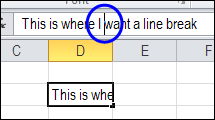
Here is an example of adding a line break in Excel text.
- The cursor is positioned where the line break should be added.
- Press Alt+Enter
- Press Enter, to complete the entry and move to another cell
Wrap Text Added Automatically
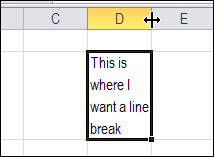
When you press the Enter key to complete the entry, the line break appears, and Wrap Text is automatically added to the cell.
You might have to adjust the column width though, because the text won’t flow into the next column.
Add a Line Break in a Formula
It’s not quite as easy to add a line break in a formula, but it’s possible!
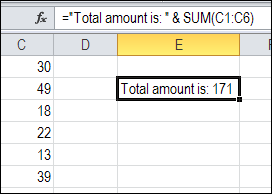
Here is a formula that shows text, combined with the sum of the values in C1:C6
=”Total amount is: ” & SUM(C1:C6)
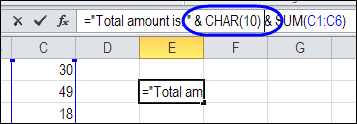
To add a line break between the text and the total amount, use the Excel CHAR function, with the number 10. The “&” operator is included too, to join the line break character to the other text in the formula.
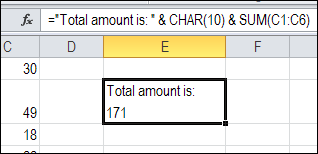
=”Total amount is: ” & CHAR(10) & SUM(C1:C6)
Turn on Wrap Text
After you add the line break, and press Enter, you might see a strange little box, where the line break should be.
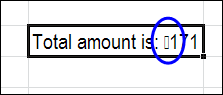
The Wrap Text feature isn’t automatically turned on, when you add a line break in a formula. You’ll have to turn it on yourself.
Select the cell with the line break in the formula, and on the Ribbon’s Home tab, click the Wrap Text command.
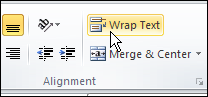
Then, you’ll see the line break in the cell, instead of the little square.
Video: Find and Replace Line Breaks
Watch this short video, to see the steps for adding a line break in a cell that contains. Then see how to find the line breaks in Excel, and replace them with space characters.
To get the Excel workbook, with the Add or Remove Line Breaks in a Cell in Excel example, go to the Excel Line Breaks page on my Contextures site.
__________
Madam, I see your formules to insert in line formuules but I have one problems is that I type another words after formules the entire line not work
I used the CHAR(10) and wrap text strategy, and it resolved my problem. Thanks a lot.
thanks a lot for CHAR(10) 🙂
CHAR(13) for Apple iOS, i.e. Mac. Everything else worked like a charm.
@Michael, thanks for the Mac tip!
Although this article is very old, it helped me a lot.
Well done, Debra Dalgleish; my sincere regards.
@Faheem, you’re welcome, and thanks for letting me know that it helped you.
Dear Debra, you deserve to be thanked for your excellent work and helpful articles.
I am looking for a solution to another requirement. I linked label of a graph to a cell which has a CONCATENATE formula to join contents of two cells. I want different font formatting (size and color) for two sections of the label. Kindly advise if it is possible with formulas.
I viewed your profile in Linkedin and have sent you request to join.
Best Regards
Faheem
@Faheem, thank you! You can’t change font formatting in a formula, but you could break the formula into multiple cells, based on the sections that you want coloured. Then, link those to separate text boxes on the chart, and format the text box font
For reference, using “CHAR(13)&CHAR(10)” covers all your bases and is likely the intended method for making line breaks. See this for further reading: http://www.wikiwand.com/en/Newline#Representations