
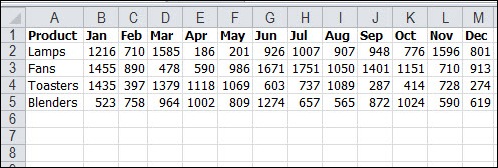
If your Excel data is in monthly columns, like the worksheet shown below, you’ll have trouble setting up a flexible pivot table. Instead of leaving the data like this, see how to normalize data for Excel pivot table setup.
Data in Monthly Columns
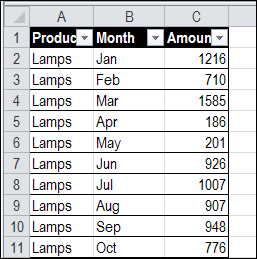
Switch to a Vertical Layout
Instead of multiple columns with sales amounts, rearrange your data into a single column of amounts. Adjacent columns will show the product name and month. This process will “normalize data” for Excel pivot table setup, and makes it easier to work with.
The steps below explain how to do this quickly — you don’t have to manually rearrange the data!
Rearrange the Data With a Pivot Trick
Because the original data, with 12 columns for months, looks almost like a completed pivot table, we want to “unpivot” the data, or “normalize” it.
[Update] If you have Excel 2010 or later, use Get & Transform, or Power Query, to quickly “unpivot” the data. If those tools aren’t available in your version of Excel, follow the instructions below.
To change the data layout, you can create a Multiple Consolidation Ranges pivot table, as shown in the video below. Usually that type of pivot table is used for combining data on different sheets, but it has the side benefit of changing horizontal data into a vertical layout.
- After you create the pivot table from multiple consolidation ranges, double-click on the Grand Total cell.
- That will extract the source data onto a new worksheet, with all the monthly amounts in a single column.
- You can change the column headings in the extracted data — Product, Month and Amount are the new headings in this example.
- Then, build a new pivot table, from the normalized data. Instead of having 12 value fields (one for each month), you will have one value field — Amount.
Video: Normalize Data for Excel Pivot Table
This Normalize Data for Excel Pivot Table video shows the steps for changing the data layout to create a flexible pivot table.
Normalize Data for Excel Pivot Table Workbook
To test the Multiple Consolidation Ranges pivot table technique, you can download the sample file from my Contextures website. Go to the Fix Pivot Table Source Data Layout page, and go to the Download section.
The file is in xlsx format, and zipped. There are no macros in the workbook.
_____________________
I can recommend using the add-in from Tableau to do normalize, or as they call it, reshape, the data with just one click from the ribbon. It also includes two other useful commands for data manipulation and preparation.
See their website for install instructions:
http://www.tableausoftware.com/support/knowledge-base/addin-reshaping-data-excel
Thanks Shawn!
Really good explanation, Debra. I hadn’t thought about the concatenate trick for multiple categories. Now I’m going to try to automate this. (Ya, and I’ll try the Tableau approach too).
Thanks Alex, and if you try the Tableau add-in, I’d be interested to hear about it.
The Tableau Add-in is fantastic. It is easy, intuitive, quick and functional. I’ve used VBA unpivots, and they’re very slow and clunky.
Great Lesson, thanks for sharing!
Thanks Debra! Great explanation!