
With Excel VBA programming, you can add a Combo Box to the worksheet, to show a data validation list. Usually a single column combo box is enough, like this list of weekdays, but sometimes a multi-column Excel combo box is better.
Single or Multi-Column Combo Box
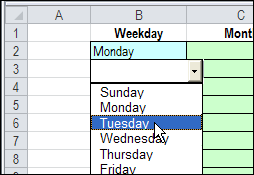
First, here is a single column combo box, showing a list of weekday names.
In some cases, it’s helpful to have a multi-column combo box. For example, instead of a single-column list with just the product codes, you could show the product names in another column.
That way, people will know exactly what they’re selecting, without memorizing a long list of product codes.
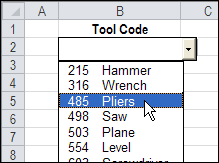
Then, when you select an item from the drop down list, only the product code is added to the worksheet cell.
The Lookup Lists
On another worksheet, there are two named ranges – ToolList (A1:A7) and ToolListFull (A1:B7).
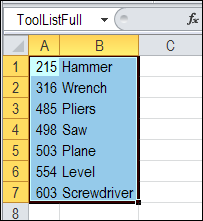
The ToolListFull range is used as the ListFillRange for the Combo Box, and ToolList is used for the data validation list.
Combo Box Settings
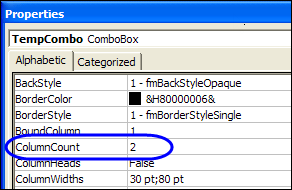
To show two columns in the combo box, open its property window, and change its ColumnCount setting to 2.
When you double-click on a data validation cell, event code runs, that finds the list used in the data validation cell.
Then, “Full” is added to that name, to find the list for the combo box.

Download the Sample Workbook
To see the multi-column combo box, and the code, click this link to download the Multi-Column Combo Box sample file.
The zipped file contains macros, so be sure to enable macros after you unzip the file and open it.
_______________
I’ ve used code and it’s worked. I would be grateful if you would write code modification of provided example with multi-column combo box with tools in a such way:
after selecting tool code with tool name from Combo Box I need additionally populate/output tool name to the next cell(column).
Here is what I need (Lookup value in combo is tool code or tool name, output is the tool code and additionally tool name):
Tool Code Tool name
503 Plane
215 Hammer
Thank you in advance for your help.
Hi,
I have a lot of excel 2007 workbooks that use the ComboBox activeX and they have worked for years. For some reason this week I can no longer select them with the mouse during normal use to pick from the drop down! I have searched hi and low for a setting in excel that might fix this.
@Nathan, Microsoft rolled out a security update last week, and it caused problems with ActiveX control on worksheets. Maybe that’s what is causing the problem for you.
There are instructions on the Excel team’s blog, for fixing it:
http://blogs.technet.com/b/the_microsoft_excel_support_team_blog/archive/2014/12/13/forms-controls-stop-working-after-december-2014-updates-.aspx
Hi,
In the above example could you please help me how to increase the length of ToolList .suppose in column A if I have numbers of length 12, and full number has to be displayed in the drop down.
example:7578458645
@Prahlada, in the combo box properties, change the column widths, so you can see the entire number. For example, set it to
100 pt;100 pt
Then, change the ListWidth property, to the total of the column widths, e.g. 200 pt
Next, right-click on the sheet tab, and click View Code. In the Worksheet_BeforeDoubleClick procedure, find the line that sets the width:
.Width = Target.Width + 15
Change it to the same width as the ListWidth
.Width = 200
Hi .. Thanks for the solution it is working now……………
Hi, can some please help me on the below,
In the above example I need to paste the code in every sheet where I want to use data validation combo box.
how to change the above code to put in ThisWorkbook then make all other sheets to use that code.