
In Excel 2007 and Excel 2010, you can use icon sets in conditional formatting. There are built-in icon sets, and in Excel 2010 you can Customize Excel Conditional Formatting Icons, to some extent. Here’s how to do that, and a workaround to create icons on the worksheet instead.
Built-in Conditional Formatting Icons
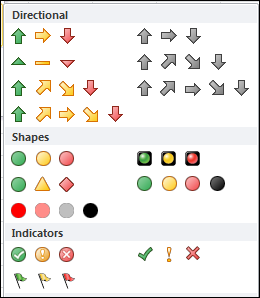
There is a good selection of built-in Excel Conditional Formatting Icon sets.
For example, use Red, Yellow and Green stoplight icons, to highlight the good, average, and poor results in your sales data.
Or, choose directional arrows, with a green Up arrow, a right-pointing yellow arrow, and a red Down arrow.
Grey Directional Arrows
There are also icon sets with grey directional arrows. Those are useful for data where an increased amount is bad, instead of good. For example, your data might show counts of part failures, or customer complaints.
- Traditionally, green means “good” or “safe”, and red means “bad” or “danger”.
- There’s no setting that lets you change the icon colours
- The neutral grey arrows would be better than using a green Up arrow, for data where Up is “bad”
Or, see the section further down, with notes on how to create your own icon set, outside of the conditional formatting settings.
Limit the Colours
Rob emailed me recently, to ask how to limit the conditional formatting icons to 2 colours only, instead of the 3 or 4 default icon colours.
I am only interested in using 1 or 2 icons (a red X for “Off” and a Green light for “On” – not interested in the Yellow light). I want these icons to be triggered by a boolean (TRUE/FALSE) in another cell.
Create Your Own Icon Set in Excel 2010
Fortunately, if you’re using Excel 2010, you aren’t limited to the default icon sets – you can create your own icon sets , by mixing and matching from the available icons. (You can’t create your own icons, unfortunately, or change the look of the built-in icons.)
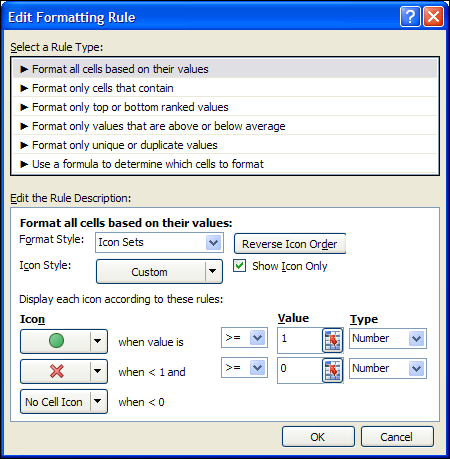
To create the icon set that Rob wants, I selected cells B2:B5, and set the following Formatting Rule.
- The Show Icon Only option is checked
- Green Circle icon when the value is greater than or equal to 1 (Number)
- Red X icon when the value is less than 1 and greater than or equal to 0 (Number)
- No Cell Icon when the value is less than 0
How It Works
In cell B2 there is a formula to multiply the value in cell A2 by 1:
=A2*1
That formula is copied down to cell B5.
- If the result in column A is TRUE, the formula result in column B is 1, and a green circle shows.
- If the result in column A is FALSE, the formula result in column B is 0, and a red X shows.

Get the Sample File
To get the Excel file, with the Create Your Own Icon Set example, go to the Conditional Formatting page on my Contextures site.
The zipped file is in xlsx format, and the file does not contain any macros.
Create Your Own Icon Set
If the built-in icon sets for conditional formatting don’t have what you need, you can create your own custom icons, outside of the conditional formatting settings.
See this Create Your Own Icon Set article, for the step-by-step details.
This workaround technique also works for earlier versions of Excel, where you can’t customize the icon sets, or in Excel versions where icon sets don’t exist
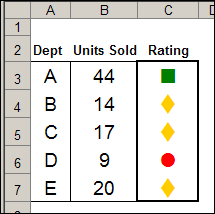
In this technique, you use the WingDings font, combined with conditional formatting, to show coloured symbols in the cell.
And if you’re still using Excel 2003, there are detailed instructions in this article: Conditional Formatting Icons in Excel 2003
_______________
Hi
How can I change the colour of the arrow pointing down from red to green?
This would be handy, as I need to indicate a positive reduction.
Thanks for your support!
Albert
Hi,
does anybody have an idea how I can create my own icon set (based on graphics or pictures)? Is there any possibility to “load” them into the conditional formatting function?
Thank you very much in advance!
Cheers,
Simone
I am having the exact same problem that Debra is having. Sometimes it works and sometimes it does not, I was embarrass to submit a spreadsheet with wrong data. the first entries worked but didn’t bother to check the rest of the spreadsheet. I will try changing to number as suggested by Fred .95 and number cell.
With Excel 2012, is there a way to integrate a customized set of icons into the application? I have not disected the registry or dlls to determine where/how Excel retrieves an icon set when prompted. It would be interesting to have the ability to have a customized icon set to retrieve.
Hi,
I am trying to get my traffic lights to display only red or green for the below 3 criteria:
Adherance: green for above 100% and red for below 99.9%
Talk time: green for below 2:30 and red for above 2:31
Interactions: green for above 80 and red for below 79
I am not having any luck
Adherance to schedule Talk Time Average Interactions per day
123.7% 02:49 67
98.9% 02:23 72
101.2% 02:49 50
114.1% 02:24 73
141.1% 02:44 63
106.2% 01:53 90
104.4% 04:15 42
105.4% 03:07 62
117.1% 03:05 64
102.0% 02:38 75
Hi,
How to set arrow icon display in front of column A value after compared A column value to B column value.
Right now I can set for one cell but copy to next row if need to adjust the reference cell manually.
Anyway to solve this ? Thanks
I have the exact same problem Linda. I am trying to fill down the same condition. However when I do fill down, the conditioning factor defaults to the oompared cell in the first row instead of comparing to the one directly next to it in hte cooresponding row. When I tried to condition the whole column as complared to the whole of the column to the left, I get an error message. Let me know if you figured a way around this because I have way to many cells to condition each manually.
If anyone has solved this please let me know.
I have tried using dynamic formulas (indirect/index/offset) to try to solve this problem and have had no success. It seems to me that there is a bug in excel in that when using dynamic formula, the icons are defined by the current cell that the cursor is pointing at and not to the cell which has the formula in it.
For example, using index($B:$B,row()) I would expect to see icons based on a comparison to column B and the row that the formula is located in. However, the row() function returns a different result every time I move the cursor to a different row.
Has anyone noticed this problem? Anyone know of a solution?