
[Latest update: July 27, 2016] With a bit of Excel VBA programming, you can change an Excel data validation drop down list, so it allows multiple selections. This post is a roundup of articles on how to set up multiple selection Excel drop down lists.
Multiple Selection Drop Downs
You can find a sample file and instructions, in a blog post that I wrote a couple of years ago – Select Multiple Items from Excel Data Validation List.
There is a video in that post, that shows how the multiple selection options work, and a peek at the code that makes the multiple selections possible.
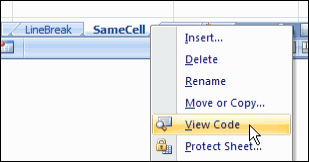
Setting up the Workbook
Even though the post is a couple of years old, it still gets comments and questions. This week, Rick asked for details on setting up a new workbook, and copying the sample code into the new file.
To help, I’ve recorded another video, showing the setup steps.
More Articles on Select Multiple Items
[Update]: Since posting this article on selecting multiple items from an Excel drop down list, I’ve added more articles on the same topic. Please read these updates, for more details on working with the VBA code:
- edit multiple selection cells
- prevent duplicates in multiple selection column
Changing the Macro Code
If you need to change the column numbers in the code, there are instructions here.
To run the code on a protected worksheet, see the notes here.
Download the Sample Data Validation File
To experiment with this technique, you can download the zipped sample file from the Contextures website, on the Excel Data Validation – Select Multiple Items page.
_____________
I basically have no idea how to use VBA programming and my company needs me to make a multiple selection drop down box for proposals. They want each item to be able to be selected, if needed, and placed in its own box in one column. I have seen on your website that this is possible, I just dont know how to change the codes to get them to work for me. Is there any way you can help me or point me to help?
Thanks so much!
This is great. Is there a way to overcome the 8 items limitation without scrolling? In other words, show more than 8 initial items when the drop down is selected?
Thanks.
When i copy the code into my workbook and attempt to select something from the drop down list, I get the error “ambiguos name detected” Worksheet_Change. Anyone else run into this?
When I open your sample worksheet in Excel 2010, it does not function as it does in your video. Do you have a suggestion for how to change the code in order to make it work in the newer version? I love the idea of incorporating this function in my speadsheet and I thank you for making it so easy!
Hi – Thank you very much for the code. It was easy to follow. What happens if I need to have multiple columns within one worksheet to have the multi-select. Let’s say for example it’s columns 5 and 6. How would I change the code so that it works for both columns?
Thanks again!
James
I’m also having issues getting this to run in Excel 2010. Do you have the changes required to get the “mutiple columns” code to work? If you could include the changes for avoiding duplicates too that would be great! adTHANKSvance