
Last Friday, there was an HLOOKUP example, and it used a dynamic lookup range — as rates were added to the lookup table, it automatically expanded to include them.
Today, we’ll take a closer look at that dynamic range, and see how the INDEX function is used to set the last cell in the range.
Count the Cells
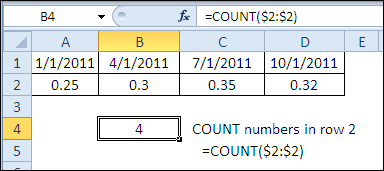
To find the last column for the INDEX function, you can use the COUNT function to count the rates that are entered in row 2.
=COUNT($2:$2)
Create a Cell Reference
The INDEX function can return a cell reference, based on a row number and column number in a reference.
Here are the arguments in the INDEX function syntax:
- INDEX(reference,row_num,column_num,area_num)
Count the Columns
Using row 2 as the reference, the COUNT function can provide the column number. There is only 1 row in the reference, so 1 is used as the row number:
=INDEX($2:$2,1,COUNT($2:$2))
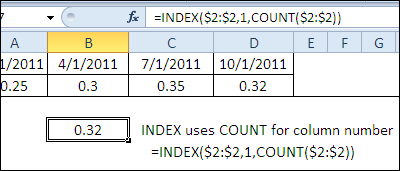
This formula creates a reference to cell D2, and its value is shown in cell B7.
Create the Dynamic Range
The same INDEX formula can be used in a defined name, to create a dynamic range.
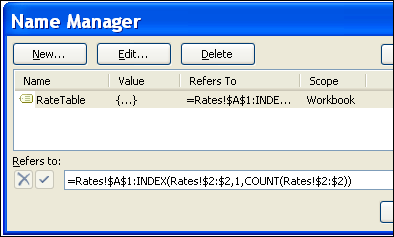
In the example shown below, the RateTable named range:
- starts in cell A1 on the Rates sheet
- ends in the cell reference created by the INDEX function.
Here is the formula used in the Name Manager:
- =Rates!$A$1:INDEX(Rates!$2:$2,1,COUNT(Rates!$2:$2))
If a rate is added or removed in row 2
- the COUNT function result will change,
- the INDEX function will return a different ending cell for the dynamic range.
Download the INDEX Dynamic Range File
To see the defined name and the INDEX examples, you can download the INDEX dynamic range sample file.
______________
How does INDEX compare with OFFSET for dynamically named ranges? I’ve used something like =OFFSET(A2,0,0,1,COUNT(2:2)) to set the range for a problem like this, but I’m always looking for better solutions (otherwise I wouldn’t subscribe to 20 Excel RSS feeds).
Is INDEX a better solution, or just a different one? Or is there a time for INDEX and a time for OFFSET when creating dynamic ranges?
Aha !!!! ExcelFF. Kind of Excel for Tweet Freaks. Love it.
@ David – I believe it’s a matter of calculation speed. OFFSET is volatile & will recalculate even if all you did was re-filter the darned sheet. If you’ve got a gazillion dynamic ranges this will make a BIG difference.
@ Debra – Once again, THANKYOUTHANKYOUTHANKYOU!
@David, I agree with Lynda — INDEX is non-volatile, and your workbook should perform better if you use it instead of OFFSET.
@Tony, thanks! Functions are your friends too. 😉
@Lynda, you’re welcome! And thanks for answering David’s question.
Yes, I forgot to consider the volatility. That would make the difference right there. Well, it looks like I’m a changed man – it’s INDEX for dynamic ranges from here on out. Thanks for the tip.
I believe all the dynamic ranges are volatile, so I don’t think they will be a performance benefit from using Index instead of Offset when creating dynamic ranges. However, they will be a better performance when you use
=SUM(A1:INDEX(A:A,C1) over =SUM(OFFSET(A1,,,C1,)).
Regards