
Do you ever open an Excel workbook, and find that tragedy has struck your comments? You spent hours inserting those comments, and making them just the right size and shape. Then, for no apparent reason, everything changes. Comments are in the wrong place, and wrong size. Here’s how to fix those wandering Excel comments.
Wandering Excel Comments
This screen shot shows an example of wandering Excel comments, and incorrect comment sizes.
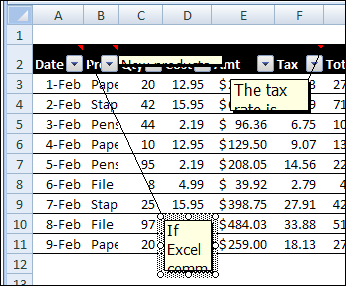
- Some comments have flattened to a thin line.
- Other comments are so small that you can barely read the first word.
- A few comments have wandered far from their cell, and the connecting line stretches across the entire window.
What a mess! Fortunately, you can quickly get things back in place, by using an Excel macro or two. Use the sample macros below, to fix wandering Excel comments, and to make them the correct size again.
Put Comments Back in Place
If your comments have slithered across the spreadsheet, you can use this macro to put them back in their parent cell.
Sub ResetComments()
Dim cmt As Comment
For Each cmt In ActiveSheet.Comments
   cmt.Shape.Top = cmt.Parent.Top + 5
   cmt.Shape.Left = _
      cmt.Parent.Offset(0, 1).Left + 5
Next
End Sub
Get Comments Back in Shape
For comments that have shrunken to thin slivers, you can use this macro to get them back to a normal size.
Sub Comments_AutoSize()
'posted by Dana DeLouis  2000-09-16
Dim MyComments As Comment
Dim lArea As Long
For Each MyComments In ActiveSheet.Comments
  With MyComments
    .Shape.TextFrame.AutoSize = True
    If .Shape.Width > 300 Then
      lArea = .Shape.Width * .Shape.Height
      .Shape.Width = 200
      ' An adjustment factor of 1.1 seems to work ok.
      .Shape.Height = (lArea / 200) * 1.1
    End If
  End With
Next ' comment
End Sub
More Excel Comment Macros
For more Excel comment macros, please visit the Excel Comment VBA page on the Contextures website.
____________
To those asking “why it happens” and “can it be avoided?” – Yes. Manually select the comment cell … Edit Comment … select the comment border … rightclick Format Comment … tab Properties … choose Move but don’t size with cells … OK n times. Comment will no longer get messed up by add/delete rows or columns. To fix all comments on active sheet…
Sub FixComments()
For Each s In ActiveSheet.Shapes
If s.Type = 4 Then ‘a comment
With s
.Placement = xlMove
End With
End If
Next
End Sub
I did and yes it sorted out. Thanks buddy
Thank You!!!
Thank you so much! This really helped me a lot. Saved myself a few hours!
Thank you so so much, Debra!
I really couldn’t face the frustration of moving all my comments, so this was an amazing find.
Hi there,
I don’t really know how to thank you enough, but you really helped me a lot to solve this issue. It works like a charm.
thanks so much, it worked and this is amazing