
Do you ever open an Excel workbook, and find that tragedy has struck your comments? You spent hours inserting those comments, and making them just the right size and shape. Then, for no apparent reason, everything changes. Comments are in the wrong place, and wrong size. Here’s how to fix those wandering Excel comments.
Wandering Excel Comments
This screen shot shows an example of wandering Excel comments, and incorrect comment sizes.
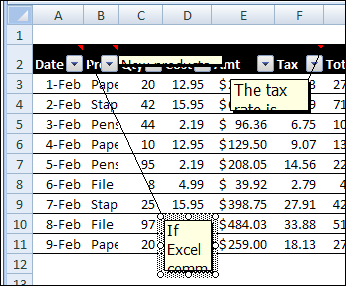
- Some comments have flattened to a thin line.
- Other comments are so small that you can barely read the first word.
- A few comments have wandered far from their cell, and the connecting line stretches across the entire window.
What a mess! Fortunately, you can quickly get things back in place, by using an Excel macro or two. Use the sample macros below, to fix wandering Excel comments, and to make them the correct size again.
Put Comments Back in Place
If your comments have slithered across the spreadsheet, you can use this macro to put them back in their parent cell.
Sub ResetComments()
Dim cmt As Comment
For Each cmt In ActiveSheet.Comments
   cmt.Shape.Top = cmt.Parent.Top + 5
   cmt.Shape.Left = _
      cmt.Parent.Offset(0, 1).Left + 5
Next
End Sub
Get Comments Back in Shape
For comments that have shrunken to thin slivers, you can use this macro to get them back to a normal size.
Sub Comments_AutoSize()
'posted by Dana DeLouis  2000-09-16
Dim MyComments As Comment
Dim lArea As Long
For Each MyComments In ActiveSheet.Comments
  With MyComments
    .Shape.TextFrame.AutoSize = True
    If .Shape.Width > 300 Then
      lArea = .Shape.Width * .Shape.Height
      .Shape.Width = 200
      ' An adjustment factor of 1.1 seems to work ok.
      .Shape.Height = (lArea / 200) * 1.1
    End If
  End With
Next ' comment
End Sub
More Excel Comment Macros
For more Excel comment macros, please visit the Excel Comment VBA page on the Contextures website.
____________
Just joining the fan club here – comments have been a PITA since last century, and I’d hoped the upgrade to interactive notes would have helped, but they didn’t fix it. Fortunately, you did 🙂
Thank you so much!
I think the mess has to do with deleting/inserting/hiding/unhiding rows or columns. It’s like Excel stores absolute sheet coordinates for comments instead of coordinates relative to their parent cells. Even height and width seem to depend on absolute coordinates.
I know what problem i causes, but what problem was it implemented to solve?
Contextures is by far the best help I have seen in all my years of struggling with solutions to the many unpleasant surprises Excel throws to us.
Your solution to this comments issue is awesome!!!
Thank you so much, you saved me hours..
Thank you, Felipe!
Many many thanks!
Works great! Thanks, but I’m curious as to why it happens at all? What is the shortcoming in Excel that causes this?
I have this problem but with notes. Any tips?