
 Yesterday, in the 30XL30D challenge, we jumped around a workbook, and opened Excel files and websites, by using the HYPERLINK function.
CLEAN Function
For day 29 in the challenge, we’ll examine the CLEAN function. Sometimes the data you get from a website, or in a download file, has some unwanted characters, and the CLEAN function can help you fix it.
It doesn’t do much heavy lifting though, and refuses to help with the mess that the kids make. This will be perfect for a lazy Sunday!
So, let’s take a look at the CLEAN information and examples, and if you have other tips or examples, please share them in the comments.
Function 29: CLEAN
The CLEAN function shows removes some non-printing characters from text — characters 0 to 31, 129, 141, 143, 144, and 157.
How Could You Use CLEAN?
The CLEAN function can remove some non-printing characters from text , but not all of them. You can use CLEAN, or other functions when necessary, to:
- Remove some non-printing characters
- Replace non-printing characters in text
CLEAN Syntax
The CLEAN function has the following syntax:
- CLEAN(text)
- text is any information from which you want the non-printing characters removed
CLEAN Traps
The CLEAN function only removes some non-printing characters from text — characters 0 to 31, 129, 141, 143, 144, and 157.
For other non-printing characters, such as the non-breaking space character 160, you can use SUBSTITUTE to replace them with space characters, or empty strings.
Example 1: Remove non-printing characters
The CLEAN function works to remove some non-printing characters, such as those in the 0-30 range of the ASCII character set. In this example, I added characters 9 and 13 to the original text string from C3.
=CHAR(9) & C3 & CHAR(13)
The LEN function shows that the number of characters in cell C5 increased to 15, with those non-printing characters included.
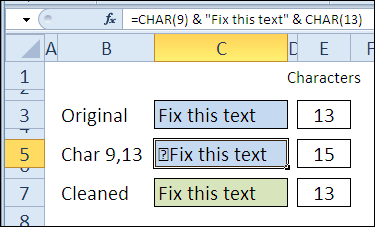
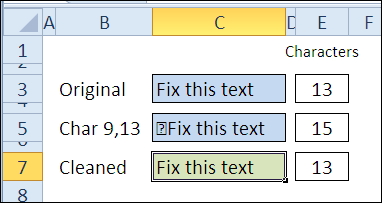
With the CLEAN function, in cell C7, those characters are removed, and the number of characters is reduced by 2, so it’s back to the original 13 characters.
=CLEAN(C5)
Example 2: Replace non-printing characters
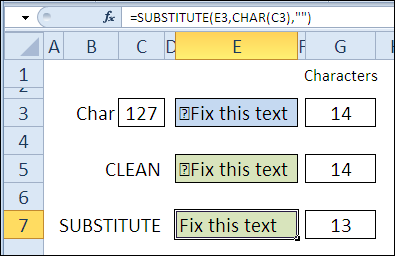
For the characters that the CLEAN function can’t remove, like characters 127 and 160, you can use the SUBSTITUTE function to replace them.
=SUBSTITUTE(E3,CHAR(C3),””)
Download the CLEAN Function File
To see the formulas used in today’s examples, you can download the CLEAN function sample workbook. The file is zipped, and is in Excel 2007 file format.
Watch the CLEAN Video
To see a demonstration of the examples in the CLEAN function sample workbook, you can watch this short Excel video tutorial.
_____________
Respected sir or mam,
we are not understand the clean function so please give any more information about clean and acosh function. plz replay as early as possible.