
Welcome to the Contextures 30 Excel Functions in 30 Days (30XL30D) challenge. Thanks for voting for your favourite functions, and we will cover the top 30 Excel functions (based on total votes), from the following categories:
- Text
- Information
- Lookup and Reference
List of All 30XL30D Functions
At the end of the challenge, I’ll post a list of all the 30XL30D functions, sorted by vote ranking.
However, the top 30 functions will be covered in random order, so be sure you visit here every day, to catch them all.
EXACT Function
To kick off the 30XL30D challenge, here’s the first function — EXACT.
There are 7 examples for this function:
- 2 of the examples are shown below
- All 7 EXACT examples are on the Excel EXACT Function page on my Contextures site, and in the sample file you can download there.
Function 01: EXACT
The EXACT function can check for an exact match between text strings, including upper and lower case. Formatting does not affect the result. If the text strings are exactly the same, the function result is TRUE; if they’re not exactly the same, the result is FALSE.
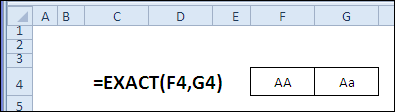
How Could You Use It?
Besides checking two cells to see if their contents match exactly, you can use the EXACT function to do the following:
- Force upper case entries in a data validation cell
- Use with data validation to block changes to a cell
- Check for an exact match in a list of codes
- Find an exact match in a lookup table
- Count exact matches in a list
- Pinpoint the differences between 2 cells
Watch the EXACT Video
To see the examples in the EXACT function sample workbook, watch this Excel video tutorial.
EXACT Syntax
The EXACT function has the following syntax:
- EXACT(text1,text2)
- Text1 is the first text string.
- Text2 is the second text string.
You can enter the text1 and text2 arguments as cell references or text strings. In Excel 2007, the maximum string length for EXACT is 32767 characters.
Example 1: Test a Password
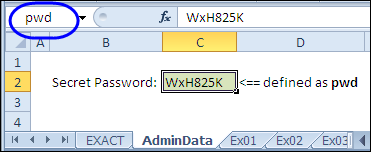
You’ve entered a secret password in a cell in your workbook, and you named that cell “pwd”. Users will enter a password, and you’ll compare their entry to the contents of the “pwd” cell.
- In the screen shot below, the secret password is in cell C2, which is named “pwd”. This is on a sheet named AdminData, which can be hidden from users.
On another sheet, users will enter the password, and you’ll use the EXACT function to test it.
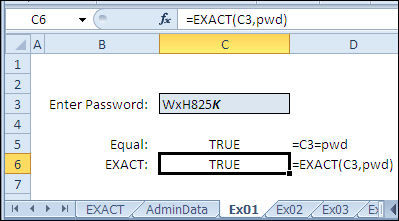
- On the Ex01 sheet, the user will type a password in cell C3.
- In cell C4, the equal operator compares the value in C3 to the value in the pwd cell: = C3=pwd
- In cell C5, the EXACT function compares C3 to the pwd cell, including case: =EXACT(C3,pwd)
If the contents of the two cells are identical, including upper and lower case, cell C5 will show TRUE as the result. Any formatting differences, such as bold font, will be ignored.
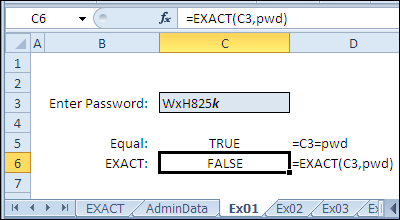
If there is a difference in the contents – if even one letter is a different case, the result in C5 will be FALSE.
Example 2: Force Upper Case Entries
You could also use the EXACT function in data validation to ensure that all upper case letters are typed in a cell. For example, a Canadian postal code is a set format, with alternating numbers, and upper case letters, e.g., L9L 9L9.
In cell C2, data validation has been applied, with the formula:
- EXACT(C2,UPPER(C2))
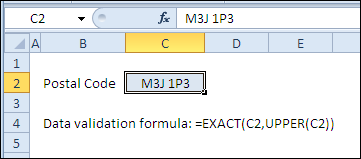
If any lower case letters are entered, an error alert will appear. This won’t prevent all errors in the postal code, but will ensure that upper case letters are used.
Download EXACT Function File
To see all 7 EXACT function examples, and to download the sample file, go to the Excel EXACT Function page on my Contextures site. The sample file is zipped, and is in xlsx file format, with no macros.
Try to use each function in your own workbooks. Then, for extra brain-sticking power, teach a friend or co-worker how to use each function. When you explain it to someone else, you’ll remember it better.
More Function Tutorials
____________________
I guess after looking at example 5, I thought example 6 was also an array. My mistake, and thanks for setting me straight.
There were so many examples for this function, it’s no wonder that you lost track! 😉
Very informative – thank you for bringing to attention this overlooked function.
I especially liked the sorting for unique and case sensitive values in example 6. Simple and useful!
This bodes well for the coming 29 days!
[…] EXACT to find name for the password with exact […]
[…] EXACT […]
Thanks it’s very useful and improve my knowledge.