
Last week on the Bacon Bits blog, Mike Alexander showed how to send an email with the HYPERLINK function in Excel, complete with subject line and message.
Mike’s article showed how versatile the HYPERLINK function can be, and you also learned about Mike’s unique talent for poetry.
In the steps below, I’ll show you how to get the URL from an Excel Hyperlink.
Remove Hyperlinks
If you inherit a workbook full of hyperlinks, and you want to change those, so they just contain text, you can copy the cells, and paste them as values, in another location.
If you’re using Excel 2010, you can quickly remove hyperlinks from selected cells. (Thanks to Sam for this tip.)
- In Excel 2010, select cell(s) that contain hyperlinks
- Right click on any selected cell
- Click Remove hyperlinks
Macro to Remove Selected Hyperlinks
In any version, to remove hyperlinks in a group of selected cells, you can run a macro, like the one below.
Copy this code into a regular module in your workbook, then select the cells, and run the delHyperlinks macro.
Sub delHyperlinks()
  Selection.Hyperlinks.Delete
End Sub
Macro to Remove All Hyperlinks
You can also clear all the hyperlinks on the active worksheet (thanks Eric and Rick).
Sub RemoveHyperlinksOnActiveSheet()
'posted by Rick Rothstein
  Cells.Hyperlinks.Delete
End Sub
Extract Address from Hyperlink
If you paste hyperlinks as values, what you’re left with is the “Friendly Name.”
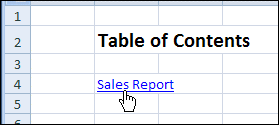
That’s the text you can see in the cell with the hyperlink, like “Sales Report” in the screen shot below.
Instead of the Friendly Name, you might want to extract the hyperlink’s location.
There’s no built-in function for that in Excel, but you can create your own User Defined Function, with a bit of VBA.
Copy the HLink code, shown below, into a regular module in your workbook.
Function HLink(rng As Range) As String
'extract URL from hyperlink
'posted by Rick Rothstein
  If rng(1).Hyperlinks.Count Then HLink = rng.Hyperlinks(1).Address
End Function
Use the HLink Function
Then, you can use the HLink function in that workbook, just like any other Excel function.
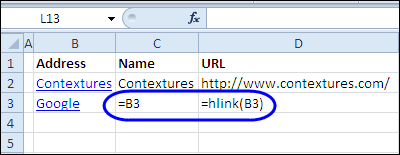
For example, to find the address for a hyperlink in cell B3, use this formula: =HLink(B3)
To extract the Friendly Name, use a simple link to the cell: =B3
Learn More About Hyperlinks
To learn more about adding and removing Hyperlinks, visit the Excel Hyperlinks and Hyperlink Function page on the Contextures website.
There are written instructions, and videos, like this one.
___________
I had a hard time getting this to work (#NAME? error) until I saved, exited, and reopened the Excel file after creating the macro…don’t know if this is a legitimate step. Also, for other newbies, I had to enable macros: [Top left Office Logo]>Excel Options>Trust Center>Trust Center Settings [Bottom right]>Macro Settings> Enable… AND Trust access to VBA (but I’m not sure about that last one). I also had to Save As and select Microsoft Office Excel Macro-Enabled Worksheet as opposed to the default macro-disabled file.
Thanks.
There’s a minor bug with HLink() in that if the link contains a # then it only returns the part before the # sign. To get the full URL it should be coded as:
Function HLink(rng As Range) As String'extract URL from hyperlink
'posted by Rick Rothstein
If rng(1).Hyperlinks.Count Then
HLink = rng.Hyperlinks(1).Address
if (Len(rng.Hyperlinks(1).SubAddress) > 0) then HLink = HLink & "#" & rng.Hyperlinks(1).SubAddress
End Function
While that code is better there’s still a bug in that Excel allows a cell to have multiple hyperlinks. The current code only returns the first hyperlink address.
Mark, thank you for bugfix 🙂
Is there a way of getting this to work for cells that contain the hyperlink function? I’m trying to extract the path from the following:
=HYPERLINK(A21&B21&J21&” – “&TEXT(Date,”yyyy-mm”)&”.xlsm”,J21&” – “&TEXT(Date,”yyyy-mm”))
I’ve tried EVALUATE(ActiveCell.Formula) but this just gives me the Friendly name, rather than the link location
Cool example.
Thanks for the HLINK function. Worked so nicely at the first attempt.
It works fine but does not activates and showing result automatically as normal excel function – COuld you please advise what is wrong?