
Today, working on my Excel file was like riding a lazy snail through molasses in January — but slower!
Usually an Excel Advanced Filter is a speedy way to extract data from a table, but things weren’t working right in a sample file that I got last week.
And despite what my high school English teachers might think, you can’t mix too many similes, when trying to describe excruciating slowness.
Advanced Filter Macro Problem
The sample file had code that ran an Advanced Filter in Excel 2007.
The code ran quickly in Excel 2003, but screeched to a near halt in Excel 2007. What was the problem?
In the sections below, I detailed all the things I tried, while troubleshooting the slow macro problem.
- Tip: You can skip to the end, to see what the unexpected problem was, and how I finally fixed the Advanced Filter macro.
There’s a video at the end of this post too, where I show the problem and the solution.
The Slow Filter Symptoms
When the code ran in Excel 2007, it looked like the extracted rows were being pasted in the second worksheet, one row at a time.
Aha! I should turn off the screen updating — a simple solution. You’d think.
Nope! Even with the screen updating turned off, the code barely crawled along.
It took almost 3 minutes to extract 1500 rows — maybe a millisecond faster than it ran with screen updating turned on. Who has that kind of time?
Guess Again
In the next round of solution guessing, I got rid of the few formulas in the worksheet and criteria range.
There wasn’t anything too complex, but maybe that was slowing things down.
I also changed calculation to manual at the start of the code, then set it to automatic at the end of the code.
Neither of those changes had any effect on the code’s speed.
Strip the Data Clean
In round 12 of testing (I’ve lost track of the test count), I copied the data, and pasted it as values into a new workbook.
The code ran like lightning. In July. With jet engines. Hmmm.
Maybe it was the formatting and styles in the original file that were slowing things down.
To test that theory, I formatted the original table with Normal style, which removed all the borders and fill colour.
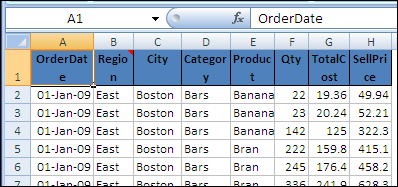
That didn’t improve things, but when I removed the red fill from the heading cells, I noticed a red comment marker in one of the cells.
Whip Things Into Shape
Could a comment be the problem? That didn’t seem likely, but:
- As soon as I deleted the comment, the code ran perfectly.
- When I put the comment back, the macro slowed to a crawl again.
Curiouser and Curiouser
When I tried to create a sample file to demonstrate this problem, things got even stranger.
I created a table with a comment in the heading, and ran the code, expecting it to be slow. It ran quickly, in several tests.
Add Shape to Worksheet
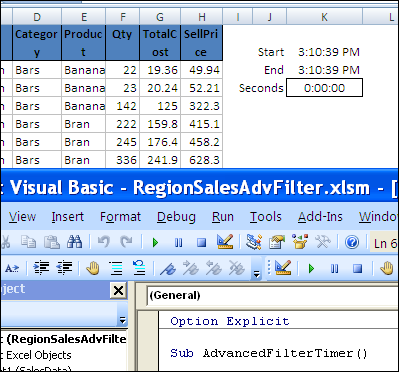
Next, I added a shape to the worksheet, and assigned a macro, to make it easier to run the code.
The code slowed down again!
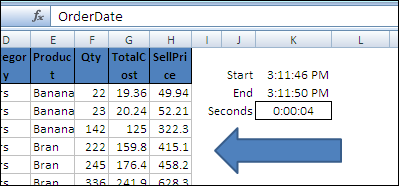
Next, I deleted the shape, and the code was still slow, so I had to delete the comment to speed it up again.
The Verdict on Slow Advanced Filter Macro
If your Advanced Filters are running slowly in Excel 2007, try removing any comments in the table heading cells.
You could delete them at the start of a VBA procedure, run the filter, then add the comments at the end of the code.
Shapes + Comments = Trouble
The problem seems to occur if there are heading comments, and a shape is added later, as you can see in the short video demonstration below.
Fortunately, this problem appears to be fixed in Excel 2010, so if you upgrade, you should be able to have comments and shapes, without slowing down the Advanced Filters.
Another Solution
Update: In the comments, PDLobster suggests the following solution, to speed up the filters — thanks!
- Turn off all filters
- Select cell A1
- Turn Wrap Text ON
- Select the entire worksheet
- Turn Wrap Text OFF
Watch the Video
To see the steps for reproducing and solving the Advanced Filter speed problem, you can watch this short Excel video.
____________
PDLobster…..thanks so much, I followed your suggestion and the spreadsheet flew just like it did in Excel 2003. Then the more cells I turned on Wrap Text, it slowed somewhat, but still much faster than when I first opened it up in 2010. Again, thanks for the great tip!!!!!
I had the same symptoms.
What I discovered was there was conditional formatting in some columns which made everything very slow. I cleared all the conditional formatting from the sheet, and…
…VOILA!!!
Excel is back to normal speed.
> PDLobster
It works like a charm !
I have many multiline cells.
I put the filter code between the code disable wrap-text and enable wrap-text and now it flies ~
I had a similar problem, in Excel 2013 – Advanced Filter running approx. 150 times slower than normal. There were no comments in the sheet – I tried resetting all formatting ( no fill for cell interiors, removing Wrap text and so on ) – nothing worked.
So, that left one remaining object in the sheet, a Forms button. I deleted that, and hey presto, all starts working as expected!!!
I replaced the Forms button with a Textbox, formatted to look like a button, and assigned my macro to that … everything still works at top speed.
This article was my inspiration, so I thought I’d share ( and I’ve been a Debra fan for years!!! ).
Thanks for sharing your solution Glenn!
It turned out the forms button was the culprit in my case too, replacing it with a text box restored the speed. Thanks very much Glenn. And thank you Debra, for this discussion.
This article is still saving me time and helping me solve a problem with Excel 2013 and as I write it is 2016. Thanks Debra!
You’re welcome! Glad it helped you.