
If you’re using Excel 2007 or Excel 2010, you can quickly see which fields in a pivot table have filters applied.
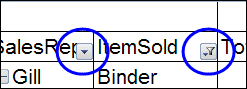
For example, in the screenshot below, the ItemSold field has been filtered.
The arrow drop down has changed to a filter symbol, with a tiny arrow.
Earlier Excel Versions
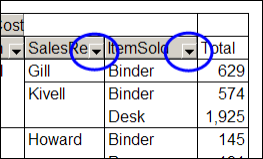
In Excel 2003 though, there’s no indicator that a field has been filtered. Here’s the same filtered pivot table in Excel 2003, and the drop down arrows look the same in both of the fields.
There’s no marker to show if either field has been filtered. You’d have to click each arrow, to see if any of the check marks have been removed from the pivot items. Who has time for that?
Create Your Own Filter Markers
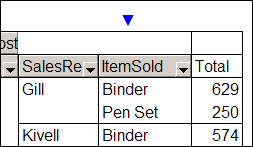
Several of my clients are still using Excel 2003, and maybe you use it too. If so, you’ll appreciate this sample Excel file from AlexJ, which adds a bright blue marker above each filtered field.
That makes it easy to keep track of what’s been changed in the pivot table, and prevents you from overlooking the filters.
- Tip: You could even use these markers in newer versions of Excel. The bright blue arrows are easier to see than the tiny filter icons!
User Defined Function
To create the markers, Alex wrote a user defined function, named pvtFilterID.
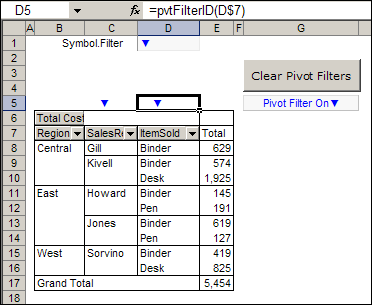
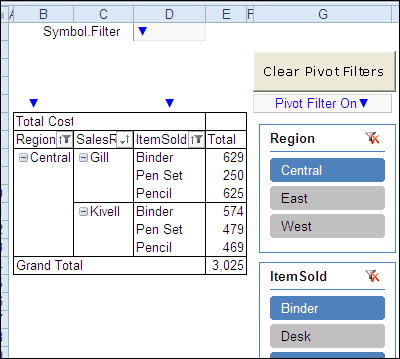
In the screenshot below, you can see the pvtFilterID formula in cell D5, which refers to the ItemSold field heading in cell D7.
=pvtFilterID(D$7)
The formula is used in cells B5:D5, above the row fields, and that range could be adjusted if your pivot table has a different number of row fields.
The Blue Arrow Marker
Cell D1 is named Symbol.Filter, and it contains the blue arrow symbol that’s used as a marker.
If you changed the symbol there, the new symbol would be used as the filter marker.
In cell G5 there’s another formula, that shows a message if any of the pivot table fields are filtered.
- =IF(COUNTIF($B$5:$D$5,Symbol.Filter)>0, “Pivot Filter On” & Symbol.Filter,””)
This formula checks the cells above the pivot table, and shows the message if any of those cells contain the marker symbol.
Works With Slicers Too
Even though Alex wrote this code for Excel 2003 pivot tables, it works in Excel 2007 and Excel 2010 too.
In the screenshot below, you can see and Excel 2010 pivot table with slicers, and the filter markers highlight the row fields where filters have been applied.
The filter symbol is on the field drop downs too, and the bright blue markers are extra insurance that users notice which fields are filtered.
The Filter Marker Function Code
Here’s Alex’s code for the pvtFilterID function.
Function pvtFilterID(rng As Range) As String  'rng As Range)
On Error GoTo XIT ' -not in pivot
If Not rng.Parent Is ActiveSheet Then GoTo XIT
If rng.Cells.Count > 1 Then
    MsgBox "Error: pvtFilterID range selection"
    GoTo XIT
End If
If rng.PivotField.HiddenItems.Count > 0 Then
    pvtFilterID = [Symbol.Filter]
End If
XIT:
End Function
Clear the Pivot Table Filters
Another nice feature that was added to Excel 2007 pivot tables is the Clear All Filters command. Alex’s workbook contains a button that runs code to remove all the filters from a pivot table.
Here’s the code for the ClearPivotFilters procedure.
Sub ClearPivotFilters(ws As Worksheet)
    Dim pvt As PivotTable
    Dim pf As PivotField
    Dim pi As PivotItem
    Dim lSort As Long
On Error Resume Next
Set pvt = ws.PivotTables("PivotTable1")
For Each pf In pvt.VisibleFields
    If pf.HiddenItems.Count > 0 Then
      lSort = pf.AutoSortOrder
      pf.AutoSort xlManual, pf.SourceName
      For Each pi In pf.PivotItems
        pi.Visible = True
      Next pi
    End If
    pf.AutoSort lSort, pf.SourceName
Next pf
Set pi = Nothing
Set pf = Nothing
Set pvt = Nothing
End Sub
The button code passes the worksheet name to the procedure.
Private Sub cmdClearPvtFilters_Click()
    Call ClearPivotFilters(Me)
End Sub
Download the Sample File
To test the pivot table filter markers, and see the VBA code, you can download Alex’s sample file from the Contextures website.
On the AlexJ Sample Files page, go to the Pivot Tables section, and look for: PT0000 – Pivot Table Filter Markers
___________
Cool trick!
That was definitely a huge improvement in 2007/2010. It’s also nice that the Autofilter no longer just turns the arrow blue as it did in 2003 & prior (hard to tell from black), but rather uses a similar “filters on” icon.
Very cool trick. Just today I was cursing Microsoft for not being kind to my eyesight on account of 2003 filters when I had to switch from my usual 2010/2007 implementation. Why I never thought to whip up a cool solution like this – rather than just curse – is beyond me. Thanks for sharing.
[…] Add Filter Markers in Excel Pivot Table […]
This is a great post, but I wonder if it can be modified to be used to make a visual cue for when data is filtered on a worksheet? I have a large table of values with 30+ columns that get filtered in many different ways. On occasion, I have had problems seeing what columns are filtered, as some of them are pretty narrow. I know I can clear all the filters, then replace them, but the blue arrow looks nice, and would be easier for other staff to work with. Even if I could get the headers to change color, or bold, or something so that you are not having to look at a tiny symbol would be great. Anyone have any brilliant ideas?
@Bagsy Baker – there’s a sample file on the Contextures site that colours the filtered columns on a worksheet:
FilterClick Colour
Is there a code for the “clear filter” button for a excel 2003 pivot table? I have not been able to get this code to work for me. Also, in the “pivottable field list” at the bottom there is a “add-to” button. Is there a way/code to create a button that “un-adds” a field?
Thanks