
Would you prefer a bigger font size for items in a data validation drop down list?
Could you save typing time, if the words were completed automatically, as you started typing them?
Data Validation Combo Box
Not all your dreams can come true in Excel, but this tip might fulfill a few of them. Instead of using data validation, you can use a combo box on an Excel worksheet to show a drop down list.
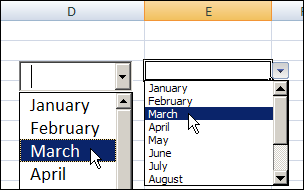
At the left, in the screen shot below, is a combo box, and you can compare it to the data validation drop down list on the right.
Combo Box Features
Unlike data validation, the combo box can be formatted and fine tuned. For example, in a combo box, you can:
- change the font size
- increase the number of visible rows in the list
- use the AutoComplete feature to make data entry easier
- always see the drop down arrow
Create a List
In this example, there is a named range — MonthList — with a list of the 12 month names.
- Tip: There are step-by-step instructions on my Contextures website, for naming a range of cells.
This named range is used in the data validation list, and we will also use it as the source for the combo box.
Add a Combo Box to the Worksheet
To add a combo box on an Excel sheet, follow these steps:
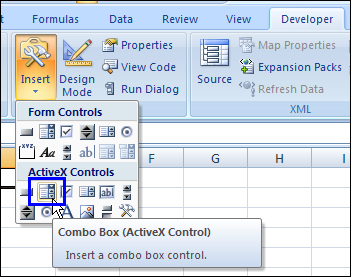
- On the Excel Ribbon, click the Developer tab (If you don’t see a Developer tab, click here for instructions on how to add it)
- In the Controls group, click Insert, then click the Combo Box in the ActiveX Controls section
- Then, click on the worksheet, to create a default sized combo box (or drag with the pointer, to create a combo box in the size that you need)
Set the Combo Box Properties
After you create the combo box, follow these steps to change its properties:
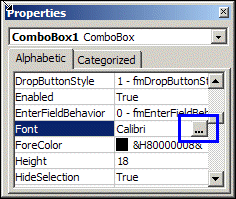
- Right-click on the combo box, and click Properties
- To change the Font size, click the … button at the right of the Font property
Add Items to Combo Box
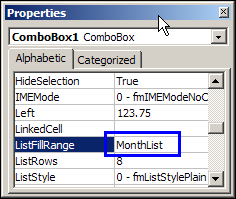
To add items to the combo box drop down list, type a range name or range reference in the List Fill box.
In this example, we use the named range, MonthList.
You could use a range address instead, such as B2:B13
Number of Rows in Drop Down
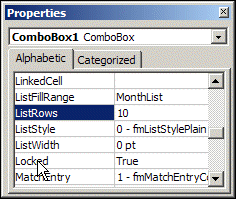
To change the number of visible rows in the drop down, increase or decrease the number in the ListRows property box.
For a list of 12 months, we could change the setting to 12, so all the months can be seen, without scrolling through the list.
Activate the Combo Box
After you’ve made the changes to the combo box properties:
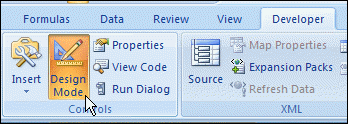
- Click the Design Mode command on the Excel Ribbon’s Developer tab, to exit Design Mode.
- Click the drop down arrow on the combo box, to see the list, and click an item to select it.
Use a Combo Box With Data Validation
You can also use a combo box to supplement a data validation list, as described on the Excel Data Validation Combo Box page on the Contextures website.
In that example, there’s one hidden combo box on the worksheet, and it appears if you double-click a data validation cell.
Watch the Excel Combo Box Video
To see the steps for creating an Excel combo box with a drop down list, and changing its formatting, watch this short excel video tutorial.
_________
Hi,
Thanks a lot for this explanation, very usefull!
I have one more question:
My list is long, and when the autocompletion works the dropdown list displays the selected value at the bottom of the visible list.
Do you know if it is possible to make it displaying the first matching value at the top?
Here is an example based on monthes (thus with only 3 visible values) :
text entered : ju
displayed list today :
April
May
June
expected display :
June
July
August
Thanks again and best regards!
Pierre
I have a series of data which contains booked and bookable hours for multiple departments. I want to create a graph with both booked and bookable hours for each corresponding dept. Can someone help point me to what this would be titled so I can find a how to video, or an excel workbook I could download and follow along, or easy to follow instructions? I just taught myself how to do this with one set of data, and with two side by side, but haven’t been able to figure out how to do with two. Help appreciated, this element of excel is still pretty new to me so I’m a little rusty.
I forgot to add one of the most important part – I want to create the above with a combo list drop down