
Would you prefer a bigger font size for items in a data validation drop down list?
Could you save typing time, if the words were completed automatically, as you started typing them?
Data Validation Combo Box
Not all your dreams can come true in Excel, but this tip might fulfill a few of them. Instead of using data validation, you can use a combo box on an Excel worksheet to show a drop down list.
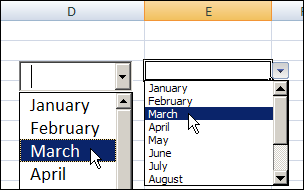
At the left, in the screen shot below, is a combo box, and you can compare it to the data validation drop down list on the right.
Combo Box Features
Unlike data validation, the combo box can be formatted and fine tuned. For example, in a combo box, you can:
- change the font size
- increase the number of visible rows in the list
- use the AutoComplete feature to make data entry easier
- always see the drop down arrow
Create a List
In this example, there is a named range — MonthList — with a list of the 12 month names.
- Tip: There are step-by-step instructions on my Contextures website, for naming a range of cells.
This named range is used in the data validation list, and we will also use it as the source for the combo box.
Add a Combo Box to the Worksheet
To add a combo box on an Excel sheet, follow these steps:
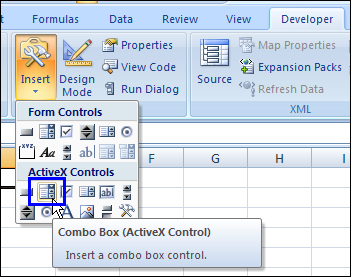
- On the Excel Ribbon, click the Developer tab (If you don’t see a Developer tab, click here for instructions on how to add it)
- In the Controls group, click Insert, then click the Combo Box in the ActiveX Controls section
- Then, click on the worksheet, to create a default sized combo box (or drag with the pointer, to create a combo box in the size that you need)
Set the Combo Box Properties
After you create the combo box, follow these steps to change its properties:
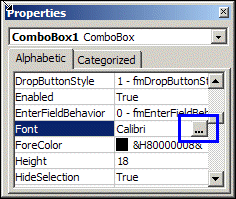
- Right-click on the combo box, and click Properties
- To change the Font size, click the … button at the right of the Font property
Add Items to Combo Box
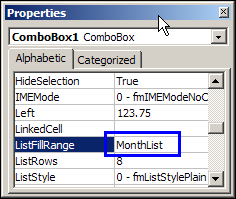
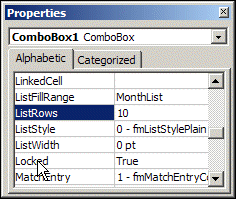
To add items to the combo box drop down list, type a range name or range reference in the List Fill box.
In this example, we use the named range, MonthList.
You could use a range address instead, such as B2:B13
Number of Rows in Drop Down
To change the number of visible rows in the drop down, increase or decrease the number in the ListRows property box.
For a list of 12 months, we could change the setting to 12, so all the months can be seen, without scrolling through the list.
Activate the Combo Box
After you’ve made the changes to the combo box properties:
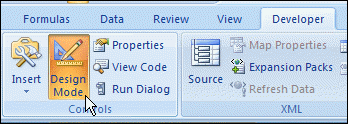
- Click the Design Mode command on the Excel Ribbon’s Developer tab, to exit Design Mode.
- Click the drop down arrow on the combo box, to see the list, and click an item to select it.
Use a Combo Box With Data Validation
You can also use a combo box to supplement a data validation list, as described on the Excel Data Validation Combo Box page on the Contextures website.
In that example, there’s one hidden combo box on the worksheet, and it appears if you double-click a data validation cell.
Watch the Excel Combo Box Video
To see the steps for creating an Excel combo box with a drop down list, and changing its formatting, watch this short excel video tutorial.
_________
I spoke a bit too soon. The issue with the screen updates was only temporarily resolved. It was likely dependant on how much else was going on at time time… like the vba source code stepping etc. More progress…
If you find that you are still leaving ghosts around at the previous LinkedCell address when you move a ComboBox around the worksheet via vba code, then you might try bracketing the code that does not appear to work consistently with Application.ScreenUpdating = False and Application.ScreenUpdating = False as in…
on Error GoTo ErrHandler
Set OLETemp = ws.OLEObjects(“Test_select”)
On Error Resume Next
‘ FROB away the previous ActiveX object
With OLETemp
.Top = 10
.Left = 10
.Width = 0
.ListFillRange = “”
.LinkedCell = “”
.Value = “”
Application.ScreenUpdating = False
.Visible = False
Application.ScreenUpdating = True
End With
or
Application.EnableEvents = False
With OLETemp
‘show the combobox with the list appropriate to the column that we are in
.LinkedCell = “=” + Target.Address
.ListFillRange = “=” & tmp_list
.Left = Target.Left
.Top = Target.Top
.Width = Target.Width + 15
.Height = Target.Height + 4
.Visible = True
End With
OLETemp.Activate
‘ open the drop down list automatically
Application.ScreenUpdating = False
Me.Test_select.DropDown
Application.ScreenUpdating = True
Application.EnableEvents = True
In the first case the application now flawlessly removes the display of the control at the previous cell. In the second case the dropdown appears almost all the time.
I tried busy loops and calling Sleep in kernel32 to no avail.
So ive made a calendar type thing almost exactly the same as this.
https://www.youtube.com/watch?v=yY9AbS_ehb0
But when i type something in to one month, it shows what i typed for all months even when i click the top left box to change months. Is there any way to make it stick only to that month???????
Thanks a lot. I was unable to load default values for ActiveX Combo. Now I entered the value for “ListFillRange” as “Calculations!$B$60:$B$66” without quotes and my problem is solved.
—
Regards,
RRPV
Hello Raghavendra. I saw your VBA posts on this blog:
http://www.myengineeringworld.net/2014/05/pdf-search-through-vba.html
I appear to be having the same problem that you had regarding the automation error. Could you email me please as I’m hoping you may have found the solution.
[email protected]
Thanks.
Using 2007, I’m able to create the ActiveX Combobox and my drop down works, no problem. What I am unable to do is format the box. The properties that appear are those of the worksheet and not the box. How do I get to the properties of the combobox itself and once there, how do I make it uniform in size throughout my document? Lastly, can I make it where the drop down arrow always shows (no matter whether the box is selected or not)?
Thanks, Paula
I want to add temporary combo box in all drop down data validation in my worksheet. But this code does not work. It says user defined type not defined.
Hi, I have 10 comboboxes on a sales form I am using and have created a command button to clear the sheet, and I want to clear the comboboxes as well – I used the following in the clear command sub-routine but get a runtime error “-2147467259 (80004005)” error on the first clear line.
Sheets(“Sales”).ComboBox1.Clear
Sheets(“Sales”).ComboBox2.Clear
Sheets(“Sales”).ComboBox3.Clear
Sheets(“Sales”).ComboBox4.Clear
Sheets(“Sales”).ComboBox5.Clear
Sheets(“Sales”).ComboBox6.Clear
Sheets(“Sales”).ComboBox7.Clear
Sheets(“Sales”).ComboBox8.Clear
Sheets(“Sales”).ComboBox9.Clear
Sheets(“Sales”).ComboBox10.Clear
Would really appreciate your help on how to clear the 10 comboboxes please.
Thanks a million
Graham