
Would you prefer a bigger font size for items in a data validation drop down list?
Could you save typing time, if the words were completed automatically, as you started typing them?
Data Validation Combo Box
Not all your dreams can come true in Excel, but this tip might fulfill a few of them. Instead of using data validation, you can use a combo box on an Excel worksheet to show a drop down list.
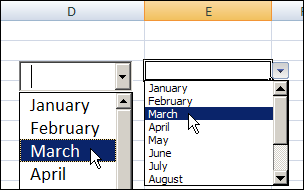
At the left, in the screen shot below, is a combo box, and you can compare it to the data validation drop down list on the right.
Combo Box Features
Unlike data validation, the combo box can be formatted and fine tuned. For example, in a combo box, you can:
- change the font size
- increase the number of visible rows in the list
- use the AutoComplete feature to make data entry easier
- always see the drop down arrow
Create a List
In this example, there is a named range — MonthList — with a list of the 12 month names.
- Tip: There are step-by-step instructions on my Contextures website, for naming a range of cells.
This named range is used in the data validation list, and we will also use it as the source for the combo box.
Add a Combo Box to the Worksheet
To add a combo box on an Excel sheet, follow these steps:
- On the Excel Ribbon, click the Developer tab (If you don’t see a Developer tab, click here for instructions on how to add it)
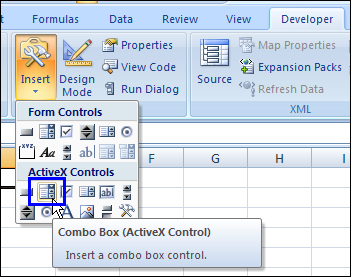
- In the Controls group, click Insert, then click the Combo Box in the ActiveX Controls section
- Then, click on the worksheet, to create a default sized combo box (or drag with the pointer, to create a combo box in the size that you need)
Set the Combo Box Properties
After you create the combo box, follow these steps to change its properties:
- Right-click on the combo box, and click Properties
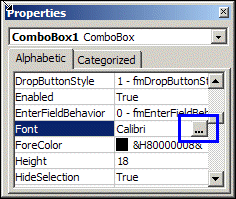
- To change the Font size, click the … button at the right of the Font property
Add Items to Combo Box
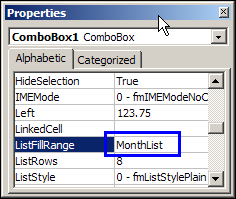
To add items to the combo box drop down list, type a range name or range reference in the List Fill box.
In this example, we use the named range, MonthList.
You could use a range address instead, such as B2:B13
Number of Rows in Drop Down
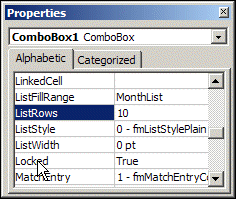
To change the number of visible rows in the drop down, increase or decrease the number in the ListRows property box.
For a list of 12 months, we could change the setting to 12, so all the months can be seen, without scrolling through the list.
Activate the Combo Box
After you’ve made the changes to the combo box properties:
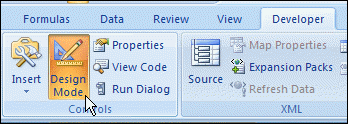
- Click the Design Mode command on the Excel Ribbon’s Developer tab, to exit Design Mode.
- Click the drop down arrow on the combo box, to see the list, and click an item to select it.
Use a Combo Box With Data Validation
You can also use a combo box to supplement a data validation list, as described on the Excel Data Validation Combo Box page on the Contextures website.
In that example, there’s one hidden combo box on the worksheet, and it appears if you double-click a data validation cell.
Watch the Excel Combo Box Video
To see the steps for creating an Excel combo box with a drop down list, and changing its formatting, watch this short excel video tutorial.
_________
I have a combobox on a modeless userform (Excel 2010) that is populated from cells in the spreadsheet via the Sub UserForm_Initialize(). When I select an item in the combobox, the Sub ComboBox1_Change() is triggered and my code is executed correctly. My code sets various filters & such in the spreadsheet, depending on which item in the combobox was selected. At that point, I can maneuver around the spreadsheet doing edits, etc.
There are times when I wish to select the same item in the combobox as previously selected to have the code in the Change Event run again. In this case, the Change event is not triggered since no change was made in the combobox.
Is there a way to force the Change event to trigger when the same item is selected in the combobox? I would have thought that the Click event would work in this case but it does not. The Click event seems to function the same as the Change event.
Any help yould be appreciated. Thank you,
This may be simple for some, but I’m scratching my head. What I have is a list of codes and their descriptions. I need to display the code and description for the user, but only store the code in the cell.
Example:
code description
10 New Entry
20 Old Entry
30 Delete Entry
Only want the 10, or 20, or 30 saved when selected.
I have a involved spreadsheet that currently uses drop downs but think a combo box would be better suited. The first drop down is a mfg list the second drop down is the model#. There is current a data validation that narrows the second drop down based on the mfg you select. how do I link the second combo box to the first combo box?
Hello,
I am using this combobox with this VBA. In the example, only text were used. I am using this combobox with numbers. When I entered the numbers in the combobox drop down, I get this as a text instead of a number. How do I format this?
Thanks,
Joseph
‘==========================
Private Sub Worksheet_BeforeDoubleClick(ByVal Target As Range, _
Cancel As Boolean)
Dim str As String
Dim cboTemp As OLEObject
Dim ws As Worksheet
Dim wsList As Worksheet
Set ws = ActiveSheet
Set wsList = Sheets(“Schedule”)
Set cboTemp = ws.OLEObjects(“TempCombo”)
On Error Resume Next
With cboTemp
‘clear and hide the combo box
.ListFillRange = “”
.LinkedCell = “”
.Visible = False
End With
On Error GoTo errHandler
If Target.Validation.Type = 3 Then
‘if the cell contains a data validation list
Cancel = True
Application.EnableEvents = False
‘get the data validation formula
str = Target.Validation.Formula1
str = Right(str, Len(str) – 1)
With cboTemp
‘show the combobox with the list
.Visible = True
.Left = Target.Left
.Top = Target.Top
.Width = Target.Width + 5
.Height = Target.Height + 5
.ListFillRange = str
.LinkedCell = Target.Address
End With
cboTemp.Activate
‘open the drop down list automatically
Me.TempCombo.DropDown
End If
errHandler:
Application.EnableEvents = True
Exit Sub
End Sub
‘=========================================
Private Sub Worksheet_SelectionChange(ByVal Target As Range)
Dim str As String
Dim cboTemp As OLEObject
Dim ws As Worksheet
Set ws = ActiveSheet
Application.EnableEvents = False
Application.ScreenUpdating = True
If Application.CutCopyMode Then
‘allow copying and pasting on the worksheet
GoTo errHandler
End If
Set cboTemp = ws.OLEObjects(“TempCombo”)
On Error Resume Next
With cboTemp
.Top = 10
.Left = 10
.Width = 0
.ListFillRange = “”
.LinkedCell = “”
.Visible = False
.Value = “”
End With
errHandler:
Application.EnableEvents = True
Exit Sub
End Sub ‘====================================
‘Optional code to move to next cell if Tab or Enter are pressed
‘from code by Ted Lanham
‘***NOTE: if KeyDown causes problems, change to KeyUp
Private Sub TempCombo_KeyDown(ByVal _
KeyCode As MSForms.ReturnInteger, _
ByVal Shift As Integer)
Select Case KeyCode
Case 9 ‘Tab
ActiveCell.Offset(0, 1).Activate
Case 13 ‘Enter
ActiveCell.Offset(1, 0).Activate
Case Else
‘do nothing
End Select
End Sub
‘====================================
I can’t access the properties menu after adding a combo box form control? I can access the properties when I first add it and unprotect the control. Once I click off of the control I can’t get back to properties. This is not the case when I add an active x control. Any suggestion?
@jen, press the Ctrl key and click on the combo box to select it. Then you should be able to go to the Developer tab, and click Properties.
Take care when using these kinds of dynamic ActiveX objects and the .LinkedCell gets changed often.
Running the type of code the Joseph has shown in the Worksheet_BeforeDoubleClick was a bit less stable for me. The .DropDown would often not appear.
I had better luck using it within Worksheet_SelectionChange
Joseph’s example did pretty much resolve one of the problems that I was having with my version and incorrect screen updating. When you clicked different cells reasonably rapidly you could leave orphan phantoms of the combobox, with or without the dropdown outlined, in the previously selected cells. Slowing things down a bit, as Joseph does, by first “frobbing” the box to the top-left, unlinking, removing the list, etc and then hiding it before going on to normal processing helped out quite a bit. Now he dropdown only occasionally fails to appear and I have no more phantoms in previously selected cells.