
One of the best features of a pivot table is filtering, which allows you to see specific results in your data. See which types of filters are available, and learn how you can apply more than one filter on pivot table field at the same time.
Pivot Table Filter Types
Here are the types of pivot table filters that you can use:
- Add Report Filters at the top of the pivot table, to limit what’s summarized in the pivot table data.
- Use Label, Value, and Manual filters on the pivot fields, to narrow the focus.
Pivot Field Filters
The pivot field filters are easy to use, and you can quickly change the pivot table report for different needs. However, you can only use those field filters one at a time, with the default pivot table settings.
So, if you apply a Value filter on a pivot field, then try to add a Label filter, the first filter is removed.
It’s possible to apply multiple pivot field filters at the same time, and the steps to do that are shown below. You’ll see all 3 types of field filters, and how to use them separately, or together.
Apply a Label Filter
In this example, the pivot table has data from January 2008 to June 2010.
To compare the first six months of each year, use a Label Filter on the month number field (MthNum).
- Show Items for which the label is less than 07
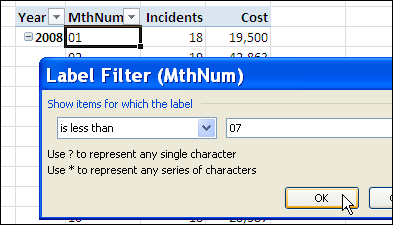
Apply a Value Filter
Next, within those filtered months, you’d like to see the 3 months with the highest costs for each year.
To do that, apply a Top 10 filter on the MthNum field, based on the Cost.
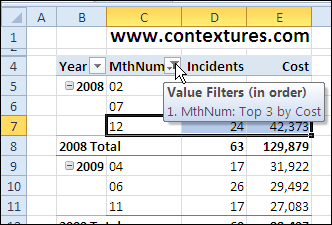
Now the pivot table shows the 3 months with the highest costs, but the Label filter was removed. Instead of showing the highest costs for months 1 to 6, the pivot table shows the highest months overall, for each year.
In the screen shot below, months 7, 11 and 12 are the top 3 months for 2008.
Change the Pivot Table Filter Options
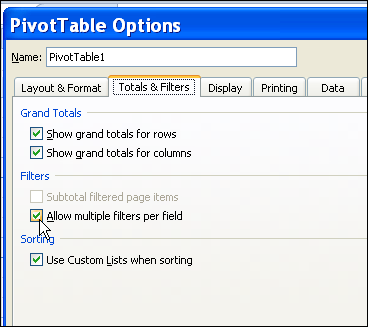
To use more than one filter per field, you can change one of the Pivot Table options.
- Right-click a cell in the pivot table, and click PivotTable Options.
- Click the Totals & Filters tab
- Under Filters, add a check mark to ‘Allow multiple filters per field.’
- Click OK
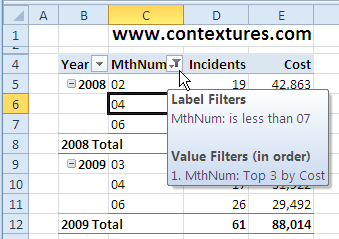
Now you can apply both a Label filter and a Value filter to the Month number field, and both will be retained.
In the screen shot below, I added the Label filter again, so each year shows the top 3 months, for January to June only.
Include a Manual Filter
In addition to a Label filter and a Value filter, you can also apply a Manual filter to the same pivot field. To do that, click the filter drop down, and add or remove check marks in the list of pivot items.
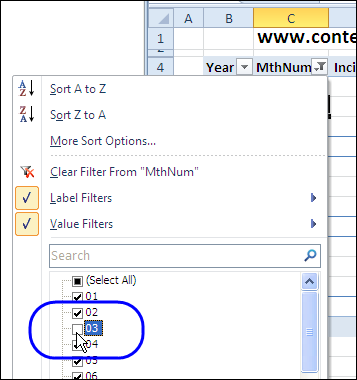
NOTE: You’re limited to one of each filter type per pivot field.
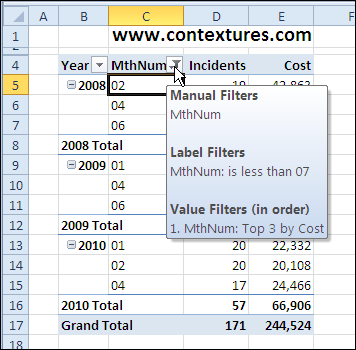
In the pivot table shown below, the month number field now has a Manual filter, Label filter and Value filter.
Watch the Pivot Table Filters Video Tutorial
To see the steps for using multiple filters on the same pivot field, watch this short Excel video tutorial.
More Pivot Table Filter Info
____________
I would like to add more than one filter on the labels. Is it realy no possible whithout writing a vba code ?
I have a problem with an Excel 2003 workbook, with multiple worksheets, each containing a pivot table, in which I have selected multiple page field items (after checking the relevant checkbox), to display a subset of over 1000 customers.
This all works fine, until the pivot table is refreshed (automatically on open) and if this results in new items being added to the relevant page field, these are automatically included in the filter.
Any ideas please?
@Tony, you can change a setting on the customer field so it doesn’t automatically include new items. There are instructions on my Pivot Table Blog
http://www.pivot-table.com/2011/04/22/include-new-items-in-pivot-table-filter/
That’s great, thanks.
I want to sort by 2 report filters – first a larger group and then narrow it down by the second report filter. I understand in 2010 it would be done with the slice function, but how can i do it in excel 2007. The data is first a functional area and the second filter should be role within that functional area. If i put both at the top it doesn’t work as the filters are not dependent on one another.
Is there not a way to have it group month, years – so 2 different year but same month can be side by side in the column view?
I have two cells (Region & Sales Rep) I want to use as the reference for filtering my Pivot Table. How can I use the code below to do this? I don’t know enough about VBA to code a 2nd filter reference.
Private Sub Worksheet_SelectionChange(ByVal Target As Range)
‘This line stops the worksheet updating on every change, it only updates when cell
‘H6 or H7 is touched
If Intersect(Target, Range(“H6:H7”)) Is Nothing Then Exit Sub
‘Set the Variables to be used
Dim pt As PivotTable
Dim Field As PivotField
Dim NewCat As String
‘Here you amend to suit your data
Set pt = Worksheets(“Sheet1”).PivotTables(“PivotTable1”)
Set Field = pt.PivotFields(“Category”)
NewCat = Worksheets(“Sheet1”).Range(“H6”).Value
‘This updates and refreshes the PIVOT table
With pt
Field.ClearAllFilters
Field.CurrentPage = NewCat
pt.RefreshTable
End With
End Sub
Hi Larry. Probably better to post this question at a help forum. If you post it at http://www.chandoo.org/forum I can keep an eye out for it. Otherwise there might be quite a bit of back and forth in this thread by the time any change works as intended.
One thing I would suggest is have a think about whether it’s better to connect a Slicer to the pivot (assuming you have Excel 2010 or later) and use that instead, as then there’s no VBA required.