
One of the best features of a pivot table is filtering, which allows you to see specific results in your data. See which types of filters are available, and learn how you can apply more than one filter on pivot table field at the same time.
Pivot Table Filter Types
Here are the types of pivot table filters that you can use:
- Add Report Filters at the top of the pivot table, to limit what’s summarized in the pivot table data.
- Use Label, Value, and Manual filters on the pivot fields, to narrow the focus.
Pivot Field Filters
The pivot field filters are easy to use, and you can quickly change the pivot table report for different needs. However, you can only use those field filters one at a time, with the default pivot table settings.
So, if you apply a Value filter on a pivot field, then try to add a Label filter, the first filter is removed.
It’s possible to apply multiple pivot field filters at the same time, and the steps to do that are shown below. You’ll see all 3 types of field filters, and how to use them separately, or together.
Apply a Label Filter
In this example, the pivot table has data from January 2008 to June 2010.
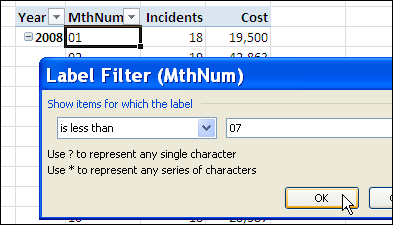
To compare the first six months of each year, use a Label Filter on the month number field (MthNum).
- Show Items for which the label is less than 07
Apply a Value Filter
Next, within those filtered months, you’d like to see the 3 months with the highest costs for each year.
To do that, apply a Top 10 filter on the MthNum field, based on the Cost.
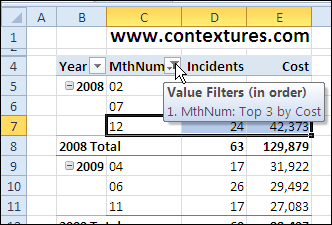
Now the pivot table shows the 3 months with the highest costs, but the Label filter was removed. Instead of showing the highest costs for months 1 to 6, the pivot table shows the highest months overall, for each year.
In the screen shot below, months 7, 11 and 12 are the top 3 months for 2008.
Change the Pivot Table Filter Options
To use more than one filter per field, you can change one of the Pivot Table options.
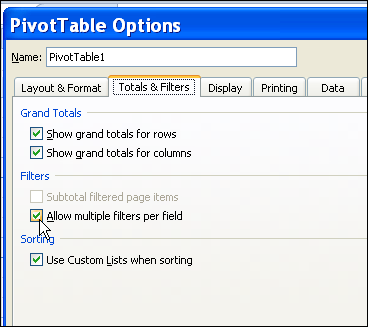
- Right-click a cell in the pivot table, and click PivotTable Options.
- Click the Totals & Filters tab
- Under Filters, add a check mark to ‘Allow multiple filters per field.’
- Click OK
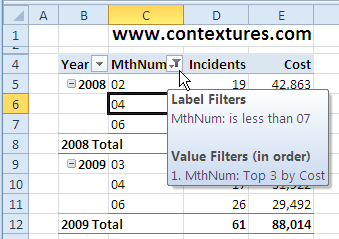
Now you can apply both a Label filter and a Value filter to the Month number field, and both will be retained.
In the screen shot below, I added the Label filter again, so each year shows the top 3 months, for January to June only.
Include a Manual Filter
In addition to a Label filter and a Value filter, you can also apply a Manual filter to the same pivot field. To do that, click the filter drop down, and add or remove check marks in the list of pivot items.
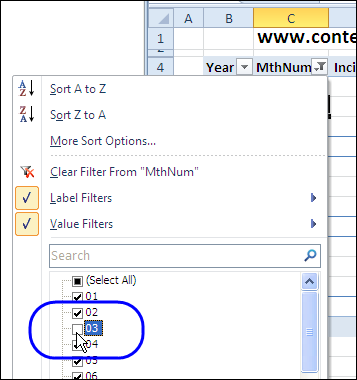
NOTE: You’re limited to one of each filter type per pivot field.
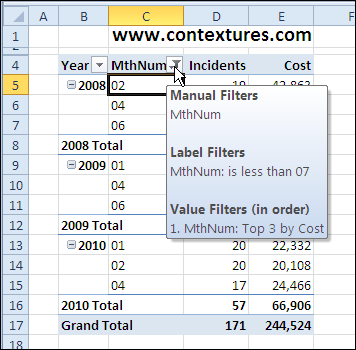
In the pivot table shown below, the month number field now has a Manual filter, Label filter and Value filter.
Watch the Pivot Table Filters Video Tutorial
To see the steps for using multiple filters on the same pivot field, watch this short Excel video tutorial.
More Pivot Table Filter Info
____________
Which Excel version are you using and does multiple filters work in Excel 2003?
Gregory, the example was created in Excel 2010, and the multiple filters feature is also available in Excel 2007, but not in earlier versions
2007 lost FILTER funcionality in Pivot Table?
In 2003, i could make TOP10 (or bottom) filter in value fields, BUT ALSO on LABEL fields.
Per example: if i have a YEAR_DAY (1-365) Field, with values to it (Sales, for example), i could make a filter to TOP7 YEAR_DAY, that would show me everyday, the sales and sum of the last 7 days…
Now, i can choose the TOP7 VALUE days, i can’t choose to (daily) refresh the data of the LAST7 days…
How is it possible to let this feature die???
youtube downloader
In the Excel 2010, the report filter shows the entire list to choose from. Whereas in Excel 2007, it is limited to only what is selected either one filter or multiple filter. How can I limit the list in the 2010 version in the report filter?
@Cindy K, the report filter behave the same in Excel 2010 as they did in Excel 2007 — the full list of items is shown in each filter, even if other filters have been applied.
You could try Slicers in Excel 2010 – they show applicable items at the top of the list, and other items are below.
@Debra. Thanks for the reply. Maybe I’m referencing the wrong Excel… Excel 2003… only shows the list of selected items in the report filter. I created a bunch of reports, only changing the report filter so that is user specific. Now, it appears that they access to all the data, even though they had it before, but it wasn’t apparent.