
Did you know that you can create waterfalls in Excel — Waterfall Charts? We have a very famous waterfall here in Canada, which you can see in the photo below from our fall vacation, a couple of years ago.

Excel Waterfall Charts
Excel’s waterfall charts might not be as spectacular as Niagara Falls, but they can be useful for showing how values change.
There are details below, for creating a simple waterfall chart, and a video that shows the steps.
Net Cash Flow
For example, in a small business, the net cash flow might be a positive number one month, and a negative number the next.
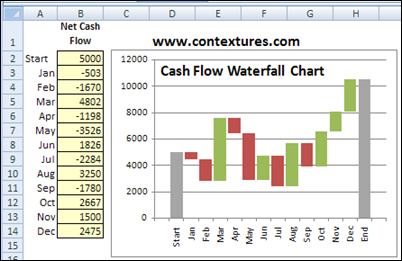
In the Waterfall Chart shown below, the red columns represent a negative number, that brings the cumulative cash total down. Green columns are shown for months with a positive cash flow.
- The starting value for each red column (negative) is at its top, and the cumulative value for that month is the amount at the bottom of the red column.
- The starting value for each green column (positive) is at its bottom, and the cumulative value for that month is the amount at the top of the green column.
- The grey columns (Start and End) compare the original and final amounts, after all the monthly values have been included.
Set Up the Excel Data
Excel doesn’t have a Waterfall Chart Type, but you can create one by arranging your data in columns, then adding and formatting a stacked column chart.
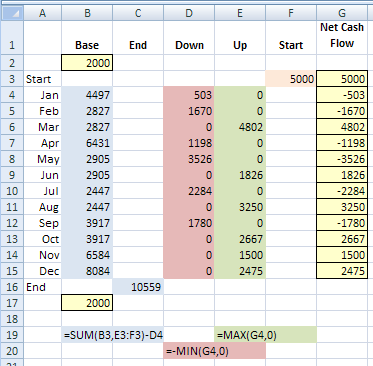
In the screenshot below, columns have been added after the dates, to create the series for the waterfall chart. The Base column is used as a foundation for the “floating” green and red columns.
The formulas are shown below the table, so you can see how each column is calculated.
Create the Waterfall Chart
After you set up the data, follow these steps to create the chart:
- Select cells A1:F17, and insert a Stacked Column chart.
- Format the Base series to have no fill and no border, so it’s invisible.
- Reduce the gap width between the columns
- Format the columns with the colours you’d prefer
- Remove the Legend.
Download the Waterfall Chart Sample File
On the Contextures website, go to the Create an Excel Waterfall Chart page, and you’ll see the formulas used in the waterfall chart data columns. You can also download the sample Excel Waterfall Chart file, to see how it works.
Waterfall Chart Utility
If you need to make more than a couple of waterfall charts, or other custom charts, take a look at Jon Peltier’s time-saving Excel Chart Utility.
It’s very reasonably priced, and will quickly pay for itself, in time saved, aggravation avoided, and possible prevention of hair loss. 😉
Watch the Waterfall Chart Video
To see the steps for setting up your data, and creating an Excel Waterfall Chart, you can watch this Excel video tutorial.
_____________
I know, I’m nitpicking, but shouldn’t the November bar be negative according to the data?
What if the waterfall has some negative numbers (at any point)? How would you solve it? I do not know any solution…
@ikkeman, thanks, I fixed the screen shots. Never change your numbers mid-experiment!
@Raf, see Jon Peltier’s article – Waterfall Charts that Cross the X Axis
Wow, I really like the use of this waterfall chart for cash flow. Great example, and the video was awesome.
Thanks Gregory! Glad you liked it, and thanks to Fakhar for suggesting this example.
@Debra – thanks a lot… actually once I saw this article but I didn’t realize that it is possible without this chart utility (I didnt read properly). I hope one day it will be possible to achieve easier without so many complications!