
Happy Canadian Thanksgiving! You probably have your own spreadsheet to organize the meal, but you can download my Excel Holiday Dinner Planner, if you don’t have one of your own.
Drop Down Lists in Dinner Planner
The dinner planner has data validation cells, where you can select a start time, or type of food, or cooking location, from a drop down list.
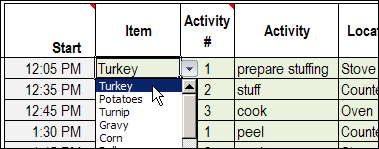
Data Validation Drop Down
Doug Glancy sent me a sample data validation file that he created, that uses a variation on dependent data validation.
I changed his file a bit, to “Thanksgiving” it up. The file has a list of Thanksgiving dinner guests, whether they’d like turkey, and if so, the number of slices.
In column B there’s a simple data validation drop down list, where you can select TRUE or FALSE.
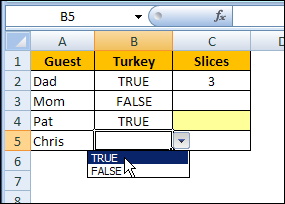
Conditional Data Validation
In column C, there is a conditional data validation drop down list, based on the selection in column B.
- If TRUE was selected, there is a drop down list with numbers (NumList)
- If FALSE was selected, there is no drop down list.
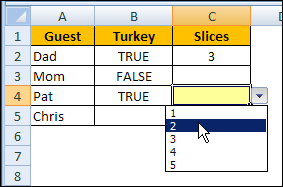
Conditional Data Validation
To create the conditional data validation, Doug created a named formula — Test. With cell C2 selected, the Test formula is:
- =IF(TurkeyOption!$B2=TRUE,NumList)
In column C, the data validation is a list, with the source =Test
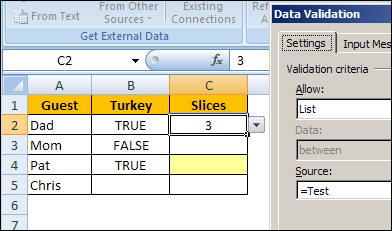
Conditional Formatting
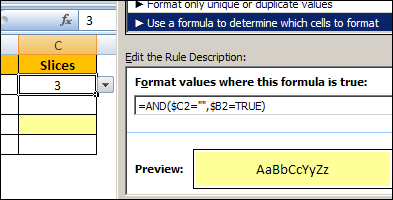
To highlight the cells where a number of slices should be entered, Doug added conditional formatting in column C.
The cell will turn yellow if TRUE was selected in column B, and the number of slices hasn’t been entered.
=AND($C2=””,$B2=TRUE)
Download the Sample File
Thanks, Doug, for sending your sample file. You can download Doug’s Excel Conditional Data Validation sample file, to see how it’s set up.
The file is zipped, and in Excel 2003 format, with no macros.
_____________
Since column B is boolean, there is no need to use the “=” operator to check its value; just reference it directly in the formulas. In other words the “=TRUE” is not necessary.
=IF(TurkeyOption!$B2,NumList)
=AND($C2=””,$B2)
Reuvain,
I know. I still use the Call statement, name my parameters, and specify default members as well. Suffice it to say, I’ll never win one of those obscure C contests, even if I could code in C ;).
Debra,
I was using your Data Validation posts to create a file which was pretty good so far. Everyone was amazed on how the options on the first column determined the options on the second column (once i mentioned it…)
Now, I wanted to tweak it up a little bit, and… well, here I am, writing a question… 🙁
you have a table with your options: a dynamic range in row1 determine the items to be displayed in Column1. And several dynamic ranges, all resulting of the offset of the corresponding column, are the items on Column2.
so far, I’ve manually created every range with the formula =OFFSET(anchor,1,0,counta(corresponding_entirecolumn),1).
That said (and hopefully it was clear enough), is there any way to pass the corresponding_entirecolumn to the formula, based on the selection we’ve made on Column1? (something like your amazing TempCombo, that uses the selected list as data for the combo).
Your wisdom will be much appreciated, as always !!
Kind Regards,
Martin.
Martin, have you tried Roger Govier’s dependent validation example:
http://www.contextures.com/xlDataVal15.html
Or the dynamic dependent lists example here:
http://www.contextures.com/xlDataVal02.html#Dynamic
Debra,
well, what can I say…, I clearly overlooked Roger’s post….
Thanks again for your quick reply !!!
Rgds,
Martin.
Debra,
after a deep reading of the printed copy of Roger’s post, and yours too btw, noticed that my problem is not solved with those, though we are getting closer.
The question then: is there any other way to optimize the use of the space? with the definition of ValData’s range, with a fixed value of 100, or whatever other fixed value for that matter, we are wasting space, where each column is empty.
What I was thinking is to somehow [keyword: somehow, meaning “here’s where your wisdom comes in…”] define the corresponding column by using the top address, obtained by =MATCH(SelectedItem,MasterList,0) and COUNTA(SelectedColumn).
suggestions, anyone??