
Many moons ago, Dave Peterson created a sample Excel worksheet data entry form and kindly shared it on the Contextures website.
In Dave’s original form, users could add records on the data entry sheet, and click a button to go to the database sheet, where they could review or edit the order records.
I’ve created a couple of versions since then, including an Excel data entry form that allowed users to view, add and update records, while staying on the data entry sheet.
Mark the Required Cells
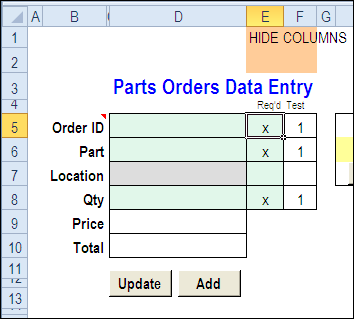
Here’s a screen shot of the latest version of the workbook, with new features that were suggested in the comments for the previous version.
Mark Required Data Entry Cells
The first new feature is the ability to mark which cells are required.
- In column E, add an X beside the cells that are mandatory, and leave the optional rows blank.
- Conditional formatting colours the required cells in green, and the optional cells in grey.
You can hide columns E and F before using the workbook.
Select a Specific Record
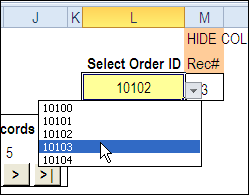
In the new version, you can select a specific record from the drop down list in cell L3, to view or edit that record.
Before using the workbook, hide column M, that has a formula to calculate the record number for the selected order.
Use the Navigation Buttons
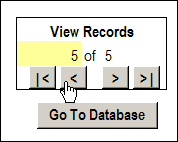
Or, as in previous versions, you can click the navigation buttons to move forward or back through the records, based on the row numbers in the database.
Download the Data Entry Form File
The zipped sample workbook can be downloaded from the Date Entry and Update form page on my Contextures site. On that page, go to the Download section, look for Version 1
After you open the workbook, enable macros, so the buttons and event code will work correctly.
There is an instruction sheet in the workbook, that describes how to navigate, add and update records, and maintain or modify the named ranges.
___________
Thanks Gary, and your changes sound good. It’s important to keep the records unique if you’re going to update them!
[…] posted a few versions of the Excel Worksheet Data Entry Form, starting with the original version that Dave Peterson created. Thanks for your comments and […]
I have been using the db for a while now but need the new data to be inserted at the top of the partsdata worksheet rather than the bottom. After many amateur attempts to modify the code I’m still struggling. Im sure that the modification should be minimal but just can’t get it working.
Phil, in the code, after the new data is copied to the partsdata sheet, you could move it to the top:
.Cells(nextRow, 3).PasteSpecial Paste:=xlPasteValues, Transpose:=True .Rows(nextRow).Cut .Rows(2).Insert Shift:=xlDownDebra, thanks for the tip, as usual I tried to rewrite the code rather than simply add another step as you have explained. Now I can use the most recent data in a chart and as new data is input the chart will update. Works great in a dashboard.
Hi Debra,
Thanks for your wonderful work. I was trying to accomplish the same in a user form ,as we know the user can add any sort of data with the use of form.Once the data has been updated and the user wants to query a part information or update the part information, then a excel form should pop up.
In this form the user should enter the part number , and all the data for that part number should be displayed in the form with everything protected.
This form could also have an option of update some comments.
Can you suggest something on this please.
Thanks,
Pete