
To keep your data details confidential, you might want to send someone a copy of a pivot table, without the link back to its source data. It’s easy to copy a pivot table, and paste it as values,but it is difficult to copy pivot table format and values.
No Formatting
After you copy a pivot table, if you try to paste the values and source formatting, you’ll be disappointed by the results. The values are pasted, but not the PivotTable Style formatting.
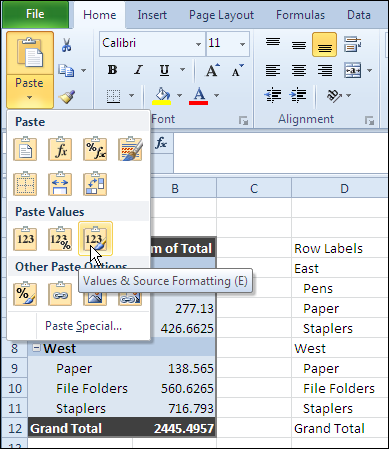
Use the Clipboard
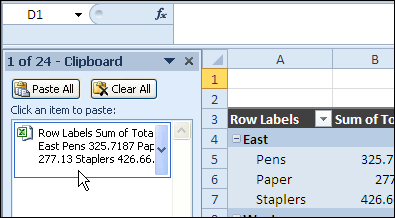
Fortunately, John Walkenbach discovered that you can paste from the Office Clipboard, instead of using the Paste Values command, and the PivotTable Style formatting is pasted too.
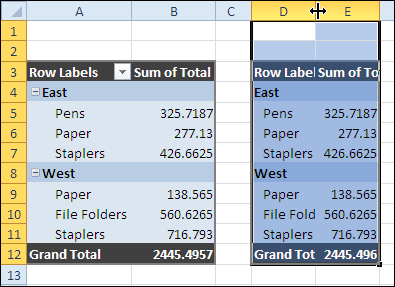
The result is something that looks like the original pivot table, without the link to the source data.
For more information on PivotTable Styles and pivot table formatting see the Contextures Pivot Table Format page.
Copy Pivot Table Format and Values Video
To see the steps to copy pivot table format and values, watch this short Excel tutorial video.
_____________
You can get the same result by Paste All, and immediately thereafter Paste as Values. By pasting the first time, you get a copy of the pivot table – and by pasting the second time (Values only) – the pivot link to the source data is removed.
Andrea, are you using Excel 2003? The formatting disappears when you Paste as Values in later versions.
Indeed I do Debra. Thanks for pointing that out.
Andrea, you’re lucky! They messed up this feature in Excel 2007, so it’s much harder to do now.
Hi Debra,
I have always done that this way…
1)Copy the Pivot Table
2)Paste values (using Paste Special)
3)Then get back to Paste Special and choose Paste format
The result is the same
I hope it helps
Thanks John, but that doesn’t work in Excel 2007 or later, to copy the PivotTable Styles.
In earlier versions, the PivotTable Styles don’t exist, and you can copy the AutoFormat formatting, as you described.