
It’s finally summer, and you need to stay cool, even when you’re using Excel. Here’s an energy-efficient and fast way to find and delete Excel rows. You can select several rows that contain similar data, and delete them all at the same time.
Find All the Data
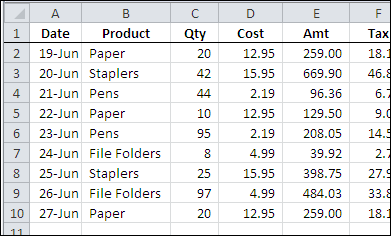
In the worksheet shown below, there is a list of products sales, and a few of the records are for paper sales.
I’d like to delete those paper sales rows, without having to sort the worksheet, or spend a long time manually selecting the rows.
Find the Paper Rows
To find all the Paper sales rows, I can use the Excel Find command. Here are the steps to do that:
-
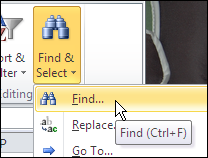
- On the Ribbon’s Home tab, click Find & Select, and then click Find.
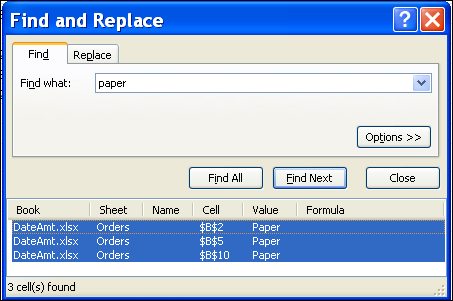
- In the Find and Replace dialog box, type “paper” in the Find What box.
- Click Find All, to see a list of all the cells that contain the text, “paper”
- Select an item in the list, and then press Ctrl+A, to select the entire list. That will also select all the “paper” cells on the worksheet.
Delete the Selected Rows
To delete the entire row for each “paper” cell that was found, follow these steps:
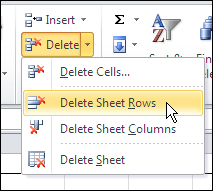
- On the Ribbon’s Home tab, click Delete, and then click Delete Sheet Rows.
All the selected rows will be deleted, and the other product orders remain on the worksheet.
Video: Find and Delete Excel Rows
To see the steps to find all the instances of a word, and delete the selected rows, watch this short Excel video tutorial.
More Find and Replace Examples
See more ways to use the Find and Replace commands in Excel, on my Contextures website.
Also, see how to select rows based on their conditional formatting colour, and delete the filtered rows. This example uses a list in a named Excel table.
___________
Thank u so much.
Champion!
Thanks
Thank you so much!! it was very helpful.
Does anyone know how to move search rows into a new sheet instead of deleting them.?
This process is exactly what I have been looking for except……. the string I’m looking to delete starts with *** which is the excel default for wildcard. When I do a find for *** it selects all the rows. Is there a way to find the characters ***?
Jeff, you can use the tilde character before the asterisk: ~*~*~*
That works perfect. Thank you.
VERY NICE