
When you create a list in Excel, do you start with a column that numbers the rows? I usually create an ID column and type the number, or use a formula to automatically number them.
In the steps below, I’ll show you the simple numbering system. There’s a fancier formula too, if you’d like to see consecutive numbers when the list is filtered.
Count of Visible Records
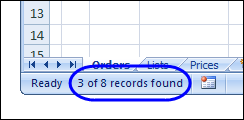
When you use an Excel AutoFilter to filter a list, usually the count of visible records appears in the Status Bar, at the bottom left of the Excel window.
Note: If the Status Bar shows Filter Mode, instead of the record count, you can use one of the workarounds shown here – Status Bar shows Filter Mode.
Record Numbers
That Status Bar count is helpful if you’re looking at the results on the screen. However, it’s not much help if you print the filtered list and give it to someone else.
To make things easier for them, you can add record numbers that will print for each row.
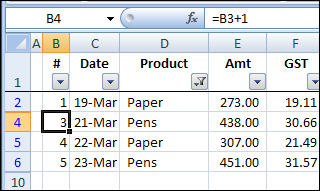
For example, in the screenshot below:
- the visible rows are 2, 4, 5 and 6
- the numbers in column B are 1, 2, 3 and 4.
Add Record Numbers to a Filtered List
In column B of the worksheet list, you could:
- type a list of consecutive numbers
- or, use a simple formula, such as =B2+1
However, those numbers won’t change, if the list is filtered.
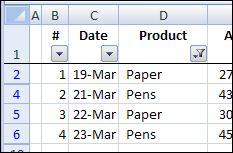
For example, in the screenshot below:
- the second record is hidden by the filter:
- the record count, in column B, shows as 1, 3, 4, 5.
Use SUBTOTAL Function
Instead of using the simple formula shown above,you can use a fancier formula, to number the visible rows only.
Here is the revised formula, that I entered in cell B1, using the Excel SUBTOTAL function:
- =SUBTOTAL(2, C$1:C2)
The SUBTOTAL function is designed to ignore rows that are hidden by a filter, so the formula result will change if rows in our list are hidden.
| ⚠️ | Warning: Don’t use this technique if you plan to use Excel’s Subtotal feature (Data>Subtotals) — it may delete your table when you remove the Subtotals. |
Count the Dates
In the sample Excel list, there is always a date in column C, so it’s safe to use the SUBTOTAL function to count the visible dates.
=SUBTOTAL(2, C$1:C2)
1) The first argument in the SUBTOTAL is the number 2. That tells Excel to use the COUNT function in the subtotal result.
- The COUNT function counts numbers and dates only
| 💡 | Tip: If you want to count text entries instead, use 3 as the first argument, and Excel will use the COUNTA function. The COUNTA function counts all types of data. |
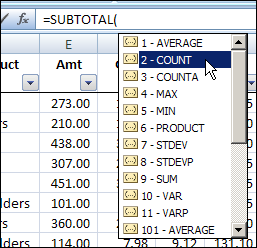
2) The second argument, C$1:C2 is the range of cells that we want to count. Column C contains the dates.
Copy the Formula Down
After you create the formula to number the visible rows in Excel AutoFilter, copy it down to the last row with data.
- The first cell in the range reference, C$1, has an absolute row reference. When you copy the formula down, that part of the formula won’t change.
- The count should always start in row 1.
- The second cell in the range reference, C2, has a relative row reference. When you copy the formula down, that part of the formula WILL change.
- The count should end at the row the formula is in.
With the SUBTOTAL formula, when you apply an Excel AutoFilter, or show all the records, the record numbers in column B will always show a consecutive list of numers..
Problems Hiding the Last Filtered Row
The SUBTOTAL function works well, and renumbers our rows as expected, but there’s something wrong.
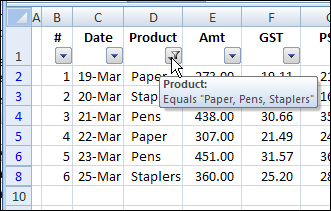
In the screenshot below, the list is filtered to show only two products, as you can see in the AutoFilter pop-up tooltip:
- Paper
- Staplers
However, there is a problem. Can you spot what’s wrong?
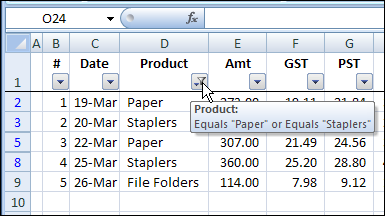
Although the list is filtered for Paper or Staplers, the File Folders record in row 9 is also visible.
Also, its row number button, at the left side of the worksheet, isn’t blue, like the row numbers for rows 2, 3, 5 and 8.
Hidden Named Range
When you use an AutoFilter, Excel creates a hidden named range for the database.
In the screen shot below, I used Jan Karel Pieterse’s Name Manager utility. It lets me see the definition for the hidden name, Orders!_FilterDatabase.
Even though the list ends in row 9, the named range stops at row 8: =Orders!$B$1:$H$8
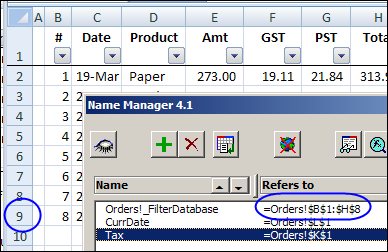
Why Is Excel Confused?
Why is Excel confused about where the AutoFilter list ends?
If there’s a SUBTOTAL function in the last row of that database, Excel decides that it’s a special row for the list’s totals. The Total Row is not included in the named range.
So, if you want your last row hidden when using the SUBTOTAL function in a filtered list, you can use one of the following workarounds.
Workaround 1: Add a Dummy Row
- [Update] This was my previous workaround. I prefer to use Workaround #2 now.
The first time I ran into this problem, I added a dummy row at the end of the list, with just the SUBTOTAL function, or other dummy data.
Then, that row was treated as the last row, and all the real data is shown or hidden, based on the AutoFilter criteria.
- In the screenshot below, the SUBTOTAL function is copied down to row 10
- When the AutoFilter is applied, row 9 is hidden.
There’s no date in row 10, so it doesn’t affect the record numbering.
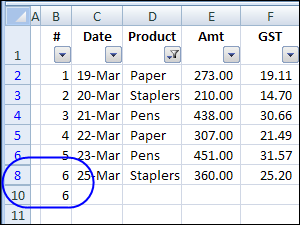
Workaround 2: Change SUBTOTAL formula
Recently, I found another workaround, that’s much better than the dummy row solution.
Dick Kusleika was subtotalling filtered rows, and discovered that he could fix the problem by typing two minus signs in front of the SUBTOTAL function.
Note: I left a space between the minus signs below, just for clarity. The formula will work with or without the space.)
=- -SUBTOTAL(2, C$1:C2)
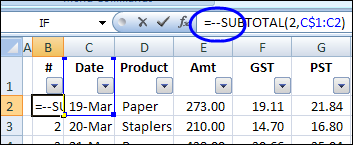
With Dick’s solution, there are two main benefits:
- there’s no need for an extra row, so the worksheet looks better.
- you’ll avoid other potential problems, such as filtering for blanks in one of the fields.
More Filter Tips & Tutorials
AutoFilter Basics
AutoFilter Tips
Advanced Filter Basics
Advanced Filter Criteria
Filter to Different Sheet
Filter Unique Items
Excel Filter Based on List
________________
i Cant do this! poor me, after doing this, my A2 = 0.
I have a spreadsheet that contains 29,000 line. Excel 2010 will only allow me to view 10,000 – how do I increase this?
when i enter given formula i get error: to few arguments given?
HOW ABOUT SUBTOTAL USING 9 THAT DOESNT WORK IN ADVANCE FILTERING? ANY SOLUTIONS?
=TEXT(SUBTOTAL(2, C$1:C2),0)
using subtotal function
=SUBTOTAL(3,$B2:B$2)
1.CLICK ON THE CELL FOR SERIAL NUMBER
2. PUT ‘+’ OR ‘=’ SIGN
3. SELECT SUBTOTAL FUNCTION
4.SELECT THIRD FUNCTION – COUNTA ( ORDER NO-3)
5. PUT ‘,’
6.SELECT RIGHT SIDE ONE CELL
7. SHIFT + ;
8. PUT $ SIGN AFTER 3, AND IN BETWEEN B&2