
You added some data validation drop down lists to your Excel worksheet, to make it easier to enter the data. Later, you opened that workbook, and the data validation arrows are missing! What happened, and how do you get those arrows back?
Select the Cell
The data validation drop down arrow only shows when you click on the cell. So, you might have 100 cells with data validation drop down lists, but you’ll only see the arrow in the active cell.
If you want to make it easy to find the cells that have data validation lists, you can colour the cells, or add a cell comment.
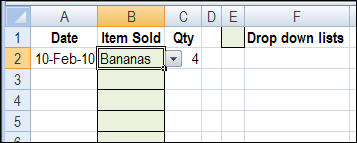
If you want drop down arrows that are always visible, you can use combo boxes instead of data validation.
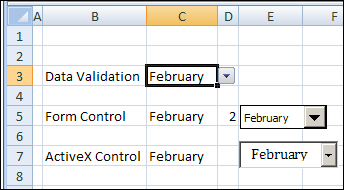
Objects Are Hidden
Maybe there were some other shapes on the worksheet, like logos, or text boxes, and you changed a setting to hide them. Because they’re objects too, the drop down arrows will also be hidden.
To make the objects visible again, follow these steps:
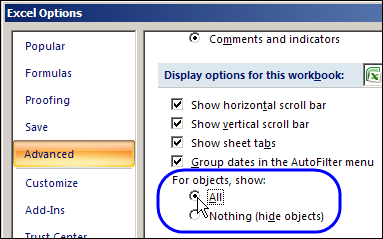
- Click the Office Button, then click Excel Options.
- Click the Advanced Category
- Scroll down to the ‘Display Options for This Workbook’ section
- Under ‘For Objects, Show’, select All, then click OK
Drop Down Option
Even though the default setting for a data validation list is to show the arrow, it’s possible to change that setting. In the Data Validation dialog box, you can turn off the option for a drop down list. To turn it back on:
- Select the cell that contains a data validation list
- On the Ribbon, click the Data tab
- In the Data Tools group, click Data Validation
- On the Settings tab, add a check mark to In-cell drop down
- Click OK
Workbook Corruption
If you try all of the above solutions, and the drop down arrows are still missing, the worksheet may be corrupted. Try copying the data to a new worksheet or workbook, and the data validation drop down arrows may reappear.
Or, try to repair the Excel file as you open it:
1. In Excel, click the Office button, and then click Open
2. Select the file with the missing data validation arrows
3. On the Open button at the bottom right, click the drop down arrow
4. Click Open and Repair
5. When the confirmation message appears, click Repair.

Drop Down Arrows In Excel 2003 and Earlier
There are instructions on the Contextures website for fixing missing data validation arrows in Excel 2003 and earlier versions. Check those instructions if you’re not using Excel 2007 or later version.
Video: Missing Data Validation Arrows
To see the steps for fixing missing data validation arrows, watch this short video tutorial.
____________
THANK YOU! I knew it had to do with hidden objects after my hour search online but nowhere did it say where the fix is. I can now sleep easy at night.
You’re welcome! Glad you’ll be able to sleep now. 😉
I tried everything mentioned here, and they still disappear.
I just discovered why my data validation drop-down arrows were disappearing. Not only is a drop-down arrow an Object, it is a Shape Object. My VBA code scrolls through all the shapes on the worksheet and deletes all those whose names do not meet certain criteria. It took some debugging in VBA to see that the arrows have names of the form “Drop Down N”, where N = 1, 2, 3, ….
All I had to do is amend the If statement that decides whether to delete a particular, chosen shape “shp”:
If And And Left(shp.Name,5) “Drop ” Then
shp.Delete
End If
Thank you very much! Hidden objects was my problem.
I guess from everyone’s thanks, this seems to happen, although it’s the first time I’ve ever encountered it. We flip files between different linguistic versions of excel, but again, we have done this for years.
It worked, thanks dear.