
You added some data validation drop down lists to your Excel worksheet, to make it easier to enter the data. Later, you opened that workbook, and the data validation arrows are missing! What happened, and how do you get those arrows back?
Select the Cell
The data validation drop down arrow only shows when you click on the cell. So, you might have 100 cells with data validation drop down lists, but you’ll only see the arrow in the active cell.
If you want to make it easy to find the cells that have data validation lists, you can colour the cells, or add a cell comment.
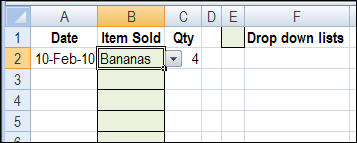
If you want drop down arrows that are always visible, you can use combo boxes instead of data validation.
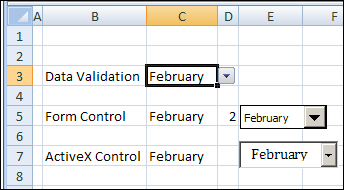
Objects Are Hidden
Maybe there were some other shapes on the worksheet, like logos, or text boxes, and you changed a setting to hide them. Because they’re objects too, the drop down arrows will also be hidden.
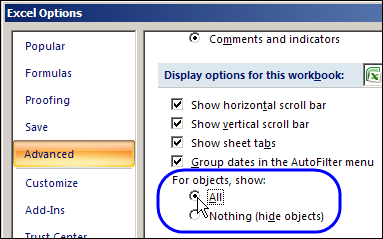
To make the objects visible again, follow these steps:
- Click the Office Button, then click Excel Options.
- Click the Advanced Category
- Scroll down to the ‘Display Options for This Workbook’ section
- Under ‘For Objects, Show’, select All, then click OK
Drop Down Option
Even though the default setting for a data validation list is to show the arrow, it’s possible to change that setting. In the Data Validation dialog box, you can turn off the option for a drop down list. To turn it back on:
- Select the cell that contains a data validation list
- On the Ribbon, click the Data tab
- In the Data Tools group, click Data Validation
- On the Settings tab, add a check mark to In-cell drop down
- Click OK
Workbook Corruption
If you try all of the above solutions, and the drop down arrows are still missing, the worksheet may be corrupted. Try copying the data to a new worksheet or workbook, and the data validation drop down arrows may reappear.
Or, try to repair the Excel file as you open it:
1. In Excel, click the Office button, and then click Open
2. Select the file with the missing data validation arrows
3. On the Open button at the bottom right, click the drop down arrow
4. Click Open and Repair
5. When the confirmation message appears, click Repair.

Drop Down Arrows In Excel 2003 and Earlier
There are instructions on the Contextures website for fixing missing data validation arrows in Excel 2003 and earlier versions. Check those instructions if you’re not using Excel 2007 or later version.
Video: Missing Data Validation Arrows
To see the steps for fixing missing data validation arrows, watch this short video tutorial.
____________
Thank you very much for the instructions. this is the only site that gave full details and options of how to fix this issue. i was able to fix it instantly.
(Excel 2010) The arrow may disappear if there is a freeze pane on the column with the data validation, and you scroll to the right. If you ensure that the column immediately to the right of the data validation column is visible, it should reappear when you click on the cell. As a workaround, you may create a spacer column to the right of the data validation column and add the freeze pane to that column.
That actually worked. All of the other suggestions did not. Who would have thought to freeze the pane next to the data validations would work. I hate Excel.
Finally – the solution that I needed! Thanks for adding that to the list, very much appreciated!
Thank you Bear!
The freeze pane reason was exactly my problem here in mid 2020. I had noticed that the adjacent column had to be visible, but had not correlated cause and effect. Now I can explain that to my clients.
Microsoft: you’re not doing yourselves any favours among your Excel fans…
Debra, this was an excellent tutorial, unfortunately it did not fix my problem (running XL2010). I finally stumbled onto what was happening, I was running a macro that copied data from one sheet to another, but first clearing all cells and deleting all shapes from the target sheet. It was the deleting shapes that was causing the problem. The only way to recover the dropdowns that I’ve found so far is to copy the defective sheet to a new sheet – then the validation arrows re-appear. Ron de Bruin has a good discussion on deleting shapes via vba (http://www.rondebruin.nl/win/s4/win002.htm ,for anyone who’s interested).
Dang drop-down arrow disappeared. I have NO idea how I did that but thanks to your simple explanation you made it quick, easy and painless to correct! I would have spent HOURS trying to find that one! Now I hours to have more beer… wait, maybe that’s why…
@Greg, glad the tip helped! And I can’t condone the use of beer, unless you brought enough for everyone.
Thank you very much ..
My file was first created as .xlsm and contained VBA codes. Then I changed it to .xls format to save space. Codes and validation worked for a year. then arrows disappeared. Tried everything, solved by saving file first as .xlsm then back as .xls