
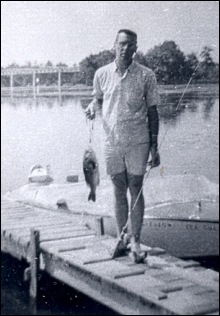
That’s my dad in the picture below, proudly holding the catch of the day. He tried to teach me how to fish, but without much success. (Worms…ewwww.)
Fishing with OFFSET Function
This week someone asked me to explain the Excel OFFSET function, saying “Please teach me to fish.” That’s when it struck me that using OFFSET is similar to fishing.
- When you’re fishing, you can dip into a pond with a bamboo pole and a small hook, or head out to sea, and cast a large net. Or you can fish the way we do in Canada, through a small hole in the ice, but that’s another story. (There’s a video at the end of this article.)
- With the Excel OFFSET function, you can pull data from a single cell nearby, or a large range of cells off in the distance.
The OFFSET function is useful when you want to make the data selection adjustable.
For example, if a February date is entered in cell A2, you can sum the February expense column. If a March date is entered, sum the March expenses instead.
Your Fishing Equipment
To make the OFFSET function work, you’ll tell it 3 things:
- The starting point
- Where to go from there
- How big a range to capture (optional)
The OFFSET syntax is: OFFSET(reference,rows,cols,height,width)
- The reference is the starting point.
- The rows and cols tell OFFSET where to go from the starting point. It can go up or down a specific number of rows, and left or right a specific number of columns.
- The height and width set the size of the range. It can be as small as 1 row and 1 column (a single cell) or much bigger.
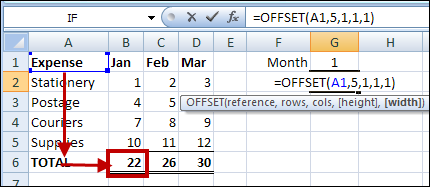
For example, this OFFSET formula would return the January total, in cell B6:
=OFFSET(A1,5,1,1,1)
- The starting reference is cell A1.
- From there, it goes down 5 rows, and right one column, to cell B6.
- The selected range size is 1 row tall and 1 column wide.
Baiting the Hook
Instead of typing all the values in the formula, you can use one or more cell references, to make the OFFSET formula flexible. In this example, all the totals are in row 5, so that number won’t change.
However, the month number is typed in cell G1, so you could use that cell to set the number of columns to offset. Change the formula so G1 is the cols argument.
=OFFSET(A1,5,G1,1,1)
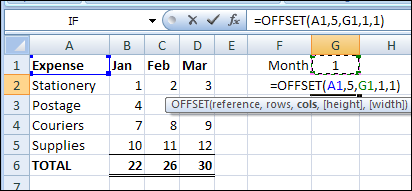
Now, if you change the month number to 3 in cell G1, the March total will be returned.
Casting the Net
Instead of pulling the result from a single cell, you could use OFFSET with the SUM function, to select a range with multiple cells, and calculate the total.
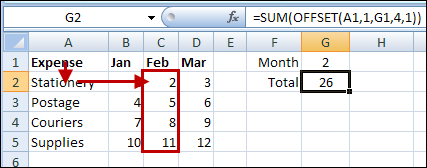
For example, this formula would calculate the total for the February expenses.
=SUM(OFFSET(A1,1,G1,4,1))
- The starting reference is cell A1.
- From there, it goes down 1 row, and right 2 columns, to cell C2.
- The selected range size is 4 rows tall and 1 column wide – C2:C5.
Other Fish to Fry
I like the OFFSET function, and use it to create dynamic ranges in some of my workbooks.
There are alternatives to using the Excel OFFSET function, such as the Excel INDEX Function.
There’s an interesting discussion of the merits of each function on Dick Kusleika’s Daily Dose of Excel Blog: New Year’s Resolution: No More Offset.
Ice Cold Fish
I’d rather stay inside and work on OFFSET formulas, but ice fishing is popular here in Canada. This video makes the sport look almost appealing.
_____________________
Another extension to the offset function is that it can offset a Range or named Range, eg:
=Offset(A1:A12,0,10) Will offset the initial range across 10 Columns and hence pickup K1:K12
or
=Offset(Date,0,B1) Will offset the named Range by 10 Columns
These are great for setting up dynamic charts
Yeah, but how does the FISHER function fit in? And you didn’t mention that after you catch those fish, you have to CLEAN them.
I don’t want to be too self-promotional, but I made an interactive tutorial
to learn how to fishto help visualize how the OFFSET function works. For those interested, you can download the workbook at the bottom of this page.Excel OFFSET tutorial
Sebastien
Hui, thanks for the examples, and your second example assumes that cell B1 contains the value 10.
John, good catch. And I forgot POISSON too.
Thanks Sebastien.
Here’s another video about ice fishing, in northern Ontario.
http://www.youtube.com/watch?v=Xb4lc2bZBEg
Thanks Jon, very refreshing sport, eh? And that was probably filmed in June.