
Almost a year ago, we talked about creating a table of contents sheet in Excel. In that post, one of the suggestions was to type a list of sheets on a worksheet, then change each sheet name into a hyperlink.
Today, you’ll see a quicker way to create hyperlinks — by dragging and dropping. There are written steps and a video below.
List Ready for Hyperlinks
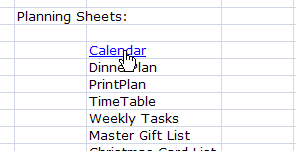
Here’s the typed list of sheets from that Table of Contents article , ready to add hyperlinks.
Create Hyperlinks By Dragging
Instead of creating a list of sheets, and adding a hyperlink to each item in the list, here’s a method that’s even easier.
Instead of typing, you can drag cells to create hyperlinks.
This short video shows the steps, and there are written instructions below the video.
Start the Hyperlink
In this example, there’s a table of contents sheet (TOC), a Sales sheet, and an Expenses sheet. On the TOC sheet, we’ll create a hyperlink to the Sales sheet.
To create the hyperlink, you’ll start on the Sales sheet. It’s the sheet that we want to link to. Follow these steps to start the hyperlink.
- First, save the workbook, if you haven’t done so already.
- If you’re in a new workbook, that hasn’t been saved, this dragging technique won’t work.
- Next, go to the Sales sheet
- Select a cell that you want to link to. In this example, cell A1 is selected.
- Point to the selected cell’s border,and a four-headed arrow will appear on the pointer
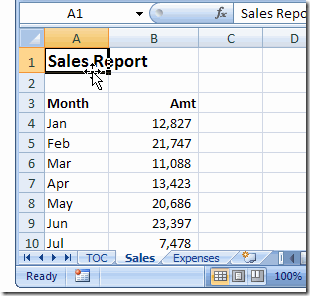
Drag the Cell
The second step to to drag the selected cell. Follow these steps:
- Continue pointing to the cell’s border
- Press the right mouse button
- We want to drag the cell to the TOC worksheet, so press the Alt key on the keyboard, and drag the cell onto the TOC sheet tab.
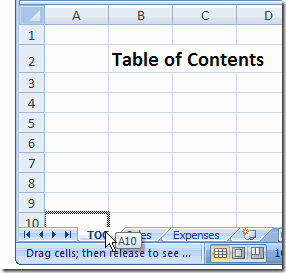
- When the TOC sheet is activated, release the Alt key.
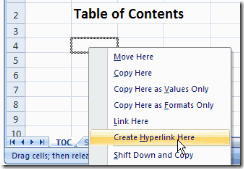
- Drag to cell B4, and release the right mouse button
- In the popup menu that appears, click Create Hyperlink Here
Test the Hyperlinks
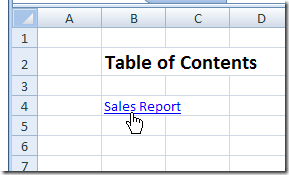
A hyperlink is automatically created, using the text from the Sales Report cell that you dragged.
To test the hyperlink, click the Sales Report hyperlink.
You’ll automatically go to the Sales sheet, and cell A1 will be selected.
More Hyperlink Examples
To see more ways to add hyperlinks, and use them in your files, go to the Hyperlinks and Hyperlink Function page on my Contextures site. There are hyperlink tips, videos, and macros, and sample files to download.
NOTE: If you have a copy of my Contextures Excel Tools add-in, you can use it to create a quick list of sheets in the active workbook, with hyperlinks

_________________
[…] Make table of contents with just dragging […]
i tried the above feature, but i somehow not getting it. popup menu shows copy cell, fill formatting, fill without formating, i don get the create hyperlink. wat do i do ? am using MS excel 2003. pls help
Reena, when you point to the border of the cell that you want to drag, the pointer should have 4 arrows. If you drag the cell when that 4-headed arrow is showing, you’ll see the Create Hyperlink Here command.
However, if you point to the bottom right corner of the cell, where the little black square is (the autofill handle), the pointer changes to a black plus sign. If you drag the cell when that plus sign is showing, you’ll see the Copy Cell, Fill Formatting Only, commands.
I wanted to create an Index page with hyperlinks to Sheets and Charts but couldn’t get the Charts working.
This was my solution, which I am happy with. It dynamically creates the index when the Index page is activated. and
Private Sub Worksheet_Activate()
Dim rowcounter As Integer
rowcounter = 1
Sheets(“Index”).Cells.ClearContents
For Each Sh In ThisWorkbook.Sheets
Select Case Sh.Name
Case “Index”
Case Else
Sheets(“Index”).Cells(rowcounter, 1).Value = Sh.Name
rowcounter = rowcounter + 1
End Select
Next
With ActiveWorkbook.Worksheets(“Index”).Sort
.SetRange Range(“A1:A100?)
.Header = xlNo
.MatchCase = False
.Orientation = xlTopToBottom
.SortMethod = xlPinYin
.Apply
End With
End Sub
Private Sub Worksheet_BeforeDoubleClick(ByVal Target As Range, Cancel As Boolean)
Select Case Target.Column
Case 1
If Len(Target.Value) > 0 Then Sheets(Target.Value).Select
End Select
End Sub
Paul, thanks for sharing your code, to help index workbooks that have chart sheets.
Thanks Debra, i got it now. that’s really wonderful.