
A common pivot table question is “How can I create a pivot table from data that’s on separate sheets in my workbook?
Sometime people have a workbook set up with a separate sheet for each region, or for each salesperson.
Eventually, they want to pull all the data together, and create a summary report in a pivot table, from multiple sheets.
Multiple Consolidation Ranges
Excel has a feature (well hidden Excel 2007) that lets you do this, using Multiple Consolidation Ranges.
A pivot table created this way has limited features, and isn’t much use in summarizing Excel data.
I usually recommend that you move all the data onto one worksheet, if it will fit, or store it in a table in Access, then use that as the source for the pivot table.
Create a Union Query
Another solution is to create a Union query from the separate tables, and use that as the source data.
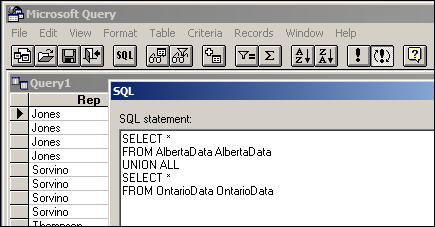
Normal Pivot Table
With this solution, you’ll end up with a normal pivot table, with none of the limitations. However, it’s a bit tedious to set up, especially if you have more than a couple of tables.
Automate the Union Query
Instead of setting this up manually, you can use the code in a sample file from Excel MVPs, Kirill Lapin (KL), with amendments by Héctor Miguel Orozco Diaz. (You might remember Héctor’s innovative Filter Pivot Table Source Data example, posted earlier this year.)
To adjust their sample code to work in your file, you’d replace the sheet names in the CreateConnection code.
To go to the CreateConnection code, right-click on the “Create Empty Table” button, and click Assign Macro, then click Edit.
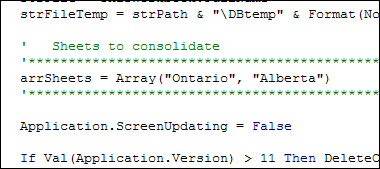
You can also adjust the location where the pivot table will be added. This line is further down in the CreateConnection code.
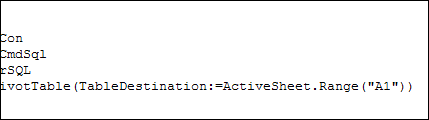
After those small changes, save the code changes. Then go back to Excel, click the button on the worksheet, and a summary pivot table will be automatically created.
Download the Sample File
Thanks Kirill and Héctor, for making a complicated task easier. You can download their sample file from the Contextures website: PT0023 – Pivot Table from Multiple Sheets
(Also, please check the update section below, for a newer version of the file)
Update — December 2011
The solution described in this article was created as a conceptual prototype and targeted mainly advanced VBA users. The code has minimal error handling and compatibility checks.
Given the massive response from all kinds of users willing to adopt this solution in their own applications, we would like suggest a similar solution based on ADO.
Advantages:
- No need for temporary file generation
- The code is faster and less prone to errors
Disadvantages:
- No manual refresh of the PivotTable
- Need to rebuild connection from the scratch to update the cache with new data
Download the ADO Sample File
You can download the new ADO version of the file from the Contextures website: PT0024 – Pivot Table from Multiple Sheets – ADO version
Update — August 28, 2012
In the comments below, Kirill posted code that will automatically detect the sheet names. The blog formatting changed his minus sign to a long dash, and also deleted the Less Than Greater Than operator. Here is the correct code, with Kirill’s instructions:
In the code, replace this line:
' Sheets to consolidate
'*****************************************************************************
arrSheets = Array("310_BWATTS_P Pastujova", "310_BWATTS_Maria Sanchez")
'*****************************************************************************
with the following code:
' Sheets to consolidate
'*****************************************************************************
Dim ws As Worksheet
ReDim arrSheets(0)
For Each ws In ThisWorkbook.Worksheets
  If ws.Name <> ActiveSheet.Name Then
    arrSheets(UBound(arrSheets)) = ws.Name
    ReDim Preserve arrSheets(UBound(arrSheets) + 1)
  End If
Next ws
ReDim Preserve arrSheets(UBound(arrSheets) - 1)
'*****************************************************************************
________________
Thanks for this code! I used it to consolidate weekly informmation for the last year. Now that a new week has passed, how do I add to my Pivot Table? Is there a way to refresh the list of sheets? I used the following code to define the list:
[code]
‘ Sheets to consolidate
‘*****************************************************************************
Dim ws As Worksheet
ReDim arrSheets(0)
For Each ws In ThisWorkbook.Worksheets
If ws.Name = “SQL” Then GoTo 1
If ws.Name ActiveSheet.Name Then
arrSheets(UBound(arrSheets)) = ws.Name
ReDim Preserve arrSheets(UBound(arrSheets) + 1)
End If
1: Next ws
ReDim Preserve arrSheets(UBound(arrSheets) – 1)
‘*****************************************************************************
[/code]
Hi guys,
Strange as it may seem I rebuilt my workbook and so far so good – refresh within VBA works! I am of course relieved, but a little perturbed as I still don’t know what went wrong the first time round… Having done a lot of surfing it seems others have had a similar experience so one small comfort is that I’m not alone! 😉
Thanks Debra for the feedback iro pivot cache count – much appreciated.
One last point – I want to create a pivot table, but want the order the data is displaed in to remain the same as that in the original data i.e. I have phases in a project arising over a number of years, for example:
Year Phase {Scenario 1} {Scenario 2} — {Scenario n}
2010 Verfahren
2011 Verfahren
etc.
2020 Bau
2021 Bau
etc
2030 Betrieb
2031 Betrieb
etc
2040 Verschluss
2041 Verschluss
etc
2050 Monitoring
2051 Monitoring
etc
and I do not want these phases in either alphabetical ascending or descending order in my pivot table i.e. I do not want for example Verfahren 2nd from the end when I filter on Phase. Any suggestions?
( Yes, the projects in German so it’s all very interesting! 😉
And lastly if any of you guys happen to have an example of VBA code which dynamically creates/refreshes such a pivot table and potentially an associated pivot chart ( number of rows and/or columns may vary as may the Scenario names i.e. column header names ) I would be very interested! ( Know I’m asking a lot, but you never know your luck 😉
Many thanks
Louise
Hi, i am from panama and don’t speack a lot of english,
my question is.
When i open the pivote with the change, only appear the pivote but not the style i change.
Hello,
I have downloaded the file but am getting “run-time error 9? when I click the Create Empty Table button.
What am I doing wrong?
Claire
Kirril…this code is fantastic. I’ve amended it to use different sheets as relational tables, and then build a pivot. Good thing about your code is renaming the ‘database’ (i.e. the workbook) doesn’t cause any problems, because the connection string is updated on file close.
Only problem is that if you save the file somewhere else or with another name, and you forget to click the ReestablishConnection button, your pivot will be pointing at the ‘old database’. So my minor suggested improvement would be to dump this:
Private Sub Workbook_Open()ReestablishConnection
End Sub
…in favour of this:
Private Sub Workbook_BeforeSave(ByVal SaveAsUI As Boolean, Cancel As Boolean)
Dim file_name As Variant
Application.EnableEvents = False
Dim FName As String
If Not SaveAsUI Then Exit Sub
Application.EnableEvents = False
FName = Application.GetSaveAsFilename
ThisWorkbook.SaveAs Filename:=FName
Application.EnableEvents = True
Cancel = True
Call ReestablishConnection
End Sub
I guess you could also add a check before the Call ReestablishConnection line to see if the connection has changed, such as
IF Worksheets.PivotTables(PIVOTNAME).PivotCache.Connection = strCon then exit sub…but then, by the time you go and declare the variables you need to perform this check, you may as well go ahead and update the connection regardless of whether it ‘needs’ updating.
Your thoughts?
@Kirill: Worth noting that your code doesn’t set out what version of pivottable should be created, and so excel creates a version 0 PT as far as I can tell. Consequently, pivottable styles don’t seem to ‘stick’. If I apply an excel 2007 pivottable style to your pivots, then save the file, then I get the expected warning message “A Pivottable style is applied to a PivotTable in this workbook. PivotTable style formatting cannot be displayed in earlier versions of Excel.” But when I close and reopen the file in excel 2007 then I don’t see any PivotTable style formatting.
However, amending the line
Set PT = .CreatePivotTable(TableDestination:=ActiveSheet.Range(“A16)toSet PT = .CreatePivotTable(TableDestination:=ActiveSheet.Range(“A16”), DefaultVersion:=xlPivotTableVersion10)will tell excel to create a PT compatible with excel 2002/2003 and also allow PT Style Formats to be saved with the file so that they will show in excel 2007.I found some handy info on PT versions at http://blogs.msdn.com/b/excel/archive/2008/02/05/common-questions-around-excel-2007-olap-pivottables.aspx