
A common pivot table question is “How can I create a pivot table from data that’s on separate sheets in my workbook?
Sometime people have a workbook set up with a separate sheet for each region, or for each salesperson.
Eventually, they want to pull all the data together, and create a summary report in a pivot table, from multiple sheets.
Multiple Consolidation Ranges
Excel has a feature (well hidden Excel 2007) that lets you do this, using Multiple Consolidation Ranges.
A pivot table created this way has limited features, and isn’t much use in summarizing Excel data.
I usually recommend that you move all the data onto one worksheet, if it will fit, or store it in a table in Access, then use that as the source for the pivot table.
Create a Union Query
Another solution is to create a Union query from the separate tables, and use that as the source data.
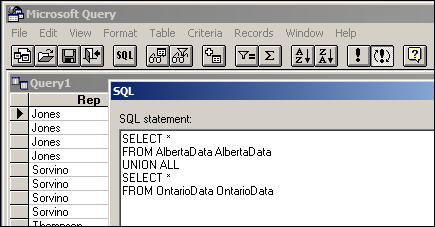
Normal Pivot Table
With this solution, you’ll end up with a normal pivot table, with none of the limitations. However, it’s a bit tedious to set up, especially if you have more than a couple of tables.
Automate the Union Query
Instead of setting this up manually, you can use the code in a sample file from Excel MVPs, Kirill Lapin (KL), with amendments by Héctor Miguel Orozco Diaz. (You might remember Héctor’s innovative Filter Pivot Table Source Data example, posted earlier this year.)
To adjust their sample code to work in your file, you’d replace the sheet names in the CreateConnection code.
To go to the CreateConnection code, right-click on the “Create Empty Table” button, and click Assign Macro, then click Edit.
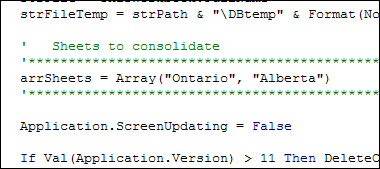
You can also adjust the location where the pivot table will be added. This line is further down in the CreateConnection code.
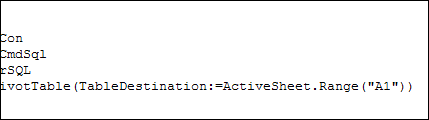
After those small changes, save the code changes. Then go back to Excel, click the button on the worksheet, and a summary pivot table will be automatically created.
Download the Sample File
Thanks Kirill and Héctor, for making a complicated task easier. You can download their sample file from the Contextures website: PT0023 – Pivot Table from Multiple Sheets
(Also, please check the update section below, for a newer version of the file)
Update — December 2011
The solution described in this article was created as a conceptual prototype and targeted mainly advanced VBA users. The code has minimal error handling and compatibility checks.
Given the massive response from all kinds of users willing to adopt this solution in their own applications, we would like suggest a similar solution based on ADO.
Advantages:
- No need for temporary file generation
- The code is faster and less prone to errors
Disadvantages:
- No manual refresh of the PivotTable
- Need to rebuild connection from the scratch to update the cache with new data
Download the ADO Sample File
You can download the new ADO version of the file from the Contextures website: PT0024 – Pivot Table from Multiple Sheets – ADO version
Update — August 28, 2012
In the comments below, Kirill posted code that will automatically detect the sheet names. The blog formatting changed his minus sign to a long dash, and also deleted the Less Than Greater Than operator. Here is the correct code, with Kirill’s instructions:
In the code, replace this line:
' Sheets to consolidate
'*****************************************************************************
arrSheets = Array("310_BWATTS_P Pastujova", "310_BWATTS_Maria Sanchez")
'*****************************************************************************
with the following code:
' Sheets to consolidate
'*****************************************************************************
Dim ws As Worksheet
ReDim arrSheets(0)
For Each ws In ThisWorkbook.Worksheets
  If ws.Name <> ActiveSheet.Name Then
    arrSheets(UBound(arrSheets)) = ws.Name
    ReDim Preserve arrSheets(UBound(arrSheets) + 1)
  End If
Next ws
ReDim Preserve arrSheets(UBound(arrSheets) - 1)
'*****************************************************************************
________________
Mika, there are instructions for using different workbooks in this article from Kirill:
Macro Creates Excel Pivot Table From Multiple Files
Woaw Debra, that was a quick answer! thanks a lot.
Hi guys,
I’m really hoping you can help me. I have for sometime now been trying to automatically refresh a pivot table in Excel 2010. I have tried numerous approaches including generating a macro whilst refreshing interactively – which incidentally works no problem – and re-running it, but the pivot table then fails refresh… I have also tried:
Example 1:
Sheets(“xxx”).Select
ActiveSheet.Unprotect
ActiveSheet.BackgroundQuery = False
Range(“C13?).Select
ActiveSheet.PivotTables(“AllScens”).PivotCache.Refresh
Example 2:
Sheets(“xxx”).Activate
Sheets(“xxx”).PivotTables(“AllScens”).RefreshTable
Example 3:
Sheets(“xxx”).Activate
ActiveSheet.PivotTables(“AllScens”).PivotCache.RefreshTable
Example 4:
ActiveWorkbook.RefreshAll
Example 5:
ActiveWorkbook.PivotCaches(1).Refresh
and count less others!!
And it’s driving me slightly bonkers! In fact it’s a simple set-up where values are simply inserted in a pivot table from another worksheet in the same workbook so there’s no complication in terms of connectivity… My feeling now, although I am pretty much a novice, is that there is something in my Excel setup itself which is overriding these commands. Something to do with allowing background updates perhaps…? Whatever I have searched and tried for days now, and I am starting to sweat as this project is drawing to a close and I don’t know how to explain to my client that something which essentially should be a given is not possible… Anyway I figure you’re all experts, and in particular Kirill’s insight into pivot tables and their peculiarities has caught my attention and just maybe you’ll be able to help me. I will be very grateful for any feedback, many thanks and have a great weekend,
Louise
Hi Louise,
If there is only one cache in the workbook, then
ActiveWorkbook.PivotCaches(1).Refresh
should do the job.
ActiveSheet.PivotTables(“AllScens”).PivotCache.Refreshis a valid alternative too. What error message do you get upon the execution of the code, or otherwise what makes you think the refresh operation fails?
Hi Kirill,
Nice to hear from you. The error message I was getting was:
Run-time error 1004
Reference is not valid
I have however in the meantime decided to go back to basics and built the simplest example I could imagine – and low and behold it works using:
ActiveWorkbook.PivotCaches(1).Refresh
I am currently now slowly but surely introducing all the other functionality I had in my original workbook, and I will let you know how I get on…
By the way, no doubt a silly question, but how do I know how many caches are being used?
Wish me luck and thanks ever so much for your time,
Louise
Louise, you can use a line of code to get the pivot cache count:
ActiveWorkbook.PivotCaches.Count