
A common pivot table question is “How can I create a pivot table from data that’s on separate sheets in my workbook?
Sometime people have a workbook set up with a separate sheet for each region, or for each salesperson.
Eventually, they want to pull all the data together, and create a summary report in a pivot table, from multiple sheets.
Multiple Consolidation Ranges
Excel has a feature (well hidden Excel 2007) that lets you do this, using Multiple Consolidation Ranges.
A pivot table created this way has limited features, and isn’t much use in summarizing Excel data.
I usually recommend that you move all the data onto one worksheet, if it will fit, or store it in a table in Access, then use that as the source for the pivot table.
Create a Union Query
Another solution is to create a Union query from the separate tables, and use that as the source data.
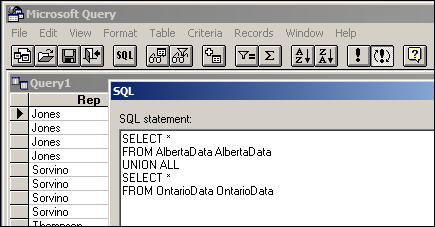
Normal Pivot Table
With this solution, you’ll end up with a normal pivot table, with none of the limitations. However, it’s a bit tedious to set up, especially if you have more than a couple of tables.
Automate the Union Query
Instead of setting this up manually, you can use the code in a sample file from Excel MVPs, Kirill Lapin (KL), with amendments by Héctor Miguel Orozco Diaz. (You might remember Héctor’s innovative Filter Pivot Table Source Data example, posted earlier this year.)
To adjust their sample code to work in your file, you’d replace the sheet names in the CreateConnection code.
To go to the CreateConnection code, right-click on the “Create Empty Table” button, and click Assign Macro, then click Edit.
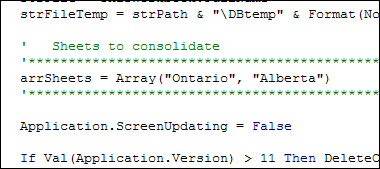
You can also adjust the location where the pivot table will be added. This line is further down in the CreateConnection code.
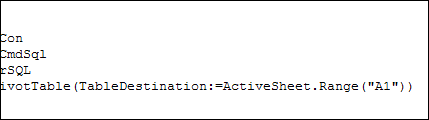
After those small changes, save the code changes. Then go back to Excel, click the button on the worksheet, and a summary pivot table will be automatically created.
Download the Sample File
Thanks Kirill and Héctor, for making a complicated task easier. You can download their sample file from the Contextures website: PT0023 – Pivot Table from Multiple Sheets
(Also, please check the update section below, for a newer version of the file)
Update — December 2011
The solution described in this article was created as a conceptual prototype and targeted mainly advanced VBA users. The code has minimal error handling and compatibility checks.
Given the massive response from all kinds of users willing to adopt this solution in their own applications, we would like suggest a similar solution based on ADO.
Advantages:
- No need for temporary file generation
- The code is faster and less prone to errors
Disadvantages:
- No manual refresh of the PivotTable
- Need to rebuild connection from the scratch to update the cache with new data
Download the ADO Sample File
You can download the new ADO version of the file from the Contextures website: PT0024 – Pivot Table from Multiple Sheets – ADO version
Update — August 28, 2012
In the comments below, Kirill posted code that will automatically detect the sheet names. The blog formatting changed his minus sign to a long dash, and also deleted the Less Than Greater Than operator. Here is the correct code, with Kirill’s instructions:
In the code, replace this line:
' Sheets to consolidate
'*****************************************************************************
arrSheets = Array("310_BWATTS_P Pastujova", "310_BWATTS_Maria Sanchez")
'*****************************************************************************
with the following code:
' Sheets to consolidate
'*****************************************************************************
Dim ws As Worksheet
ReDim arrSheets(0)
For Each ws In ThisWorkbook.Worksheets
  If ws.Name <> ActiveSheet.Name Then
    arrSheets(UBound(arrSheets)) = ws.Name
    ReDim Preserve arrSheets(UBound(arrSheets) + 1)
  End If
Next ws
ReDim Preserve arrSheets(UBound(arrSheets) - 1)
'*****************************************************************************
________________
Hi Andrea,
I suggest you follow Debra’s advise or otherwise try to follow these steps:
1) save the file on your hard-drive in a folder other than system folders or the root of the system drive (C:\)
2) open the file allowing macros
3) hold Alt-key and press F8-key (Alt+F8) to open the VBA editor window
4) On the left side in the Project explorer window (Project – VBA Project) find the name of your project: ‘VBAProject(VBA.MULT_CONS_PIVOT_EN.xls)’
5) click on the ‘+’-sign on its left to expand its objects hierarchy
6) find the folder ‘Modules’ and expand it too
7) double-click on the object ‘Module 1’ to open the module window at the right
8) you should now be able to find the code to be replaced
P.S. The dialog that pops up when you try to save the file is not an error, but a warning about some functionality loss if opened under XL2003 or earlier.
Hope this helps,
Regards,
KL
Hi all
Thanks to all your help so far my pivot has been running for 5 months now perfectly: I am using it to take working hours information from seperate timesheets and to consolodate the info.
However I now have a new member of staff so I have placed a new spreadsheet in the folder (copied from another staff members) I then open my report and clicked pivot refresh. it didn’t find the new sheet. So I clicked on the create pivot and it returns nothing
what have I done wrong? How can I add more workbooks for the pivot to read
thanks
Laura
PS I cant use the ADO version as the timesheets must remain as separate documents
Hi Laura,
It sounds like you are talking about another post: http://blog.contextures.com/archives/2010/08/30/macro-creates-excel-pivot-table-from-multiple-files/ (this one deals with Pivot Tables based on multiple sheets inside one workbook). That file had a dialog to open the source files from a directory at the PT creation time. In order to add workbooks to your PT, you will need to write a specific routine using Application.GetOpenFilename method or hardcode the files’ paths on a spreadsheet or inside the macro and pass them as arrFiles variable. In Excel 2007-2010, you can also manually update the SQL string by
– selecting a cell inside your existing Pivot Table
– going to the Ribbon’s ‘Data’ tab
– pressing ‘Properties’ button
– selecting ‘Definition’ tab of the dialog that would pop out
– and editing ‘Command text’ box
Hope this helps.
Hi your macro is excellent, working wonders with it .. thank u .. but i have a small prob .. i consolidate data and give a manual refresh , i have a column “Billed Hrs” in my sheet which shows me values in date format .. Tried with both your Pivot Table samples. Could u Help me on that ???
Hello Everyone,
I trust you are all well. I need some help. How do I get this to work in Excel 2010?
Thank you very much.
Bert
@Bertrand…it does work in Excel 2010 already. What kind of error are you getting?
Note that in Excel 2010, then you can also use a FREE microsoft add-in called PowerPivot to do this, with no VBA required. In case you haven’t looked in to it yet, PowerPivot for Excel is an add-in to Excel 2010 that provides the foundation to import and combine source data from any location for massive data analysis on the desktop, including relational databases, multidimensional sources, cloud services, data feeds, Excel files, text files, and data from the Web.
The data that you add to the workbook is stored internally, as an embedded PowerPivot database inside the .xlsx file. From a user perspective, key points are:
1. It allows data people to quickly create mashups of disparate data source on the fly – including web data, text files, datawarehouse files, and excel tables – and serve it up as a pivottable. (Which you can also do with ADO as per my comments above)
2. It extends the capability of Excel 2010 so that users can crunch, filter, sort millions of records with very low overhead, as well as incorporate both relational and non-relational data sources easily into analysis, using an interface they are already familiar with.
3. It can be programmed with SQL or DAX, but users don’t need to write SQL or DAX queries in order to use it (although they can if they want).
Behind the scenes, Powerpivot creates OLAP cubes, and draws heavily on components of SQL Server to do this, but no istall of SQL Server is required. This addin extends the capability of Excel so much that it might well remove the organisational need for some of the other apps in some cases (such as SAS) and make their licencing costs disappear.