
In Excel, you can create a drop down Data Validation list, so it’s easy to enter valid items in a cell.
Usually, the list of valid items is stored in the same workbook, but it’s possible to set up a drop down from a list in another workbook — as long as the other workbook is open.
The instructions are below, and watch the video to see the steps. The demo uses Excel 2010, and it’s the same in Excel 2007, except that there is an Office button, instead of a File tab.
Drop Down from a List in Another Workbook
Important Note: For the data validation to work, the workbook that contains the list must be open, in the same instance of Excel. Users will have to open both the workbooks — the one with the drop down lists, and the workbook with the original source list.
The following instructions are for Excel 2007 and later. On my website, there are similar instructions to create a data validation list from a different workbook in Excel 2003.

Create the Source List
In this example, you have a workbook named DataValWb.xlsx, which contains a list of customer names. This list is in a range named CustName. (For instructions on creating a named range, refer to Naming Ranges.)
Create a Named Reference to the Source List
Next, you’ll create named range in the workbook where the drop down list will be added.
- Open the workbook that contains the source list — DataValWb.xlsx in this example.
- Open the workbook in which you wish to use the list in Data Validation, or create a new workbook.
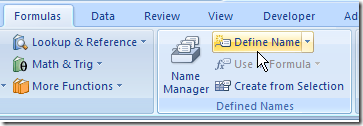
- On the Ribbon, click the Formulas tab, then click Define Name.
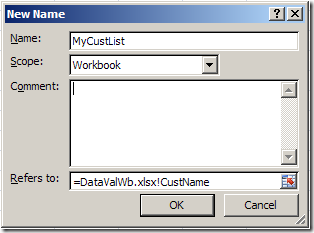
- Type a name for the List, e.g. MyCustList
- From the Scope drop down, select Workbook
- Click in the Refers to box — this is where you’ll type a reference to the named range in the source workbook
- Type an equal sign, then the source workbook name and extension. Do NOT include any square brackets in the name. For example:
=DataValWb.xlsx - OR, if the workbook name includes spaces, start and end the name with an apostrophe. For example: ‘DataVal May10.xlsx’
- Next, type an exclamation mark — !
- Finally, type the range name in the source workbook
- The completed reference should look like this:
=DataValWb.xlsx!CustName
OR =’DataVal May10.xlsx’!CustName
- Click OK
Create the Dropdown List
- Select the cells in which data validation will be set.
- On the Ribbon, click the Data tab, then click Data Validation
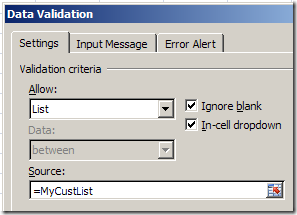
- In the Allow box, choose List
- In the Source box, type an equal sign, then the list name that you just created, e.g.: =MyCustList
- Click OK
Use the Data Validation List
Remember, to use the data validation drop down list, both workbooks must be open.
- Open both workbooks — the one with the drop down lists, and the workbook with the original source list.
- Select an item from the data validation drop down list.
Watch the Video
Watch this video to see the steps for creating a drop down from a list in another workbook. You’ll see how to set up the named ranges, and the drop down lists. The demo is in Excel 2010.
________________________________
Thank you very much
It works beautifully, but still have I a question about closed workbooks. How is it possible?
I am trying to use data validation in a Czech version of Excel 2007. I have a list of names in one sheet, marked as a named range. When I try to use data validation to restrict entries to the list in a cell on another sheet, I get an error message saying that the criteria for data validation does not allow references to other worksheets or workbooks. But when I use a direct reference, (=OtherSheet!A1:A9), it works fine. The problem is, the list changes, so a named range is more appropriate. I cannot put it on the active sheet, those get created and deleted by the user and my list needs to be available to all sheets. The only way I have found to make it work so far is to use =OtherSheet!A:A to reference the entire column. That works, but the dropdown then has many blank entries, and the “Skip blank cells” check box has no effect on this. Does anyone know how to deal with this?
Oh My God.
You are amazing, I’ve bee searching for like a week now for the solution to my drop dowm list problem, and this article was PERFECT help.
Thank you so so much.
I have an interesting question Debra. Any idea why you can’t use another worksheet in the same workbook as a datasource? I’ve tried this a few times and it doesn’t see to work. I was hoping to use something like a Named Range to store my valid choices but it appears that range has to appear somewhere on the current worksheet… though you could hide it or place it out of view.
You’re right of course Debra! I must have forgotten that bit. Great page of info!
Rick, if you name the range (e.g. MyList) on the other sheet, you can refer to that name in the data validation source: =MyList
Maybe you didn’t include the equal sign when you tried it? Excel Data Validation