
To help users enter data in a spreadsheet, you can create drop down lists with Excel’s Data Validation feature. For example, in an order form, you could provide drop down lists of customers, products, colours, sizes and shipping methods.
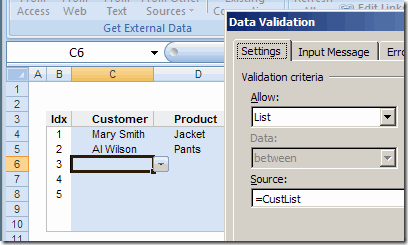
Data Validation Source
Usually, each of these lists would need a different Source in the Data Validation dialog box.
- The Customer list would have =CustList as its source
- The Product drop down would have =ProdList as its source.
Use the Same Source
Instead of using a different source for each data validation list, AlexJ has devised a simple way to use the same source for all the lists. This makes it much easier to create and maintain a set of drop down lists.
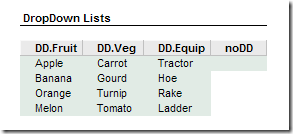
In AlexJ’s sample file, he’s recording farm information, with drop down lists for Fruit, Vegetable, Farm Equipment and Farmer. He’s typed these lists in the workbook, and named them: DD.Fruit, DD.Veg, DD.Equip and noDD.
The noDD list is just a blank cell, and it can be used when you want users to be able to type freeform in a column.
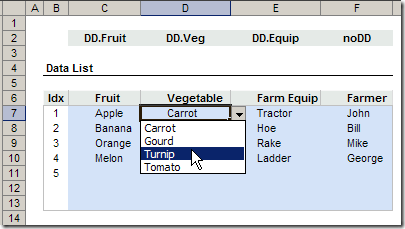
In row 2, above the table where users will select from the drop down lists, AlexJ has typed the name of the source range for the column below.
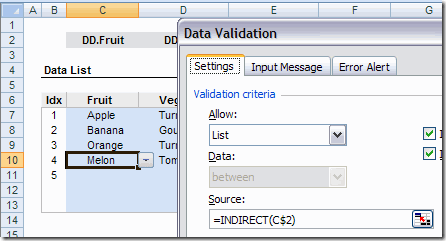
Then, AlexJ selected all the blue cells, where drop down lists will be created. In the Data Validation dialog box, he selected Allow: List. As the Source, he entered: =INDIRECT(C$2)
The column reference (C) is relative, and the row reference ($2) is absolute.
Setup Tips
- AlexJ hides row 2, using Outlining, so users aren’t distracted by the range names.
- In the sample file, the named ranges are on the same sheet as the data entry range. In his actual files, AlexJ would have these on another sheet, hidden from users.
- Instead of selecting noDD, cell F2 could be left blank, so no dropdown list would appear.
- No Error Alerts or Input Messages are used in the sample file, but you could add these to your application, if needed.
- The drop down range names in cells J6:M6 are in a range named DD.Ranges. That range is used to create the drop down lists in row 2.
Download the Sample File
To download AlexJ’s sample file click here: Universal Data Validation Drop Downs (zipped 25 KB)
What Do You Think?
I frequently use the INDIRECT function to create dependent data validation lists. However, I hadn’t seen this idea used before, to create different drop down lists from the same source formula.
To me, it seems like a great way to create several adjacent lists, and makes it easy to maintain them.
AlexJ would appreciate your feedback. What do you think? Would you use this technique? Anything you’d add or change?
_________________________
im using excel and on the data validation list i want it to correspond with another drop down list. ie i click on an option on the drop down list and automaticly it selcts another option on another list?
help will be muchly appreceated
Lincoln – sorry, only a few months after the original post.
I think Evaluate() is a left over from early Excel versions. You can’t use it as a worksheet function, but can use it within a named range.
If you enter a function or calculation without the = sign within a cell (so the function is shown as text) then evaluate will, well, evaluate it for you.
How can I use one list on a seperate sheet in the workbook. This data will be used across several other sheets in the workbook. I would rather have all my data on one sheet instead of multi sheets. Is this possible?
Shirley
The method described in this article, can have the lists all on one sheet,
Take a look at
http://www.contextures.com/RJG_Universal_DD.zip
or
http://www.contextures.com/RJG_Universal_DD_Dependent.zip
Is there a way to use a drop down list with the items in the list having drop downs them selves?
Original List
Base
EXE
INT——Drop down from this list item
BR1
BR2
BR3
I have a billing sheet I am trying to idiot proof
Thanks for your thoughts
Hi Steve
That is exactly what Dependent Dropdowns achieves.
Try download in the file
http://www.contextures.com/RJG_Universal_DD_Dependent.zip
and take a look at the tutorial at
http://www.contextures.com/xlDataVal15.html