
To help users enter data in a spreadsheet, you can create drop down lists with Excel’s Data Validation feature. For example, in an order form, you could provide drop down lists of customers, products, colours, sizes and shipping methods.
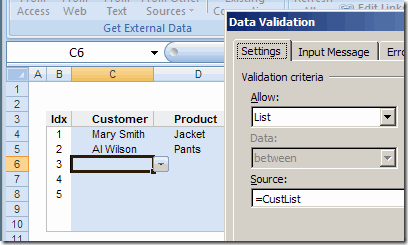
Data Validation Source
Usually, each of these lists would need a different Source in the Data Validation dialog box.
- The Customer list would have =CustList as its source
- The Product drop down would have =ProdList as its source.
Use the Same Source
Instead of using a different source for each data validation list, AlexJ has devised a simple way to use the same source for all the lists. This makes it much easier to create and maintain a set of drop down lists.
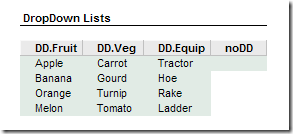
In AlexJ’s sample file, he’s recording farm information, with drop down lists for Fruit, Vegetable, Farm Equipment and Farmer. He’s typed these lists in the workbook, and named them: DD.Fruit, DD.Veg, DD.Equip and noDD.
The noDD list is just a blank cell, and it can be used when you want users to be able to type freeform in a column.
In row 2, above the table where users will select from the drop down lists, AlexJ has typed the name of the source range for the column below.
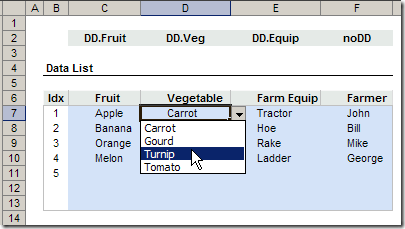
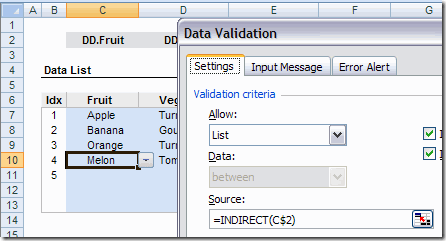
Then, AlexJ selected all the blue cells, where drop down lists will be created. In the Data Validation dialog box, he selected Allow: List. As the Source, he entered: =INDIRECT(C$2)
The column reference (C) is relative, and the row reference ($2) is absolute.
Setup Tips
- AlexJ hides row 2, using Outlining, so users aren’t distracted by the range names.
- In the sample file, the named ranges are on the same sheet as the data entry range. In his actual files, AlexJ would have these on another sheet, hidden from users.
- Instead of selecting noDD, cell F2 could be left blank, so no dropdown list would appear.
- No Error Alerts or Input Messages are used in the sample file, but you could add these to your application, if needed.
- The drop down range names in cells J6:M6 are in a range named DD.Ranges. That range is used to create the drop down lists in row 2.
Download the Sample File
To download AlexJ’s sample file click here: Universal Data Validation Drop Downs (zipped 25 KB)
What Do You Think?
I frequently use the INDIRECT function to create dependent data validation lists. However, I hadn’t seen this idea used before, to create different drop down lists from the same source formula.
To me, it seems like a great way to create several adjacent lists, and makes it easy to maintain them.
AlexJ would appreciate your feedback. What do you think? Would you use this technique? Anything you’d add or change?
_________________________
Hi Deb
I avoid the use of the voltaile Indirect() function wherever I can.
The exception is whenever I need to use dependent dropdowns, as per your method.
To make life easy and not even have to worry about naming each list, I prefer to use the following method. I will describe it relative to the data on AlexJ’s sheet.
Create a Named range called Lists =’Sheet1!$J$7:$M$10 (in reality, this would be on a separate sheet and would be a dynamic range)
Create a second Named range called UseList as
=INDEX(Lists,,COLUMN(‘Sheet1’!A$1))
Select C7:F13>Data Validation>List>UseList
Hi Roger,
Good point about the volatile functions, so you wouldn’t want to use INDIRECT in a large area, or a calculation heavy workbook.
Your approach is interesting too, thanks for describing it.
There would be blank cells in any lists that are shorter than the others though, unless I’ve done something wrong in testing.
Your technique also assumes that the lists in the data entry area are in the same order as the lists in the lookup area. Perhaps we could combine the techniques. Instead of creating a define name UserList, you could put lookup column numbers in cells C2:F2. Then, for the data validation formula: =INDEX(Lists,,C$2)
1 Dont Use Indirect, use Evaluate(CellRef)
2 For Dependent Drop Downs
A1 – Has A List of Clients
B1 – To have Corresponding Cities
Define a Name CORR_CITY as
Index(City,Match(A1,Client,0):Index(City,Match(A1,Client,1))
If Clients are Sorted are sorted in Ascending Order
Else
Index(City,Match(A1,Client,0):Index(City,Match(A1,Client,0)+Sumproduct((Client=A1)*1)-1)
Name City
ABB AA
ABB CC
ABB DD
BHEL AA
BHEL DD
BHEL ZZ
TVS AD
TVS EE
Thanks Sam. It’s interesting to see all the different methods that people use.
I’ve got instructions for Dependent Data Validation From a Sorted List, similar to what you described, on my website.
Hi Debra
Thanks for putting the file up on your site where i describe more fully my method of dealing with DV Ranges.
http://www.contextures.com/RJG_Universal_DD.zip
I should have added in the description, that I would normally hide the sheet called Lists.
Sam
I’m using Excel 2002, and don’t seem to have the Evaluate() function you quote. Any ideas where I might find it?
btw Debra
Thanks for the post. It’s immediately helpful for me.