
After I create formulas in Excel, sometimes I want to lock in the results of those formulas, so I use the Paste Values command.
For example, I might use the RAND function to create a set of random numbers. After creating them, I don’t want them to change every time the sheet calculates.
Ribbon Commands
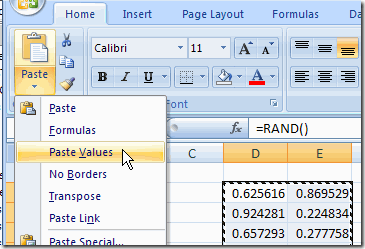
Here’s how I’d use the Ribbon commands to replace formulas with values.
- Select the cells that contain the formulas
- On the Ribbon’s Home tab, click the Copy command
- On the Ribbon’s Home tab, click the lower half of the Paste command, to open the list of options
- Click Paste Values
Old Commands
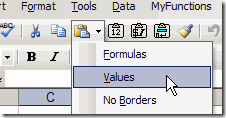
The steps are similar in earlier versions of Excel, but the commands are on the Standard toolbar, and the arrow is to the right of the Paste button.
Use Mouse Shortcut Menu
An even quicker way to paste values is by using a mouse shortcut:
- Point to the border of the selected range, and the pointer should change to a four-headed arrow.
- Press the right mouse button, and drag the cells slightly to the right.
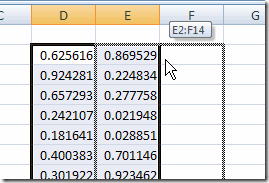
Use Mouse Shortcut Menu - Keep pressing the right mouse button, and drag the cells back to their original location.
- Release the right mouse button and a shortcut menu will appear.
- Click on Copy Here as Values Only.
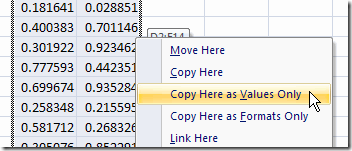
The formulas are replaced by the values of their results.
Video: Mouse Shortcut Paste Values
This technique is a bit tough to explain, so if the written explanation didn’t make sense, here’s a very short video and I made.
____________________
Is there a formula that I can use to copy the resulting value of another cell’s formula?
I don’t want a macro, but I need to automate the process of capturing (and locking in) the value of the initial formula.
Example: =if(a1=”X”,NOW(),””) is the formula that establishes a date upon the user entering X into cell a1. I need to capture and preserve that date in another cell so that it never changes whenever the spreadsheet is re-opened.
Is there a way to do this with another formula? Like I said, VBS/macros are not an option, it has to be done with formulas.
Thanks.
I prefer:
Right-click Source Cell
Press C
Right-click Destination Cell
Press V
if column a is 5 then column b show 1-5 how
Dear Sirs
I want to paste a formula.
I copy the cell go to paste tab and in my drop down menu i do not have the choice of formula ???
Does any one know why ?
Thank you
I have saved this code in my PERSONAL workbook and attached it to a custom button so that its always available – it works for me.
Sub Copy_Paste()
‘ Copy_Paste Macro
With Selection
.Value = .Value
End With
End Sub
Thanks for these tips. Had created a macro and attached it to a button (like George Brookes) that I placed on the Quick Access Toolbar – which worked just fine – but I prefer to keep my hands on the keyboard, and Alt+H,V,V does it for me.