
In an Excel workbook you might have a worksheet that contains several lists that you use as the source for data validation drop-down lists.
Worksheet List
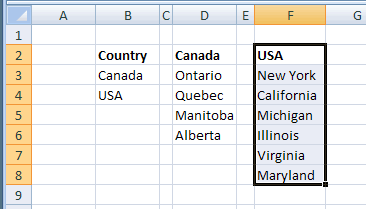
For example, this worksheet has a list of countries, and lists of regions within those countries.
If each list has a heading, you can quickly create named ranges from the lists.
Create the First Named Range
To quickly create a named range, follow these steps:
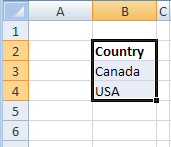
- Select the heading and the items in the first list that you want to name.
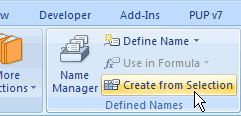
- On the Excel Ribbon, click the Formulas tab
- In the Defined Names group, click Create from Selection
- (Note: In Excel 2003 and earlier versions, click Insert > Name > Create)
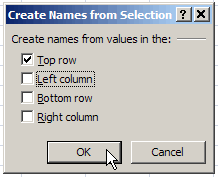
Create Names dialog box
- In the Create Names dialog box, add a check mark to Top row
- Next, remove any other check marks, then click OK.
Name the Remaining Ranges
To name the next range, follow these steps:
- First, select the range’s heading and items
- Next, on the keyboard, press the F4 key
- This is the Repeat Last Action keyboard shortcut
- Repeat for all the remaining ranges.
_______________
It works except one time the dropdown list included the “title” of the range (it was a yes / no)???