
I’m reviewing Word files and inserting comments for the author. I’d like to see show Word comments in balloons along the sidebar, but Word won’t cooperate, and shows them in a Reviewing Pane, at the bottom of the window. Here’s how to fix the problem
Reviewing Pane
Here’s what I was seeing in Word — comments were listed in the Reviewing Pane. In the Word document, the DD1 comment is highlighted, and the text for that comment is in the Reviewing Pane.
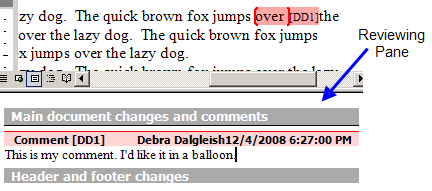
I have trouble editing my comments in the Reviewing Pane. Usually when you select text and start typing, the selected text is replaced with the new text. Not in the Reviewing Pane, unfortunately, where new text is inserted beside the selected text.
It’s a real annoyance, and time waster. Editing works just fine in the balloons, which is one of the reasons that I prefer them.
How To Show Balloons in Word 2007
If you’re using Word 2007, here’s how to show Word comments in balloons:
- Choose Print Layout, Full Screen or Web Layout view. Balloon comments will only display in these views.
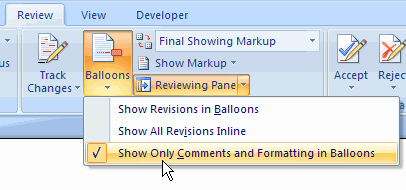
- Click the Review tab on the Ribbon, then click the Balloons command
- In the drop down list, click on Show Revisions in Balloons or Show Only Comments and Formatting in Balloons.
How To Show Balloons in Word 2003
After a few minutes of searching through the menus and options, I figured out how to show Word comments in balloons in Word 2003..
- First, choose either Print Layout view or Web Layout view. Balloon comments will only display in these views.
- Then, on the Tools menu, click on Options
- On the Track Changes tab, in the Balloons section, click the drop down arrow for Use Balloons, and click on Always or Only for Comments/Formatting, then click OK.
![BalloonsAlways[3]](https://contexturesblog.com/wp-content/uploads/2008/12/balloonsalways3.gif)
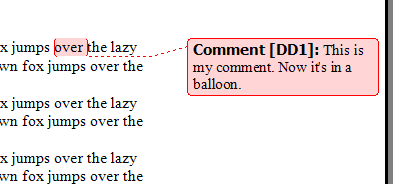
The comments now appear in balloons in the right margin.
___________________
Make sure your ‘display for review’ is set to ‘Final showing markup’ and not ‘final’. If it is set to final it will always open the review pane.
Thanks Chad!
Ensure Final Showing Markup is selected. Save your work. Close the file. Reopen. Ta da! Bubbles back.
The Comments automatically moved to the foot of the page whilst using find/replace. Having little joy with any of the above suggestions, saving the document under a different name (to prevent locking in any issues) and reopening provided the desired comment bubble view. However, running Find/replace or the spell check led to the same issue over and over for this document. Still none the wiser.
Thanks a lot (Y)
I am not getting any of this. Word 2016.
I am curious. I can get my comments to print on the bubble; however, it only prints the first few words and does not print the entire comment. How can I print the entire comment or conversation?