
I’m reviewing Word files and inserting comments for the author. I’d like to see show Word comments in balloons along the sidebar, but Word won’t cooperate, and shows them in a Reviewing Pane, at the bottom of the window. Here’s how to fix the problem
Reviewing Pane
Here’s what I was seeing in Word — comments were listed in the Reviewing Pane. In the Word document, the DD1 comment is highlighted, and the text for that comment is in the Reviewing Pane.
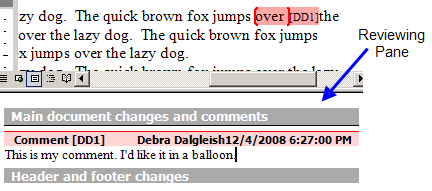
I have trouble editing my comments in the Reviewing Pane. Usually when you select text and start typing, the selected text is replaced with the new text. Not in the Reviewing Pane, unfortunately, where new text is inserted beside the selected text.
It’s a real annoyance, and time waster. Editing works just fine in the balloons, which is one of the reasons that I prefer them.
How To Show Balloons in Word 2007
If you’re using Word 2007, here’s how to show Word comments in balloons:
- Choose Print Layout, Full Screen or Web Layout view. Balloon comments will only display in these views.
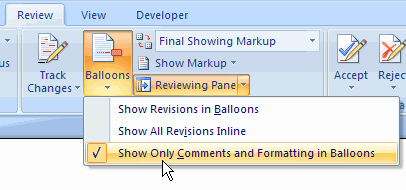
- Click the Review tab on the Ribbon, then click the Balloons command
- In the drop down list, click on Show Revisions in Balloons or Show Only Comments and Formatting in Balloons.
How To Show Balloons in Word 2003
After a few minutes of searching through the menus and options, I figured out how to show Word comments in balloons in Word 2003..
- First, choose either Print Layout view or Web Layout view. Balloon comments will only display in these views.
- Then, on the Tools menu, click on Options
- On the Track Changes tab, in the Balloons section, click the drop down arrow for Use Balloons, and click on Always or Only for Comments/Formatting, then click OK.
![BalloonsAlways[3]](https://contexturesblog.com/wp-content/uploads/2008/12/balloonsalways3.gif)
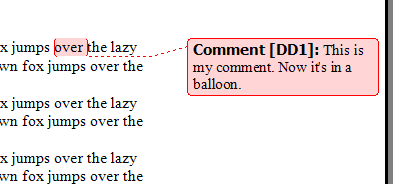
The comments now appear in balloons in the right margin.
___________________
Unfortunately, none of these recommendations are working for me. I have the Final: Show Markup selected. In the “show markup” drop down I have everything selected and in the Balloons option I have “Show only comments and formatting in balloons” selected – however, I’m stuck with this dumb pane. Please help!
@Bubba Gump, which version are you using?
2010
@Bubba Gump, in the Show Markup drop down, is there a check mark beside Comments, at the top of the list?
I have only the formatting and comments in balloons checked and they show up on the right hand side which is what I want but…. then all of the sudden for no reason other than I moved my cursor or scrolled my page down they jump to the bottom of my screen in the reviewing pane – not what I want!! To get my balloons back I have to save my doc, close and then reopen my doc. Why is this happening???
I’m using Word 2013 and it is inconsistently showing the balloons. I’ve tried selecting all views, but the option to select balloons is greyed out. Any suggestions?
The same problem occurs with my document. I tried all of the suggestions, but nothing worked, so I took the long route by selecting the entire dorument and then paste it into a new Microsoft Word document. I was then able to see the balloons. Yikes!
We are having trouble with Word 2013 shows comments in the balloons on screen, but they do not print. Any suggestions?