
I’m reviewing Word files and inserting comments for the author. I’d like to see show Word comments in balloons along the sidebar, but Word won’t cooperate, and shows them in a Reviewing Pane, at the bottom of the window. Here’s how to fix the problem
Reviewing Pane
Here’s what I was seeing in Word — comments were listed in the Reviewing Pane. In the Word document, the DD1 comment is highlighted, and the text for that comment is in the Reviewing Pane.
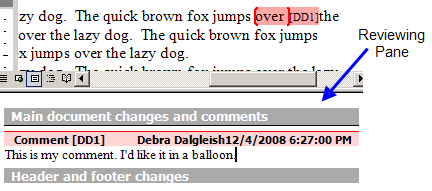
I have trouble editing my comments in the Reviewing Pane. Usually when you select text and start typing, the selected text is replaced with the new text. Not in the Reviewing Pane, unfortunately, where new text is inserted beside the selected text.
It’s a real annoyance, and time waster. Editing works just fine in the balloons, which is one of the reasons that I prefer them.
How To Show Balloons in Word 2007
If you’re using Word 2007, here’s how to show Word comments in balloons:
- Choose Print Layout, Full Screen or Web Layout view. Balloon comments will only display in these views.
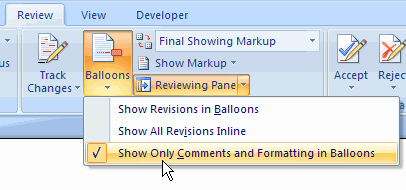
- Click the Review tab on the Ribbon, then click the Balloons command
- In the drop down list, click on Show Revisions in Balloons or Show Only Comments and Formatting in Balloons.
How To Show Balloons in Word 2003
After a few minutes of searching through the menus and options, I figured out how to show Word comments in balloons in Word 2003..
- First, choose either Print Layout view or Web Layout view. Balloon comments will only display in these views.
- Then, on the Tools menu, click on Options
- On the Track Changes tab, in the Balloons section, click the drop down arrow for Use Balloons, and click on Always or Only for Comments/Formatting, then click OK.
![BalloonsAlways[3]](https://contexturesblog.com/wp-content/uploads/2008/12/balloonsalways3.gif)
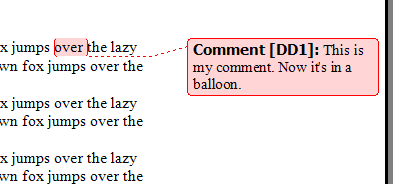
The comments now appear in balloons in the right margin.
___________________
Thank you so much for this!
This doesn’t seem to work for Word 2010. I found “show revisions in baloons” and marked it, but the annoying lower tracking pane still shows and takes up 1/4 the screen. How do I get rid of the reviewing pane and just use baloons? It used to do this until today.
Same new problem here – all of a sudden, comments not appearing in balloons but in that annoying review pane only. Could it be the result of a recent Update?
yep. same here, just noticed it today. 🙁
hey, just found an answer!
i went and turned on “Final: show markup” and the balloons are back!
hope it’s helpful! 🙂
Thank you so much. Have searched the internet high and low and at last found the solution!
yes
I’m having the same problem in Word for Mac 2011 (v. 14.1.3), and “Final Showing Markup” is NOT working for me! Help!
I’m having the same problem, and it happened all of a sudden. Final markup is not the answer either. Help!
I have been having the same problem, but only on some documents that my students have sent in to me. The way I was able to get it to work was by going to the Review tab, clicking show markup, then choosing the balloons drop down menu and then choosing either “show revisions in balloons” or “show formatting and comments in balloons”. I hope this helps someone else because it has been driving me nuts!
Thanks SO much for this. I’ve gone crazy doing my contract work this morning. SO much better with the bubbles.