
Occasionally a client asks me to create a shared workbook in Excel, so two or more employees can work in it at the same time. It sounds good in theory, but I always try to come up with a different solution.
There are many reasons for avoiding shared workbooks in Excel.
Note: See a newer version of this article: Shared Workbook Limits in Excel 2010
Your Thoughts on Shared Workbooks
Maybe you’ve had success with shared workbooks, and I’d love to hear about it in the comments. For me, the limitations far outweigh the benefits, and there’s usually another way to accommodate multiple users.
[Update] Your Comments
Thanks to everyone who left a comment below, detailing their experiences with Excel shared workbooks.
- Be sure to read through those comments, if you plan to share an Excel workbook. They might convince you to find a different solution!
- Or, if you have no choice in the matter, and have to use a shared workbook, you might find helpful tips in the comments, and workarounds for some of the problems they cause.
Too Many Missing Features
After you share a workbook, many of Excel’s features can’t be used. There’s a list of unavailable features for Excel 2003 on the Microsoft site, and in Excel’s help.
For example, you can’t add any of the following features, and in some cases you can’t even change the existing items:
- Conditional Formatting
- Data Validation
- Lists
- Protection
- Pivot Tables
If you do need to create a shared workbook, check the list of restricted features, and make sure you have everything set up exactly the way you want it, before you share the file.
Test everything after you share the file, because things might not work the way they did before.
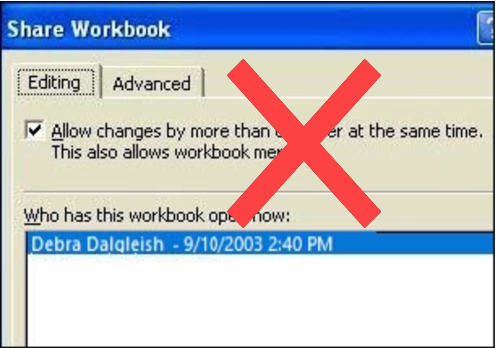
Alternatives to Shared Workbooks
What can you do instead? Find out exactly what the workbook’s purpose is, and why multiple people need to use it.
- If users are entering data, they could get in and out of the workbook quickly, so another person has a chance to enter their data. Excel will notify the next user when the workbook is available.
- If users need the workbook as a calculator, make the file read only, or save it as a template, so anyone can open a copy. Users can save the file with a different name, if they need to save their work.
- If users enter data on separate sheets, create separate workbooks instead. Then, create a summary workbook to pull all the data together.
- If users need to enter data many times throughout the day, a database might be a better option.
If you have other solutions, I’d like to hear them.
Note: See a newer version of this article: Shared Workbook Limits in Excel 2010
===========================
I use a workbook that is macro free and only contains the data that other workbooks can access or add to using VBA.
Hello, I have been using this function:
DoCmd.TransferSpreadsheet acImport, acSpreadsheetTypeExcel9, “Packet_temp”, Fileandpath, False
where Fileandpath is a previously defined variable for the file location.
In my code, I am importing over 1600 excel files, and for some of these (about 100) the rows are imported out of order (ie. row 3 is listed as a recorded before row 2).
Any idea why this could be happening?
Thank you
Basically I am a VBA programmer, when several copies of the program should write the same file, even if the writing operation takes only 1-2 minutes, it can occur that the different instances of the program want to do it at the exact same time. It is not allowed, because only one instance of the file can be opened for editing at the same time.
I just implemented a workaround. Before opening the shared data file, the program tries to create a lock file in a dedicated folder. If there is another lock file in the folder, it means somebody has already created a lock file and probably editing the data. In this case, my program instance has to wait (entering into a checking loop) until the other user’s lock file will be deleted, after writing and closing the shared file. At this moment, my instance can create my own lock file, open, edit, close the data file and delete my lock file. The lock file has no content, the name of it is the username of the user, so it could be known who is locking the data file.
I use shared workbooks when a bunch of people have to add infomation to a basic workbook and using separate workbooks for each person is not practical.
In my case, the workbook is a requirements matrix provided by a customer for a product they want us to develop. I need to send the matrix back to the customer after various people in the company have added information. If I break it into separate files per person I have to reassemble at the end and that’s a nuisance.
So far shares workbooks work ok for me, but some of the limitations, specifically inability to paste pictures or merge cells, are really annoying.
To overcome the danger of someone overwriting the file, I am using a free utility called RealTimeSync in combination with a batch file (https://datatofish.com/backup-file-timestamp/) that copies the file to backup location and adds a timestamp to the filename, to save a backup copy of the file each time it is saved.
As I wrote earlier, I am successfully using shared workbooks when I need to enable multiple people to add data to the same spreadsheet.
My problem is that sometimes I need functions that don’t work in shared workbooks, such as pasting pictures or merging cells.
Is there a way to unshare the workbook then reshare after making the changes, without losing the change history?