
Yesterday I posted a tip for adding the Refresh All button to the PivotTable toolbar, so you can quickly update all the pivot tables and queries in a workbook.
Move Toolbar Buttons
In the comments, Jan Karel Pieterse mentioned that he can press Ctrl+Shift, or hold the Alt key, then drag toolbar buttons to a different toolbar. I can’t get that Ctrl+Shift shortcut to work, but often use the Alt key to adjust toolbars on the fly.
In another comment, AlexJ described how he moves well-hidden menu commands, such as Show Formula Auditing Toolbar, to a toolbar, so they’re easier to use. Great idea!
See What Is Locked
Besides the Refresh All button, there are a few others that I add to my Excel toolbars.
For instance, when I’m creating data entry forms it helps to know if a cell is locked or unlocked.
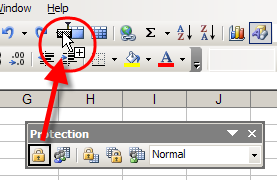
I copy the Lock Cell button from the Protection toolbar to my Standard toolbar (Ctrl+Alt, then drag the button).
When I click on a cell, the Lock Cell button shows the cell’s current setting, and I can click that button to lock or unlock the cell. Very handy!
More Buttons for Toolbars
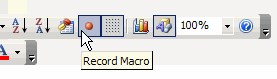
I also add the Record Macro and Visual Basic Editor buttons.
Those are copied from the Visual Basic toolbar, and Toggle Grid from the Forms toolbar.
What Buttons Do You Add or Remove?
- Are there any standard command buttons that you always add to your toolbars when you install Excel?
- Any standard command buttons that you always remove, because you never use them?
If you’d like to share a screen shot of your toolbars, upload it somewhere like TinyPic.com, and paste a link in your comment.
Or, if you’re feeling adventurous, you can open this Google Spreadsheet, choose Insert>Picture, and paste the picture link in there. I have no idea how well this will work, but it might be an interesting experiment!
[Update] Bryony’s Excel Toolbars
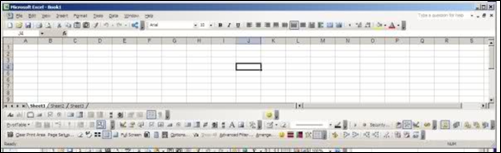
Thanks to Bryony who uploaded a screen shot of her Excel toolbars. Here’s how she described them:
- The colourful ones at the bottom in the middle are a few little macros, the toolbar to the left is my custom one. I have taken a load off the standard bars as I absolutely never use so many of those features. I have my screen resolution set quite high, so I have quite a bit of space left!
Wow, Bryony, that is amazing — the sign of a dedicated Excel expert!
Stephen, we’re not lazy, we’re efficient! I’ve got Paste Values, Paste Formulas and Paste Transpose right beside that Paste button. Two clicks? Who’s got time for that? 😉
Part 1 of 2 is in the link. It takes too long to document this stuff. Wouldn’t a controls document utility be cool? Not a technical one like in Professional Excel development, but one for user manuals.
http://tinypic.com/view.php?pic=dr2nw9&s=4
Alex, that’s a work of art! And I just added a Name Manager button to my toolbars — hadn’t thought of that till I saw yours.
Thkx, Debra. My favourite of the group is [Name In Range] for its function (which Name Manager, I recently discovered, addresses by the highlight function).
I “stole” the [Name In Range] function from AppsPro Excel Utilities by starting the Add-In, and then copying the command button to my own tool bar from the Excel Utilities menu. After that, I unchecked the Excel Utilities Add In so that it does not load on startup, but when I select the [Name In Range] button, it LOADS the Add In and engages the function.
Not sure if this is a reliable deployment technique for all functions of this type, but it works for me. (And was a surprise, too).
Debra, you are right of course – it IS efficiency that drives our fine-tuning of the Excel toolbar.
In the same way, and because I exceed Excel’s list of 9 most recent documents, I keep Ken Puls’ XLG Favourites installed to facilitate access to my most commonly used files and folders.
http://www.excelguru.ca/node/64
Thanks Stephen, I’ve just installed the XLG Favourites add-in, and looks like it will be really helpful.