
In one of the Excel newsgroups last week, someone asked how they could update several pivot tables at the same time. They were tired of selecting each pivot table separately, and clicking the Refresh button.
Refresh All Button for Pivot Tables
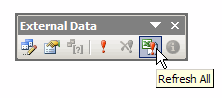
In an Excel workbook you can refresh all the pivot tables and queries if you click the Refresh All button.
That button is on the External Data button, which appears automatically if you click in a cell that’s part of an external data range.
Add to PivotTable Toolbar
However, if you don’t have any external ranges in your workbook, you can add the Refresh All button to the PivotTable toolbar, so it’s easy to find and click.
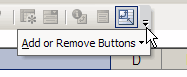
The quickest way to add this button is to click the Toolbar Options button at the end of the PivotTable toolbar.
Floating Toolbar
If the toolbar is floating, you’ll see a large triangle to the left of the Close button.
- Click that triangle, then click the Add or Remove Buttons command
- In the pop-up menu, click on PivotTable
 Docked Toolbar
If the toolbar is docked, there’s a small triangle in the bar at the end of the toolbar.
- Click that triangle, then click the Add or Remove Buttons command
- In the pop-up menu, click on PivotTable
 Add the Button
After you click the PivotTable command, you’ll see a list of all the standard commands that can be added to the PivotTable toolbar.
- Click on Refresh All, to add it to the toolbar.
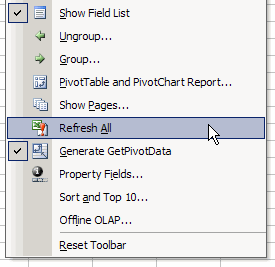
Now, when you want to update all the pivot tables, just click the Refresh All button.
P.S. – I’m finding it really frustrating when I have to sit in front of someone else’s Excel without my toolset!
Alex, you’ll have to read tomorrow’s blog post. 😉
And I’m sure no one will mind if you rearrange all the toolbars on their machine. Someone should invent a portable toolbar kit that you can plug in temporarily, wherever you’re working.