Show Your Style in Word

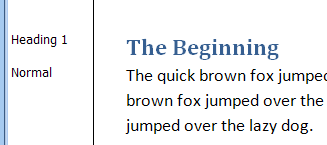
If you use Styles in Word (and you should), did you know that there’s a Style Area at the left of the screen, where you can see the Style names?

This can give you a quick overview when you’re formatting a document, and will help you apply the Styles consistently.

If you don’t use Styles, you can skip to the Random Thoughts section of this article, for a bonus tip. I know, how exciting! 😉
View the Style Area

Word 2007

  1. Choose either Outline or Draft View
  2. Click the Microsoft Office Button, and then click the Word Options button
  3. Click the Advanced Category
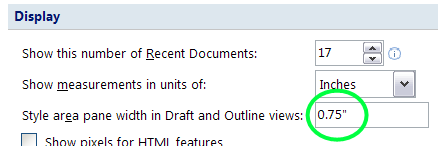
  4. In the Display section, set the width for the Style Area Pane, and then click OK
Word 2003 or earlier

  1. Choose either Outline or Normal View
  2. Click the Tools menu, and then click Options
  3. Click the View tab
  4. In the Outline and Normal Options section, set the width for the Style Area, and then click OK.

Hide the Style area

  • Drag the vertical line, between the Style Area and the document, all the way to the left.
  • Or, go back to the Options, and set the width to zero

Random Thoughts

In Excel, you can use the RAND function to calculate random numbers. In Word, you can use RAND to create text.

  1. In the Word document, type: =RAND()
  2. Press the Enter key.
  • In Word 2003 and earlier, you’ll see paragraphs with “The quick brown fox…”
  • In Word 2007, the paragraphs describe Word features.

In either version, you can enter two numbers as arguments in the RAND function, e.g. =RAND(3,4) to control the number of paragraphs (3), and sentences per paragraph (4).

Beyond Bullet Points

If you prepare presentations and use slides, there are interesting ideas in Cliff Atkinson’s book, Beyond Bullet Points.

As the title suggests, he warns against using slides with bullet points. Instead, he uses slides to tell a story, planning them with a storyboard technique.

Atkinson starts by describing a presentation that used the BBP technique to win a major legal case. The rest of the book takes you through the steps of planning, creating and delivering the presentation.

He even suggests handouts with financial data in an Excel spreadsheet, to supplement the presentation, and “quickly establish credibility.”

Incorporating Excel is obviously a smart move in almost any presentation!

I found the book easy to read, with detailed instructions, checklists, tips and examples.

The book comes with a CD which contains templates and checklists to help you get started.

There are also templates and other free resources on the BBP web site, where you can download a couple of chapters from the book, to see if you like it enough to buy it.

Shift Key Tricks in Excel

You probably know a few ways to use the Shift key in Excel, to extend the cells that you have selected.

For example:

  • Click on a cell, then hold the Shift key, and click on another cell. All the cells in between are selected.
  • Hold the Shift key while you use the arrow keys, and cells will be selected as you move.

Select Range of Cells

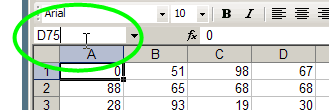
Here’s a Shift key trick with the Name Box

  • First, select a cell, to use as the starting cell for the range selection
  • Next, click in the Name box, at the left side of the Formula Bar.
  • Then, type the address of another cell, to use as the ending cell for the range selection
  • Finally, on your keyboard, press the Shift key, and tap the Enter key.
    • Shift + Enter

The entire range will be selected.

End Selection at Named Range

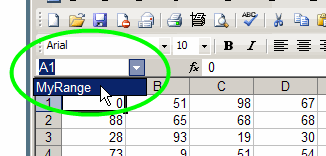
Here’s another Shift trick that uses the Name box, if your worksheet has at least one named range listed in the Name box:

  • First, select a starting cell,anywhere on the worksheet
  • Next, press and hold the Shift key
  • While holding the Shift key, click the drop-down arrow at the right end of the Name box
  • Click on a named range in the Name box drop down list.

On the worksheet, the selected range will include your starting cell, and the entire named range.

Does Music Help You Focus?

I’ve read articles that claim listening to Baroque music will help productivity, and some research concludes that music can make you more productive in repetitive tasks.

When I wrote my books, I usually had flamenco nuevo or contemporary music in my headset, and sometimes listened to the same album several times in a row. (I’m sure that’s not a symptom of anything!) When programming, I like it quiet.

What do you listen to, or do you prefer silence?

If you find that classical music helps you focus, you might enjoy the free concert downloads available at Isabella Stewart Gardner Museum Music:
https://www.gardnermuseum.org/music/listen/music_library

Share Excel Data With Swivel

NOTE: The Swivel site shut down in 2010. You can read an interview with the two founders on the Eager Eyes blog.

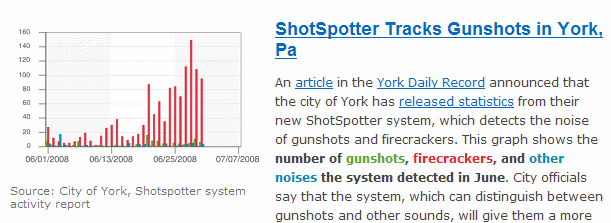
The Swivel web site lets users upload Excel data, create charts, and share the results. They’ve recently opened up their Business Swivel, where you can upload data and keep it private, for a monthly subscription fee.

It’s interesting to see what people are charting, such as the occurrences of gunshots, firecrackers and other noises in York, PA.

Stick Things Together in Word

This is a feature that I wish Excel had too. If you want to keep two or more paragraphs together on the same page, you can change the formatting options in Word.

To keep two paragraphs together:

  1. Select any paragraph that you want to keep with the paragraph that follows it. For example, click in a heading paragraph, to keep it with the descriptive paragraph below it.
  2. On the Format menu, click on Paragraph
  3. Go to the Line and Page Breaks tab
  4. Add a check mark to Keep With Next
  5. Click OK

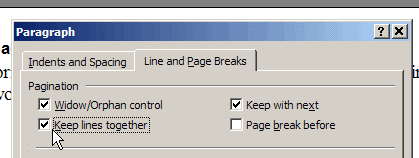
To keep a paragraph from splitting over two pages:

  1. Click in the paragraph, or select several paragraphs
  2. On the Format menu, click on Paragraph
  3. Go to the Line and Page Breaks tab
  4. Add a check mark to Keep Lines Together
  5. Click OK

Keep a Quick Log File

As I work at my computer, there are lots of things that I want to jot down, to act on later. Most of these are brilliant thoughts, or million dollar ideas, so I don’t want to lose them!

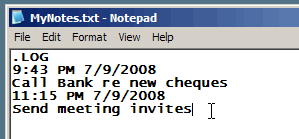
The quickest way that I’ve found to collect these notes is in a log file in Notepad. When I open it, the file adds the current time and date, and the cursor automatically goes to the end of the file.

To create a log file:

  1. Open Notepad, and at the top of the new blank file, type: .LOG
    This MUST be in upper case letters.
  2. Save the file as a Text file, e.g. MyNotes.txt
    Note: I save my file to the Desktop, so it’s easy to find and open.
  3. Close the file.

To use the log file:

  1. Open the log file, and the date and time are automatically added.
  2. Enter your notes, then save and close the file.

Take Measurements With Pixel Ruler

To accurately measure items on your screen you can use the free utility, Pixel Ruler. I’ve found this helpful when I have to upload a picture that’s a specific measurement, such as a blog banner, or profile photo.

You can drag the ruler to any position on the screen, to line up the zero mark with the left edge of the object that you want to measure.

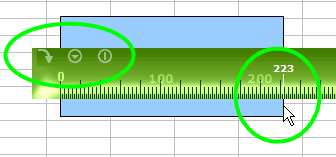
Then, point to the ruler where it lines up with the right edge of the object, to see the width in pixels. In the screen shot above, the rectangle is 223 pixels wide.

The ruler has three control buttons at its top left — an arrow, a triangle and a line:

  • To measure the height, rotate the ruler to vertical, by clicking the arrow button.
  • Click the triangle button to change the ruler colour, or to access the Pixel Ruler web site
  • To close the ruler, click the line button.

Block the Distractions with White Noise

If you’re trying to work in a noisy environment, some white noise might help block out the distracting sounds. I work from home, with an office that faces the street. It’s usually quiet, but when the kids are out of school for the summer, things get a bit noisy sometimes.

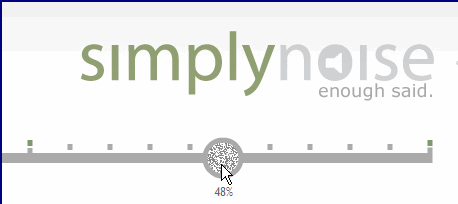
If I’m trying to concentrate, I put on my headset and go to https://www.simplynoise.com/ for some white noise. There’s a slider that let’s me adjust the volume, and that’s it. Nothing to fiddle with, no choice of sounds, just simple noise, as promised.

After a couple of minutes I forget that I have the headset on, the outside sounds fade away, and I can focus on my work again.