Move Excel Data With Advanced Filter No Macro

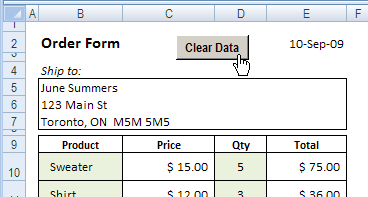
In Excel, you can automatically copy data from one sheet to another, without using a macro.

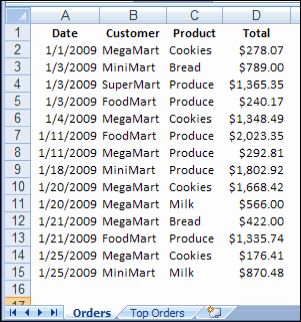
For example, there’s a long list of orders on one worksheet, and you’d like to find your largest orders, and copy those to a different worksheet.

Continue reading “Move Excel Data With Advanced Filter No Macro”

Create List of Names In Excel Workbook

Well, I finally finished creating all the names in my client’s Excel workbook, and sent the file back to them.

To help my client see what I’d done, I created a list of the names in the workbook, and sent it along with the main file.

It was also a quick way for me to double-check the names and their formulas.

Create the List of Names

Here are the steps to create a list of names:

  • Insert a new worksheet, or select a cell in a blank area of an existing worksheet. On the Ribbon, click the Formulas tab.
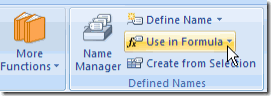
  • In the Defined Names group, click Use in Formula

Excel Name Use in Formula

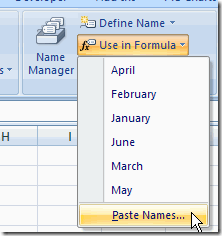
  • At the bottom of the list of names, click Paste Names (In Excel 2003, click Insert | Name | Paste)

Excel Name Paste Names

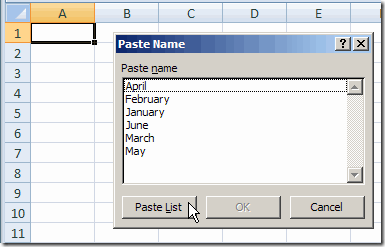
  • In the Paste Name dialog box, click Paste List.

Excel Name Paste Name

A 2-column list of names will be inserted, starting in the selected cell, so make sure you have room for your list.

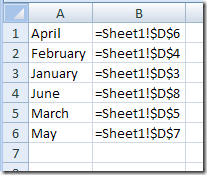
Excel Name List on worksheet

What’s in the List?

The list of names will contain all the workbook level names, unless there’s a duplicate sheet level name on the sheet where the name list is pasted.

In that case, the sheet level name appears in the list, instead of the workbook level name.

Name Manager Add-In

I’ve mentioned Jan Karel Pieterse’s Name Manager before, as one of my favourite Excel add-ins.

If you’re working with names, in any version of Excel, you should download and install it. It’s free, easy to install, and simple, but powerful, to use.

You can download Name Manager for Excel 2007 or earlier versions.
______________

Quickly Create Excel Names From Labels

This week I’m working on a giant Excel workbook, and my client wants all the data entry cells named.

There are about 600 cells to name, so I’m looking for ways to same some time.

Use the Name Box

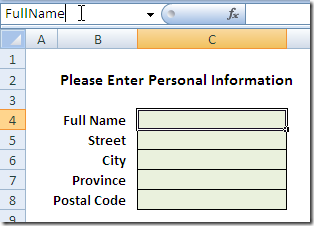
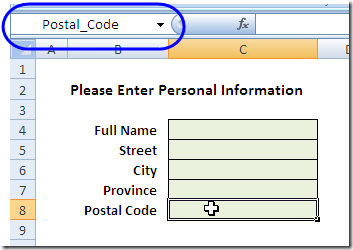
A quick way to name a cell is to click in the Name Box, type the name, the press the Enter key.

In the screen shot below, cell C4 is being named as FullName.

Type name in Name Box

Create From Selection

Even quicker is to use the Create Names feature, and name the cells based on the labels in adjacent cells .

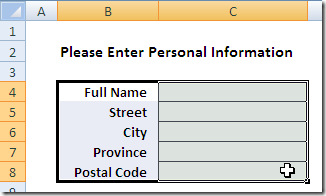
Here, the cells with labels, and the data entry cells, are selected (B4:C8).

Select Labels and Cells

Ribbon Command

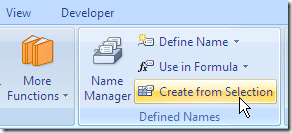
Then, on the Ribbon, click the Formulas tab

Next, click Create From Selection.

  • Or, in Excel 2003, click Insert | Name | Create.

Create From Selection

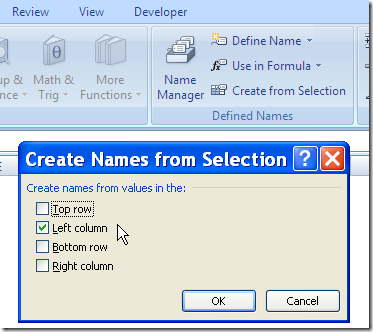
Create From Selection dialog box

In the Create From Selection dialog box, select the location of the labels.

In this example, the labels are in the left column of the selected cells.

Then click OK to create the names.

Create From Selection dialog box

Name a Range of Cells

In this example, I named a single cell with each label. You can select multiple cells adjacent to each label, and the label will name the range of cells.

Valid Characters in Names

If the labels contains spaces, they’re replaced with an underscore.

Underscore in Created Name

Other invalid characters, such as ampersand ( &  ) and hashtag / pound sign (# ) will be removed or replaced by an underscore character.

More Information

For more information on naming cells, go to the Excel Names and Named Ranges page on my Contextures site.
_________________

Excel Smiley Face Chart-Interactive Adjustable

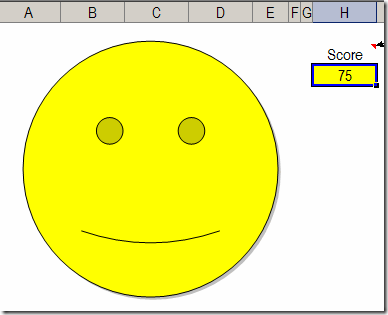
A few years ago, I added a sample workbook on my site, that features an adjustable Smiley Face Chart.

Type a number between 0 and 100, and the mouth changes from a smile to a frown, based on the score.

Excel Smiley Face Chart-Interactive Adjustable

Score Cell Data Validation

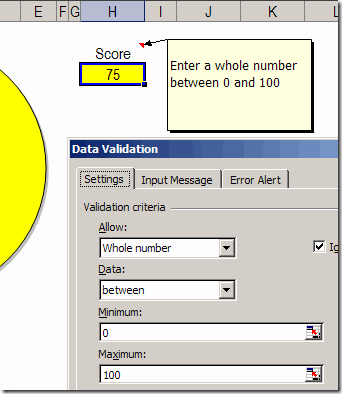
The Score cell, H3, has data validation, to ensure that users enter a valid number.

Below, you can see the data validation settings that are used in the Score cell.

Excel Data Validation settings

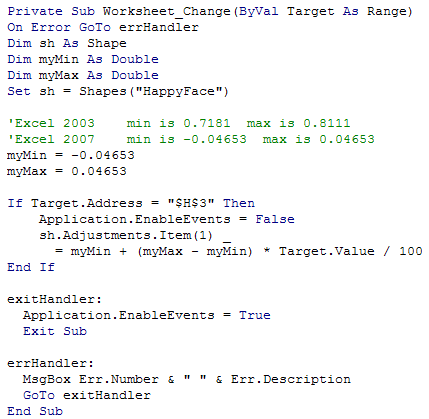
When you change the value in the Score cell, the Worksheet Change event code runs, and changes the curve of the mouth. You can see the code in the next section of this article.

A couple of years ago, John Walkenbach announced his scientific breakthrough in Smiley Chart development, using a scatter chart to create the smile.

I remained loyal to my version though, and it has served me well over the years.

Using the Smiley Chart in Excel 2007

The Smiley Face chart is still very popular, and is downloaded hundreds of times every month. So, I opened it in Excel 2007 recently, and was surprised to find that it didn’t work correctly. I changed the score, and nothing happened.

First, I made sure that I had enabled macros, because the event code needs to run when the code is changed. Sometimes it’s easy to overlook that Security warning, just above the Formula bar.

Macros were enabled, so that wasn’t the problem. Eventually, I figured out that the degree settings for the smile are different in Excel 2007, so I added a new page to the sample workbook, using those settings.

Why did the setting change? I have no idea. Anyway, here’s the code, showing the minimum and maximum settings, for both Excel 2007 and Excel 2003.

HappyFace02

Download the Smiley Chart Sample File

You can download the zipped Smiley Chart sample file from my Contextures site. On the Sample Files page, look for DV0018 – Happy Face Gauge.
__________

Select Multiple Items from Excel Data Validation List

You’ve probably used an Excel data validation drop down list, where you can click the arrow, and select an item to fill the cell. With a bit of programming, you can customize a drop down list, to select multiple items.

Continue reading “Select Multiple Items from Excel Data Validation List”

Tableau Dashboard Trial Version Test

This summer I helped a client automate several Excel sales reports, comparing sales forecasts to actual sales, and last year’s results to this year’s.

It’s a complicated process, pulling numbers from different systems, updating lookup tables, compiling the numbers, and creating reports by product, by customer and by sales rep.

Before we automated the process, it took one person almost a week to create the reports, and despite all that effort, nobody was happy with the results.

  • The sales reps thought there was too much data to wade through – they wanted to focus on their customers and sales. Were sales on target? Which customers need more attention?
  • The managers wanted to see the big picture, and quickly assess how things were going overall. Were all the brands performing as expected? Which products or customers were growing or declining?

Tableau Dashboard

While working on the reports, I noticed people talking about Tableau dashboards in Twitter. I followed their links, and was really impressed by what I found.

With Tableau, we could quickly connect to the data in Excel, and also link to the lookup tables, so all the prices and descriptions would be accurate and instantly updated.

So, I downloaded a trial version of Tableau, and created some reports from the client’s data. It was really easy to get up and running, creating tables and charts, with quick filters that let me focus on a specific brand, customer, or sales rep.

Next month, when there’s a new set of data, the old file can simply be replaced by the new file (with the same name), and the charts and tables will automatically refresh when the Tableau workbook is opened.

Share the Results

After you create reports in Tableau, you can send out a pdf file, or a Tableau workbook, to share the results.

There’s a free Tableau reader, so recipients can open the workbook file, and adjust all the filters, sliders and other controls that you’ve added to the dashboard.

Each person can analyze the data in a way that’s meaningful to them, and drill down to the details, or step back to absorb the bigger picture.

To give you an idea of what’s possible in Tableau, I’ve created a sample workbook, shown below. Dan G. Murray, COO of InterWorks Inc., generously shared the sample sales data that he used for a presentation at the Tableau Customer Conference this summer.

With Dan’s data, I made a few dashboards, and Elissa Fink, VP Marketing at Tableau, published them on the Tableau Public server.

Try It Yourself!

Here’s the first dashboard in the workbook, focused on sales rep results and country totals. Each sales rep can see their overall total, and total and average sales by country.

The map gives a snapshot of sales location, and clearly shows that large sections of the USA aren’t buying the company’s products. You can experiment with the dashboard controls, and change the way the data is presented. You might have to widen your browser window, to see the full dashboard.

  • There’s a date range selector at the top left of the dashboard. Only the past four weeks of sales results are in the dashboard, but you can select a specific number of previous weeks, or other range, such as previous quarter.
  • At the bottom left of the dashboard, in the Salesman Name list, click the highlighter at the top right, to turn on the Highlight Selected Items feature. Then, click on a Sales Rep name in one section of the dashboard, and that name is highlighted in all the sections.

Dashboard on Tableau: Sales Rep Dashboard
_________________

Humour in Excel Twitters RIP

Update: You can now find Excel Twitters on my Excel Theatre Blog.

For more than a year I’ve posted Excel related tweets every week, ranging from the hilarious, to the bizarre, to the somewhat useful.

Twitter Search Problems

Lately though, using the search feature in Twitter pulls up long lists of ads, spam, ads, spam, and more spam. To see for yourself, you can search for Excel Spreadsheet in Twitter. Maybe you’ll have better luck than I’m having.

There’s still the occasional nugget of Excelly goodness in the Search page, but I don’t have the time or patience to wade through all the other stuff.

So, I’ll stick to reading what’s in my own Twitter stream, posted by friends and colleagues.

Anyway, I hope you enjoyed the Excel Twitters while they lasted!

A Few Good Things

More good stuff comes from my email and RSS feeds, like these three items from this week.

Andy Pope released his (free!) RibbonX Visual Designer

Chip Gorman emailed this link to an Excel-based soap opera!

Bob Phillips is reviewing Excel 2007 classic menu add-ins in his blog

__________

New Home for Excel Twitters

Update: You can now find Excel Twitters on my Excel Theatre Blog.

New Home for Excel Twitters

Create a Movie Collection Database in Excel

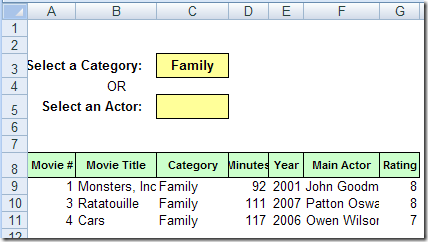
For a simple database, Excel can do a pretty good job of organizing and reporting your data. This example shows a movie collection database in Excel, but you could set up something similar to keep track of books, sales orders, or almost anything else.

Continue reading “Create a Movie Collection Database in Excel”

Remove Excel Macros Security Warning

Even though an Excel workbook doesn’t contain any macros, sometimes when you open a file, a security warning appears.

Macros Disabled

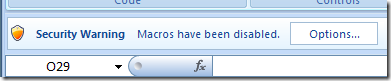
For example, in the screen shot below, there is a warning above the Excel formula bar:

  • Excel Security Warning – Macros have been disabled
Excel Security Warning - Macros have been disabled
Excel Security Warning – Macros have been disabled

Why Security Warnings Appear

These security warnings can show up if:

  • you recorded a macro in the Excel workbook
  • later, you deleted the Excel macro

A module is automatically created to store a recorded macro, but that module is not automatically deleted, when you delete the recorded macro.

Delete the Empty Module

Follow the steps in the video below, to delete the empty modules in the workbook.

  • Warning: As a precaution, you should make a backup copy of the file, before you remove any code.

Doing that should prevent the security warning from appearing again, the next time you open the workbook.

Note: To see the written steps, go to the Excel Macros – Frequently Asked Questions page on my Contextures site.

______________