
When you’re building a pivot table, if you add fields to the Values area, Excel automatically adds “Sum of” or “Count of” to the start of the field name. You can manually remove that text, or use macros to quickly change the headings. There is one macro example here, and more on my Contextures website.
Automatic Heading Text
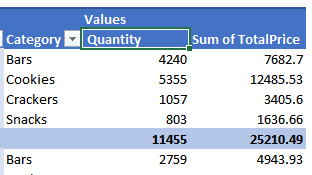
This screen shot shows a couple of fields in the Values area of a pivot table.
- The Quantity heading has be revised, to remove the “Sum of” text
- The TotalPrice heading has not be changed, and still shows the “Sum of” text.
Manually Change a Heading
To remove the “Sum of” or “Count of” from a single value heading, just type over the existing heading, to fix it.
NOTE: Excel won’t allow you to use the exact name of the field, such as “Quantity”. Add a space character at the beginning or end of the text, and Excel with accept that as a valid heading.
See the Steps for Manual Change
To see the steps for renaming the headings manually, watch this short video.
Remove Sum Of With a Macro
If you want to quickly change multiple headings, to remove “Sum of”, or other automatic text, use a macro.
Previously, I’ve posted macros to fix the headings on Normal pivot tables. However, those macros might not work correctly in newer versions of Excel – depending on how you build your pivot tables.
Pivot Table Types
if you create a pivot table in newer versions of Excel, there is a check box for “Add this data to the Data Model”.
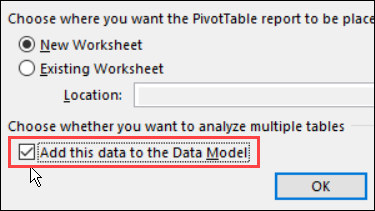
- If you check that box, Excel creates an OLAP-based pivot table, instead of a Normal pivot table.
- If you DO NOT check that box, Excel creates an Normal pivot table
SourceName Property
In the original macros, which work nicely with Normal pivot tables, the code uses the SourceName property for each Value field, and adds a space character at the end.
If the column heading in the source data is “QtySold”, Excel returns “QtySold” for the SourceName property.
For OLAP-based pivot tables, the SourceName property returns a structured name for the Value field, similar to this:
- [Measures].[Sum of QtySold]
That would take extra work to clean up, when running a macro.
SourceCaption Property
For OLAP-based pivot tables, I’ve use the SourceCaption property. It returns the heading from the Value field in the pivot table layout. For example, “Sum of QtySold”
That’s easier to clean up, because it doesn’t have the brackets and periods that are in the SourceName property.
Macro to Remove Sum Of
Here is one of my new macros to remove Sum Of from the Value Headings. It is designed for OLAP-based pivot tables, and fixes the pivot table for the selected cell on the worksheet.
Before you run the macro:
- make a backup copy of your workbook, just to be safe.
- then, select a pivot table cell, and run the macro.
The Macro Code – OLAP
There are two procedures listed below. The first macro, ValueCaptionsSelPT_OLAP, calls the second one, ChangeHead_OLAP.
Be sure to copy both procedures into your workbook.
Sub ValueCaptionsSelPT_OLAP()
'for normal pivot tables
'removes the "Sum of"
'   from Value field headings
'   in selected pivot table only
Dim pt As PivotTable
On Error Resume Next
Set pt = ActiveCell.PivotTable
On Error GoTo exitHandler

If pt Is Nothing Then
  MsgBox "Select a pivot table cell" _
      & vbCrLf & "and try again"
  GoTo exitHandler
End If

Application.EnableEvents = False
Application.ScreenUpdating = False

  ChangeHead_OLAP pt

exitHandler:
  Set pt = Nothing
  Application.ScreenUpdating = True
  Application.EnableEvents = True
  Exit Sub

errHandler:
  Resume exitHandler

End Sub
Copy this procedure too.
Sub ChangeHead_OLAP _
  (ByRef myPT As PivotTable)
''Called in ValueCaptions macros

Dim pf As PivotField
Dim lNum As Long
Dim lFind As Long
Dim strFind As String
Dim strHead01 As String
Dim strHead02 As String
strFind = " of "

myPT.ManualUpdate = True

For Each pf In myPT.DataFields
  strHead01 = pf.SourceCaption
  lFind = InStrRev(strHead01, strFind) _
          + Len(strFind) - 1
  strHead02 = Replace(strHead01, _
    Left(strHead01, lFind), "")
  pf.Caption = strHead02 & " "
Next pf

myPT.RefreshTable
myPT.ManualUpdate = False

Set pf = Nothing

End Sub
Get All the Remove Sum Of Macros
To get the rest of the macros that remove Sum Of from the Value headings, go to the Pivot Table Value Heading Macros page.
You can copy the code from that page, and add it to your workbook. Or, download the sample files, to get the code, and pivot tables for testing.
_______________________
The short video doesn’t appear to show you how to rename the labels once they are in chart form…