
Aside from staring at them closely, how can you compare two cells in Excel? Here are a few functions and formulas that check the contents of two cells, to see if they are the same.
Easy Way to Compare Two Cells
To compare the two cells, we’ll start with a simple check, then try more complex comparisons.
- Tip: You can see more ways to compare two cells on my Contextures site. Get an Excel workbook with all the examples from that page too.
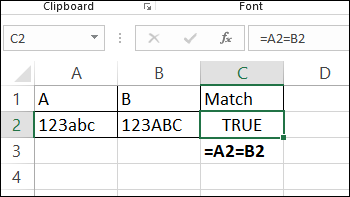
The quickest way to compare two cells is with a formula that uses the equal sign.
- =A2=B2
If the cell contents are the same, the result is TRUE. (Upper and lower case versions of the same letter are treated as equal).
Compare Two Cells Exactly
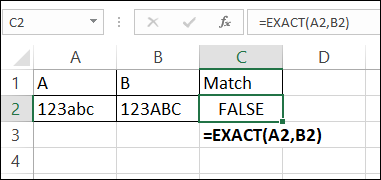
If you need to compare two cells for contents and upper/lower case, use the EXACT function. This video shows a few EXACT examples.
As its name indicate, the EXACT function can check for an exact match between text strings, including upper and lower case.
The EXACT function doesn’t test the formatting though, so it won’t detect if one cell has some or all of the characters in bold, and the other cell doesn’t.
- =EXACT(A2,B2)
See more EXACT function examples on my Contextures site.
Partially Compare Two Cells
Sometimes you don’t need a full comparison of two cells – you just need to check the first few characters, or a 3-digit code at the end of a string.
To compare characters at the beginning of the cells, use the LEFT function. For example, check the first 3 characters:
- =LEFT(A2,3)=LEFT(B2,3)
To compare characters at the end of the cells, use the RIGHT function. For example, check the last 3 characters, and combine with the EXACT function:
- =EXACT(RIGHT(A2,3),RIGHT(B2,3))
How Much Do Cells Match?
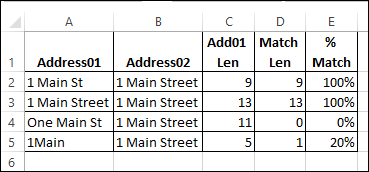
Finally, here’s a formula from UniMord, who needed to know how much of a match there is between two cells. What percent of the string in A2, starting from the left, is matched in cell B2?
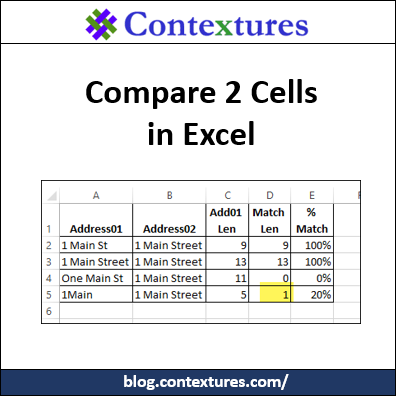
Here’s a sample list, where three formulas check the addresses in column A and B, and calculate the percent that the characters match.
Get the Text Length
The first step in calculating the percent that the cells match is to find the length of the address in column A. This formula is in cell C2:
- =LEN(A2)
Get the Match Length
Next, the formula in column D finds how many characters, starting from the left in each cell, are a match. Lower and upper case are not compared.
- =SUMPRODUCT(
–(LEFT(A3,
ROW(INDIRECT(“A1:A” & C3)))
=LEFT(B3,
ROW(INDIRECT(“A1:A” &C3)))))
Tip: If you’re using Excel 365, there’s a shorter formula you can use, with one of the new Spill functions. See the new formula on the Compare Two Cells page of my Contextures site.
How It Works
Here’s a quick overview of how the formula works, and there are detailed notes on the Compare Two Cells page of my Contextures site
- INDIRECT and ROW functions create an array of numbers, from 1 to X
- Left X characters from the two cells are compared, using equal sign
- Comparison returns TRUE or FALSE
- Two minus signs, near the start of the formula, converts TRUE and FALSE to ones and zeros
- SUMPRODUCT function adds up numbers. In row 5, total is 1

Get the Percent Match
The final step is to find the percent matched, by dividing the two numbers:
- =D2/C2
There is a 100% match in row 2, and only a 20% match, starting from the left, in row 5.
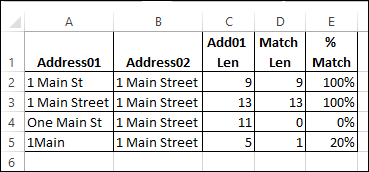
Thanks, UniMord, for sharing your formula to compare two cells, character by character.
Get the Compare Cells Sample File
You download an Excel workbook with all the examples, and see more ways to compare two cells on my Contextures site. The sample workbook is in xlsx format, and does not contain any macros.
That page also has details on how the Percent Matched formulas work, and there’s a shorter version of the Percent Matched formula, if you’re using Excel 365.
More Ways to Compare Two Cells
Here are a few more articles that show examples of how to compare two cells – either the full content, or partial content.
- Use INDEX, MATCH and COUNTIF to find codes within text strings. There are other formulas in the comments too, so check those out.
- Compare formulas on different sheets, with the FORMULATEXT and INDIRECT functions. Those functions are volatile though, so they’d slow down the workbook if you use too many of them.
- Be careful when using the Remove Duplicates feature in Excel – it treats real numbers and text numbers as the same value
__________________________
___________________
I’m trying to compare 2 columns with Yes or No comments in them, using the IF function, but want to differentiate between the columns where the comments are Yes/Yes, Yes/No (either way) and No/No (with the results – same (True) or different (False) going into a third column. So far I’ve managed to work out how to get those that are different (Yes/No) or the same (Yes/Yes and No/No) but need to be able to separate the Yes/Yes and No/No as while they have matched responses, one is good and one is bad!
An ideas gratefully received!
PQ
Pauline, if you count the Yes comments, that might do what you need. For example, if the comments are in B2 and C2:
=COUNTIF(B2:C2,”Yes”)
Hi Debra –
How can I compare more than two cells? I used this formula but is not accurate. I don’t really need it to be case sensitive so I also remove ‘EXACT’, still didn’t work.
=AND(EXACT(B23,K23),EXACT(B23,M23),EXACT(B23,Q23),EXACT(B23,V23))
I managed to compare two cells using this formula but adding more cells gave me an error.
=IF(OR(B15=Q15, OR(B15=V15)), “Y”, “N”)
Any recommendation is greatly appreciated!
Jaime, your formula worked when I tried it. If you’re getting an unexpected result, perhaps some cells have space characters, or other hidden items.
If you don’t need case sensitivity, you could also use this:
=AND(B23=K23,B23=M23,B23=Q23,B23=V23)
Many thanks, Debra
Best wishes
PQ
Hi Debra,
I am looking to find the total number of mismatched between two texts. Your solution above will stop at the first mismatch and then consider all characters after that as mismatch. But is there a way to compare letter by letter.
In cell A1 I have Richard and cell B1 I have Rickard . So in Cell C1 i would like to 1 since only character mismatch
A1 – 123abcd456 B1 = 14xy456 C1 = 9 . Since 9 character from A1 is not matching with B1. IS there a way to do this. Please help
Use this VBA macro
Public Sub differString()
Dim a() As Byte, b() As Byte, a_$, b_$, i&, j&, d&, u&, l&, x&, y&, f&()
Const GAP = -1
Const PAD = “_”
a = [$a1].Text: b = [$b1].Text
[a3:a6].Clear
[a1:a6].Font.Name = “Courier New”
ReDim f(0 To UBound(b) \ 2 + 1, 0 To UBound(a) \ 2 + 1)
For i = 1 To UBound(f, 1)
For j = 1 To UBound(f, 2)
x = j – 1: y = i – 1
If a(x * 2) = b(y * 2) Then
d = 1 + f(y, x)
u = 0 + f(y, j)
l = 0 + f(i, x)
Else
d = -1 + f(y, x)
u = GAP + f(y, j)
l = GAP + f(i, x)
End If
f(i, j) = Max(d, u, l)
Next
Next
i = UBound(f, 1): j = UBound(f, 2)
On Error Resume Next
Do
x = j – 1: y = i – 1
d = f(y, x)
u = f(y, j)
l = f(i, x)
Select Case True
Case Err
If y = u And d >= l Or Mid$(a, j, 1) = Mid$(b, i, 1)
diag:
a_ = Mid$(a, j, 1) & a_
b_ = Mid$(b, i, 1) & b_
i = i – 1: j = j – 1
Case u > l
up:
a_ = PAD & a_
b_ = Mid$(b, i, 1) & b_
i = i – 1
Case l > u
left:
a_ = Mid$(a, j, 1) & a_
b_ = PAD & b_
j = j – 1
End Select
Loop Until i < 1 And j a Then Max = b
If c > b Then Max = c
End Function
Private Sub DecorateStrings(a$, b$, rOutA As Range, rOutB As Range, PAD$)
Dim i&, j&
FloatArtifacts a, b, PAD
FloatArtifacts b, a, PAD
rOutA = a
rOutB = b
For i = 1 To Len(a)
If Mid$(a, i, 1) Mid$(b, i, 1) Then
If Mid$(a, i, 1) PAD Then
rOutA.Characters(i, 1).Font.Color = vbRed
End If
End If
Next
For i = 1 To Len(b)
If Mid$(a, i, 1) Mid$(b, i, 1) Then
If Mid$(b, i, 1) PAD Then
rOutB.Characters(i, 1).Font.Color = vbRed
End If
End If
Next
End Sub
Private Sub FloatArtifacts(s1$, s2$, PAD$)
Dim c&, k&, i&, p&
For i = 1 To Len(s1)
c = InStr(i, s1, PAD)
If c Then
k = 0
Do
k = k + 1
If Mid$(s1, c + k, 1) PAD Then
If Mid$(s2, c, 1) = Mid$(s1, c + k, 1) Then
p = InStr(c + k, s1, PAD)
If p 0 Then
Mid$(s1, c, 1) = Mid$(s1, c + k, 1)
Mid$(s1, c + k, 1) = PAD
i = c
Exit Do
Else
i = c + k
Exit Do
End If
Else
i = c + k
Exit Do
End If
End If
If c + k > Len(s1) Then Exit Do
Loop
Else
Exit For
End If
Next
End Sub
Hello –
If I need to compare a total of 5 cells and not case sensitive. What is the best way? I tried this but it doesn’t work, I also took out ‘EXACT’
=AND(EXACT(B23,K23),EXACT(B23,M23),EXACT(B23,Q23),EXACT(B23,V23))
I was able to compare with 2 cells with this formula but adding the others gave me an error message.
=IF(OR(B17=Q17, OR(B17=V17)), “Y”, “N”)
Please help by today. Thanks in advance!
Thank you Debra!!
Another question 🙂
How would I write the formula if at least one of the cell is a match to B23, then return True? I don’t need to have all the compare cells to match in order it to be True, one match will do.
Hi Debra, please disregard my previous post as I used the formula below, it work on majority of my sheet except three cells, which return as True but it’s not accurate because B23 is Blank. I checked the format of the cells and it appear to be consistent with the others so I don’t know why these three cells result is like this. It should be False as the result.
=OR(B23=K23,B23=M23,B23=Q23,B23=V23)