
How many data validation rules do you have in the giant Excel workbook that you use every morning? If you inherited that file from somebody else, you might not have any idea what’s on some of the sheets. Your workbook could be slowing down, or maybe it’s even crashing, and you’re not sure why. Use these macros for data validation troubleshooting, and see if you need to clean things up.
Too Much Data Validation
Recently, someone sent me a workbook that was crashing frequently. They were trying to use my Data Entry PopUp List kit, and thought that might be the problem.
The workbook was small – they had removed most of the data, for privacy reasons. But, when I tried to save the file, it crashed.
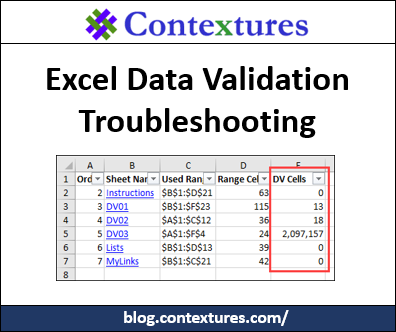
So, I opened the file again, and ran a macro to list all the sheets, with details of what was on each sheet. Can you spot the problem?
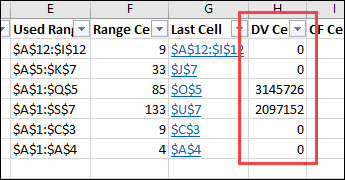
That’s right – over 5 million cells that have data validation! Instead of adding the rules to just the columns in an Excel table, entire worksheet columns had the rules.
A little data validation can be a good thing – it controls what people can enter on the worksheet. But this much DV was definitely not a good thing!
So, I removed all the unnecessary data validation rules, and the workbook stopped crashing.
Data Validation Troubleshooting
There is a macro in the next section, and you can use it for your data validation troubleshooting.
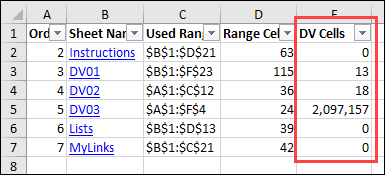
The macro adds a new sheet in the active workbook. On that sheet, it lists all the other sheets, with a summary of the information on each sheet:
- Order
- Sheet Name
- Used Range Address
- Count of cells in Used Range
- Count of data validation cells
Here’s a screen shot of the list from one of my sample files. I put data validation in the full column on the DV03 sheet, and you can see the high count.
Code for the List All Sheet Details Macro
Here’s the code for the macro that creates the list of sheet details – store it in a regular code module in your workbook. There are instructions on my Contextures website.
Sub DataValSummary()
  Dim ws As Worksheet
  Dim lCount As Long
  Dim wsTemp As Worksheet
  Dim rngF As Range
  Dim lFields As Long
  Dim lTab As Long
  Dim rngDV As Range
  Dim vDV As Variant
  Dim strNA As String
  Dim strSh As String
Application.EnableEvents = False
Application.ScreenUpdating = False
On Error Resume Next

  Set wsTemp = Worksheets.Add(Before:=Sheets(1))
  lCount = 2
  lFields = 5 'not tab color
  strNA = " --"

  With wsTemp
    .Range(.Cells(1, 1), .Cells(1, lFields)).Value _
          = Array( _
              "Order", _
              "Sheet Name", _
              "Used Range", _
              "Range Cells", _
              "DV Cells")
  End With

  For Each ws In ActiveWorkbook.Worksheets
    If ws.Name <> wsTemp.Name Then
      If ws.ProtectContents = True Then
        vDV = strNA
        strSh = strNA

      Else
        Set rngDV = Nothing
        vDV = 0
        Set rngDV = ws.Cells.SpecialCells(xlCellTypeAllValidation)
        If Not rngDV Is Nothing Then
          vDV = rngDV.Cells.Count
        End If
      End If

      With wsTemp
        .Range(.Cells(lCount, 1), .Cells(lCount, lFields)).Value _
          = Array( _
              ws.Index, _
              ws.Name, _
              ws.UsedRange.Address, _
              ws.UsedRange.Cells.Count, _
              vDV)
        'add hyperlink to sheet name in column B
        .Hyperlinks.Add _
            Anchor:=.Cells(lCount, 2), _
            Address:="", _
            SubAddress:="'" & ws.Name & "'!A1", _
            ScreenTip:=ws.Name, _
            TextToDisplay:=ws.Name
        lCount = lCount + 1
      End With

    End If
  Next ws

With wsTemp
    With .Range(.Cells(1, 1), .Cells(1, lFields + 2))
      .EntireColumn.AutoFit
      .AutoFilter
    End With
    .Rows(1).Font.Bold = True
End With

Application.EnableEvents = True
Application.ScreenUpdating = True

End Sub
List All Data Validation Rules
After you run that macro, you might spot a problem right away, and be able to fix it. If not, there are more suggestions and tools on the Data Validation Troubleshooting page on my Contextures website.
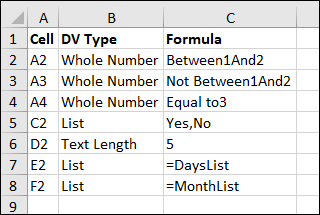
For example, use the macros from that page, to list all data validation rules on the active worksheet, so you can see the cell address, the data validation type, and the formulas.
Don’t run those macro on a sheet with millions of data validation cells though – get rid of any unnecessary DV cells first. Otherwise, Excel might melt into a puddle.
New Sheet with List
One macro adds a new sheet to the workbook, and lists the details there.
Text File with List
The other macro lists the details in a text file, created in your default file save location.

Download the Workbook
To download the data validation troubleshooting workbook, go to the Data Validation Troubleshooting page on my Contextures site.
The zipped file is in xlsm format, and contains all three data validation troubleshooting macros. When you open the workbook, be sure to enable macros, if you want to create the lists.
Troubleshooting with Excel Tools
If you have a copy of my Excel Tools add-in, it has a command to create a list of all the data validation on the active sheet. (It has lots of other troubleshooting tools too!)
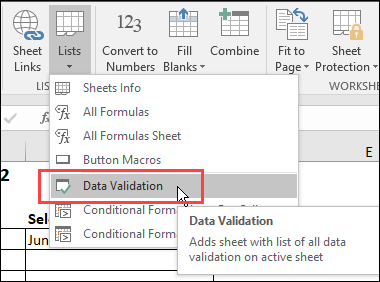
When you click that command, a message appears, asking if you want to list the rules for the selected cells only.
If you click No, the list will show the rules for the entire active worksheet.

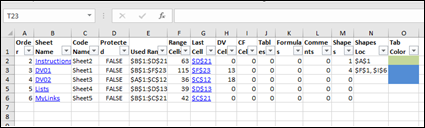
The Excel Tools add-in also has commands to create lists of sheet contents, such as the summary list shown below. This list shows the data validation cell counts, as well as formula counts, used range address, tab colour, and other details.
______________________
______________________
I am looking for a fix for Validation that works on all PC’s but does not work on a tablet Samsung or Ipad.
The issues is that the validation lists show up via the icon Arrow but I can not pic from the list. It only picks the one that happens to be highlighted?